Operating System
The 5 Useful (And Unknown) Operating Systems You Probably Never Heard Of
This is one of the very best list of its kind where you can find out of the box operating systems that you probably never heard of and these would be great enough to bookmark or just for knowledge. I hope everyone of you will like this list, you can try these whether you are an office worker, a manager, a supervisor, a student, a home user, etc. These are really amazing in respect to their features. This is the list of Five Operating Systems You Probably Never Heard Of. Just take a look at them and share your thought’s here.
Jolicloud
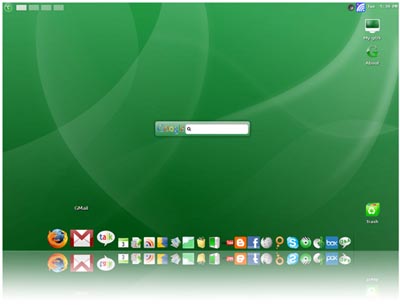
Jolicloud is a new operating system for netbooks. The OS provides a beautiful interface, an application directory and a set of social features that make it easy and fun to use.
ReactOS
ReactOSis a free, modern operating system based on the design of Windows XP/2003. Written completely from scratch, it aims to follow the Windows-NT architecture designed by Microsoft from the hardware level right through to the application level. This is not a Linux based system, and shares none of the unix architecture.
PC-BSD
PC-BSD is a complete desktop operating system, which has been designed with the “casual” computer user in mind. It offers the stability and security that only a BSD-based operating system can bring, while at the same time providing a comfortable user experience, allowing you to get the most out of your computing time. With PC-BSD you can spend less time working to fix viruses or spyware and instead have the computer work for you.
openSUSE
openSUSE is a free and Linux-based operating system for your PC, Laptop or Server. You can surf the web, manage your e-mails and photos, do office work, play videos or music and have a lot of fun.
gOS
gOS turns your computer into a desktop full of your favorite widgets, fresh with live, personalized content just for you. Technically gOS is a cut down version of ubuntu 7.10 desktop, who’s focus is online applications like gmail, google news, google maps, youTube, mebo and many more.
7 Coolest Web Apps You Might Not Know About But Should
There are many web apps out there, but getting by free and good ones is not that easy. That is why I am sharing The 7 Coolest Web Apps You Might Not Know About But Should. Read each entry in the list and see which tool suits your needs best.
You are welcome if you want to share more web apps that our readers/viewers may like. Do you want to be the first one to know the latest happenings at SmashingApps.com, just subscribe to our rss feed and you can follow us on twitter and follow us on Digg as well to get updated.
icloud
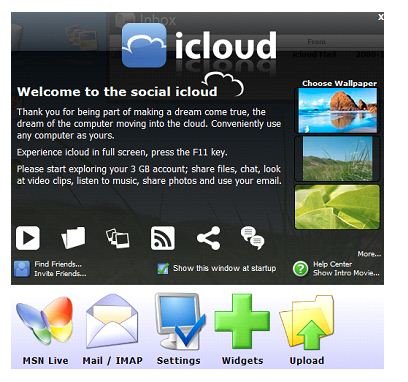
icloud lets you do just that. icloud is a web service that provides its users with a virtual desktop. After creating an account and signing in to it, you virtual desktop loads up.
WobZIP
WobZIP is a free web service created to unzip ZIP archives. All you do is upload your archive on the site and get the list of files it contains. If the archive is password protected, simply provide the password.
FontFonter
FontFonter is a free and simple to use website that will let you view any website in Web FontFonts. The site’s usage is extremely simple: you enter a website’s URL, FontFonter analyzes the webpage, and displays the website with its default fonts replaced by Web FontFonts.
Pilot Handwriting
Professional font creators have mastered the tools of their trade and know exactly how to bring their font concepts to life. To dodge the traditional font creation tools, you can use a wonderful service named Pilot Handwriting. Pilot Handwriting lets you create a font in your handwriting.
Favitt
Everyone knows how important search is. You search Google, YouTube, Twitter, Wikipedia, Flickr, Last.fm, Amazon and plenty of other sites for different products, content, images, videos etc. Unfortunately, none of these sites lets you customize the search interface as good as Favitt does. Favitt lets you simplify the search experience by bringing all these search engines in a customized start page.
Historious
Normally when you work with separate computers, there are not many ways you can share your bookmarks. Having access to your bookmarks therefore, is quite a problem. And Historious is its solution. Historious stores your bookmarks by indexing them, much like a search engine does.
Backupify
Backupify is a web service that can be used to backup the data you store on email servers and online social networks. A number of websites are supported including Flickr, Twitter, Delicious, Zoho, Google Docs, Photobucket, WordPress, Basecamp, Gmail, Facebook, FriendFeed, Blogger, Hotmail, Picasa Web Albums, Google Contacts, and Google Calendar.
Turn Your Web Browser Into An Online Computer With icloud
You can install anti-malware programs on your computer to keep your data safe from malware, but that still does not entirely secure your date. What if your there was physical damage to your computer? All your backups would be on your hard drive an in the case it got damaged, all data would be lost. The best solution to secure your data therefore is by storing a backup online.
icloud lets you do just that. icloud is a web service that provides its users with a virtual desktop. After creating an account and signing in to it, you virtual desktop loads up.
This desktop operates within your web browser and similar to the desktop screen of regular computers. You can store files in your icloud account and use the desktop interface to browse through files and use them.

As you can see from the image above, the files are organized and shown much like you are operating a physical computer. With the interface’s built-in apps you can play videos and music, view pictures, and browse files all within the web browser.

Emailing has also been the focus of icloud. The mail options can be accessed to add your email addresses other than the one assigned to your icloud.

A number of other email providers are supported; you can add your own as well.

Currently icloud offers 3GB storage to its free users and 100GB storage to users who pay the $40 fee. The web service is neat service to try and a great way to secure your important data.
Now Effectively Improve Windows Boot Time With Soluto
All computer owners want their machines to startup as fast as possible. Unfortunately there are some programs that initiate with your startup and slow down the overall process. A way out of this would be to put your computer in Hibernate / Sleep mode and never shut it down. But this technique does not speed up the startup – it only avoids it.
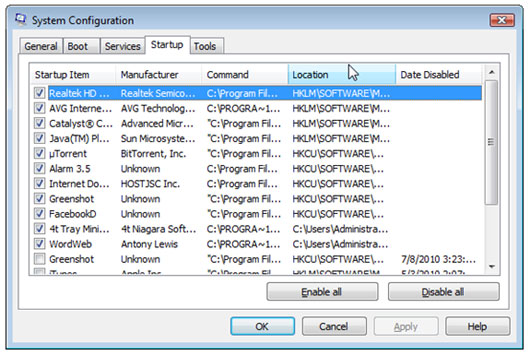
The best way to speed up your computer’s startup, without changing its hardware, is to deselect some startup programs. One way to do this is pressing the “Windows Logo + R” key combination and typing in “msconfig” then heading over to the Startup tab.

From here you can deselect any startup entries you wish. But as you can see from the image above, you cannot tell which process is a necessary one and which process you can safely deselect.
All this is why Soluto is the best solution to eliminating startup programs in Windows.

Soluto is a freeware program for Windows operating systems. Although no system requirements are specified on the website’s page, I tested the program on a Vista 32 bit machine and it ran flawlessly.
Once you download and install Soluto, it will require you to restart you computer. During the computer’s startup, Soluto will run in the background and analyze how much time each startup service is taking. Then when you run Soluto, this analysis will be displayed.
At the top you can see an overall analysis of your startup i.e. the total time taken by the startup and the number of startup programs.

In the center of the program’s window you will see startup programs categorized and color coded into three sections.

The first is the green section. Over here Soluto places startup program which you can easily remove from the startup list. Simply hover your mouse pointer over the green section and it will expand to display an individual startup program.

You will be able to see the application’s name, description, and the time it takes to run. Keep your mouse pointer on the app for a little while longer or bring it down to the link that says “More” and you will see different ways in which you can tackle this startup program: you can either deselect the program by choosing “pause,” delay its startup by choosing “delay,” or keep it in the startup list by doing nothing or clicking on “In Boot.”

The next section of startup programs is orange colored. It operates in the same way as the green section. But here, instead of programs that can safely be removed, a mixture of necessary and unnecessary programs can be found. Deselecting them is up to the user who can judge their importance on his own.

Finally, the gray category lists startup programs that are necessary for the system to run error-free. You should not tamper with the apps located in this section.

While you deselect apps through Soluto, you startup statistics on the top of the program keep changing. At the end of your modifications, you can view how much of an impact your changes have had on the startup time.

The program will also display another set of applications in the bottom right of the gray section. The apps in this newly created blue category will contain all the apps you deselected. From here you can choose to include any programs you had previously excluded from the startup process.

Once you have finalized everything, give your computer a restart and experience the new speed yourself. Soluto will monitor the new speed too and will record the results in a log. You can view the startup times history from the “History” button located in the bottom left of the program.

Overall, Soluto is a greatly user friendly and highly useful app which all Windows users need. Check out Soluto.
Place Important Windows 7 Shortcuts Within Reach Of Every User
Windows 7 is relatively a new operating system. Applications are still being developed for it that explore and push its boundaries. If you are a Windows 7 user, you already appreciate its improvement over Windows Vista. But while 7 provides a great margin of user convenience, things can always be improved by third party applications. This brings to our today’s application – Preme.
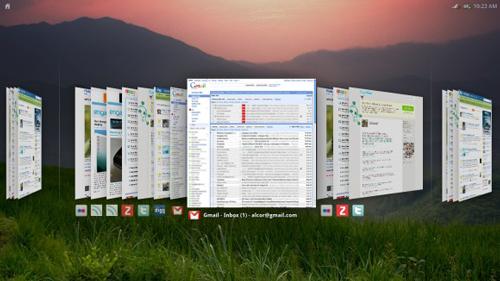
Preme is a freeware program that helps place important Windows 7 shortcuts within reach of every user. There are a number of handy shortcuts provided by Preme which make 7’s usage a lot easier; for instance, you will be able to view all minimized windows in 3D style by just moving your mouse cursor to the top left corner. You can choose the view to be displayed in Flip 3D or Alt-Tab style.

Preme offers other useful features too; the tool gives you the ability to place your mouse pointer on the title bar of a window to keep it on top; with the mouse on the title bar, you can also scroll down your mouse wheel to minimize that window; again, with the mouse in the same position, you can click the middle mouse button (the scroll button) to close that window; the mouse cursor can be moved to the Start button area to automatically open the Start menu.

A number of other features are offered by the application; all these features are explained fully in its help file. Once you master the shortcuts offered by Preme, you will save a ton of time working on 7 and greatly improve your productivity.
A Quick Look At What Google Chrome OS Can Do
Google is designing an open source operating system called Google Chrome OS. This OS is exclusively designed for web applications. So, if you spends most of your time on web/internet then this is going to be the fast, simple and more secure computing experience for you. This OS was announced on July 7, 2009 and it is expected to be released during second half of 2010.
On January 25, 2010, Google posted notes, images and a video of a conceptual design showing how a Chrome OS user interface might look on a tablet PC with a 5-10 inch screen. Google Chrome OS is initially intended for secondary devices like netbooks, not a user’s primary PC, and will run on hardware incorporating an x86 or ARM-based processor. While Chrome OS will support hard disk drives, Google has requested that its hardware partners use solid-state drives due to their higher performance and reliability, as well as the lower capacity requirements inherent in an operating system that accesses applications and most user data on remote servers.
Google Chrome Alpha Release
The Chrome OS alpha release includes an applications page, launched by a button in the upper-left corner of the screen. The page links to Google web applications, including Gmail, Google Apps, and YouTube, as well as other applications, including Yahoo! Mail, Pandora, Hulu, Facebook, and Twitter. Chrome OS currently also provides a calculator, clock, battery indicator, and network status indicator. Google will integrate Adobe Flash into Chrome OS.

Security
Not as in traditional operating systems, Google Chrome OS does not trust the applications/programs you run. Every app is stored in a security sandbox which makes it harder for malware and viruses to infect your computer. Chrome OS hardly trusts itself. So, whenever you restarts your computer the operating system verifies the integrity of its code. If your system has been compromised, Chrome OS is designed to fix itself with a reboot. Would you like to know more about Security? watch this.
Speed
Google Labs are taking out every unnecessary process, optimizing many operations and running everything possible in parallel. This means users can go from turning on the computer to surfing the web in a few seconds. Their obsession with speed goes all the way down to the metal. They are specifying reference hardware components to create the fastest experience for Google Chrome OS. You can view the demo of speed here.

Easy and User friendly
It’s all about the web. Every app is a web app. The whole experience takes place within the browser and there are no conventional desktop applications. This means users do not have to deal with installing, managing and updating programs.

Participate
You can download the source code of Google Chrome OS from here. Google Chrome OS will be available for consumers this time next year. Sign up here for updates or if you like building your operating system from source, get involved at chromium.org. You can watch this video to know more about Google Chrome OS.
Please let us know what more should be done with this OS to make it more successful.
Luxand Blink will Log You Into Windows by Recognizing Your Face
Normally users log into Windows by selecting their username and entering their password. Suppose you are conducting an exam which requires students to log in to the Windows running computer. Any person can log in as a student if they know their username and password.
Therefore a better, more secure log in solution is required. That is exactly what Blink delivers.

Blink is a software product by Luxand, a software company that has created numerous facial imaging related applications. The function of Blink is to recognize users by their face and then log them into Windows. What makes Blink special is that it does not need to be run by the users – it automatically starts prior to any user’s logging in.

The algorithms used by Blink to recognize faces are advanced and detect the faces of users without requiring any special positioning or lighting. The advanced biometrics identification algorithms will recognize a face even if the person has recently gotten a haircut, shaved, worn or taken off their glasses.
What developers say:
Changed Haircut? Swapped Glasses for Contacts? No Problem!
Advanced biometric identification algorithms used in Blink! help it cope with changes of your personal appearance. Grow or shave off beard and mustaches, use makeup or dye you hair, wear or remove glasses or contact lenses – Blink! will let you in to your PC no matter what.
Logging in with Blink will mean that we no longer need to remember lengthy passwords. Also login attempts by unauthorized users will immediately be detected. Overall, the impact of Blink on computer usage will be immensely positive.
Blink comes as an 8MB download and is compatible with 32 bit versions of Windows Vista and Windows 7. Get the application by clicking here and remember to let us know what you think about it.
Stuck With Some Windows Error? Microsoft One Click Fix It Tool Can Detect & Repair
Windows computer users come across new situations often. Amateur computer users are completely baffled when a problem occurs; at times certain computer problems even leave the most experience computer user clueless. Calling technical support for our computers is not always helpful especially because the technician cannot see actually what our computer problem is.
Microsoft has finally recognized this extremely problematic issue and created a solution for it. The solution has been appropriately titled “Fix It.”
Fix It is a freeware solution by Microsoft that installs into your computer. It acts as an automatic troubleshooter that contains solutions to numerous problems commonly experience by Windows Vista and Windows 7 users. The list of supported operating systems includes Windows XP, Windows Vista, Windows 7, and Windows Server (2003 + 2008).
The installer we download is sized at 450KB which proceed with the remaining download. When our main download file has been obtained, the installation of Fix It asks us to specify the troubleshooters we would like installed.

Each entry contains a checkbox and an arrow in front of it. The arrow presents a description of that current troubleshooter. The best decision would be to select all troubleshooters and click on the Next button.
While the program’s installation proceeds we are asked if we would like to join the Microsoft Fix It Center Online.

Creating a free account there is advisable and can be a great help in case Fix It fails to successfully solves our Windows issue. An online account can be created using our Windows Live ID.

Whether you create an online account or not, you will still be able to use Fix It once the installation completes. Upon running the application for the first time you will be greeted with an introductory message.

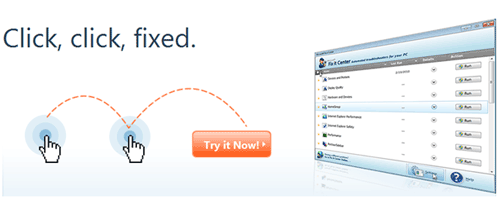
The main Fix It window will list of problems.

Suppose your Windows Vista Aero features are broken and not performing as they are supposed to. Simply click on the RUN button in front of the appropriate troubleshooter.

The troubleshooter asks to automatically detect and fix the problem or automatically detect the problem but leave the decision of fixes to you.
Either way, our problem is automatically detected.

In case a problem exists, this troubleshooter finds it and either automatically fixes it or provides us with an option to fix it.
Microsoft Fix It is a great freeware release which will serve amateur and professional computer users alike. Get the application by clicking here.
7 Operating Systems You Probably Never Heard Of
This is one of the very best list of its kind where you can find out of the box operating systems that you probably never heard of and these would be great enough to bookmark or just for knowledge. I hope everyone of you will like this list, you can try these whether you are an office worker, a manager, a supervisor, a student, a home user, etc.These are really amazing in respect to their features. This is the list of 7 Operating Systems You Probably Never Heard Of. Just take a look at them and share your thought’s here.
You are welcome if you want to share more unknown operating systems that our readers/viewers may like. Do you want to be the first one to know the latest happenings at smashingApps.com just subscribe to our rss feed and you can follow us on twitter , follow us on Google Buzz and do not forget to become our fan on facebook as well.
Slax is a modern, portable, small and fast Linux operating system with a modular approach and outstanding design. Despite its small size, Slax provides a wide collection of pre-installed software for daily use, including a well organized graphical user interface and useful recovery tools for system administrators.
openSUSE is a free and Linux-based operating system for your PC, Laptop or Server. You can surf the web, manage your e-mails and photos, do office work, play videos or music and have a lot of fun. It includes new versions of GNOME, KDE, OpenOffice.org, Firefox, the Linux kernel, and many more updates and improvements. In 11.2 you’ll find more than 1,000 open source desktop applications. openSUSE also includes a full suite of server software and a rich selection of open source development tools.
ReactOS® is a free, modern operating system based on the design of Windows® XP/2003. Written completely from scratch, it aims to follow the Windows-NT® architecture designed by Microsoft from the hardware level right through to the application level. This is not a Linux based system, and shares none of the unix architecture. In short, ReactOS is designed to be powerful and lightweight. You can think of the term “lightweight” in the good old fashion of Win95, a consistent user interface and small bundle of very common and useful tools. Although lightweight, ReactOS offers a lot in comparison to Windows 95, with an up-to-date experience as well as built from scratch on a rock solid NT core.
MonaOS is a free operating system. It’s new, small, simple, open source and well structured. So, MonaOS may be suitable for education of operating system and program at school.
FreeDOS is a free DOS-compatible operating system for IBM-PC compatible systems. FreeDOS is made of up many different, separate programs that act as packages to the overall FreeDOS Project. FreeDOS is distributed under the GNU GPL.
MINIX 3 is a new open-source operating system designed to be highly reliable, flexible, and secure. It is loosely based somewhat on previous versions of MINIX, but is fundamentally different in many key ways. MINIX 1 and 2 were intended as teaching tools; MINIX 3 adds the new goal of being usable as a serious system on resource-limited and embedded computers and for applications requiring high reliability.
Haiku is an open source operating system currently in development that specifically targets personal computing. Inspired by the Be Operating System, Haiku aims to become a fast, efficient, simple to use, easy to learn and yet very powerful system for computer users of all levels.
A Defragmentation Tool to Maximize Your Computer Performance
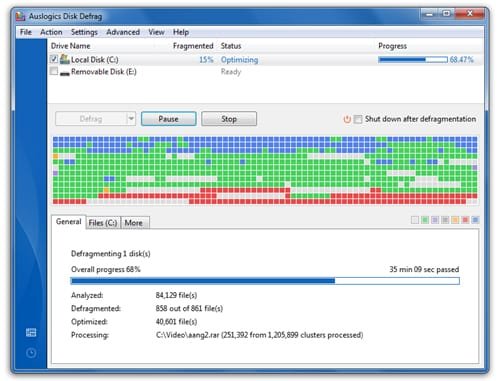
Hard disks are by far the slowest component in your computer. Therefore fragmented disks often become a bottleneck of the system performance. Besides causing slowdowns, fragmentation makes the disk drive heads move too much when reading files which leads to freeze-ups and system crashes. Auslogics Disk Defrag was designed to remedy system sluggishness and crashes caused by disk fragmentation. It will help you get the maximum performance out of your expensive hardware investments. The new version can also consolidate free space and optimize system files placement. Disk Defrag is absolutely free for home users.
Disk Defrag is not just a defragmenter, but a fully featured disk optimizer. And with all the advanced techniques of disk optimization it has, Disk Defrag 3 remains extremely compact and even easier to use.
You can set Disk Defrag to work automatically in the background while your system is idle. Use a handy auto-defrag icon (in the bottom-left corner) to easily customize and control auto-defragmentation mode. Adjust a suitable CPU and disk usage limit so auto-defrag will not interrupt your work.
You can tune Disk Defrag to work even faster by changing its algorithms settings. Select “remove temporary files” and “skip large fragments” options to speed up defragmentation. Another function you can enable is optimization of system files placement. Use it when running “Defrag & Optimize” mode to boost your hard drive performance.
Newly added features
- Free space consolidation
- System files smart placement
- Keeping the MFT Reserved Zone Clear
- Enhanced user interface
- List of fragmented files
Advanced features
- Auto-defrag mode
- Single file or folder defragmentation
- Scheduled defragmentation
- Multiple Languages