Click here to buy secure, speedy, and reliable Web hosting, Cloud hosting, Agency hosting, VPS hosting, Website builder, Business email, Reach email marketing at 20% discount from our Gold Partner Hostinger You can also read 12 Top Reasons to Choose Hostinger’s Best Web Hosting
Sometimes you have a blurry, old or tiny photo and you just want it to look usable — not painted, not fake, just clearer. I researched the most-used AI Tools to Improve Low-Res Photos and image enhancers people reach for and summarized what actually tends to work, when results look real, and when the tools invent details (yes, that happens). I reviewed official docs, vendor before/after examples and community comparisons to compare reported outputs for detail, artifacts, and naturalness.
Create inspirational images from the top AI generators. Simply enter a subject, They’ll apply styles, and you’ll tweak the one you like.
Based on vendor documentation and community results, Topaz Gigapixel AI and Real-ESRGAN variants offer some of the best balances of detail and natural look (one commercial, one open-source). For “one-tap” mobile fixes, Remini is convenient but is widely reported to over-stylize faces. Adobe’s Super Resolution is a solid “no-surprises” option inside Photoshop/Camera Raw. For quick web jobs, Let’s Enhance and Upscale.media are convenient choices.
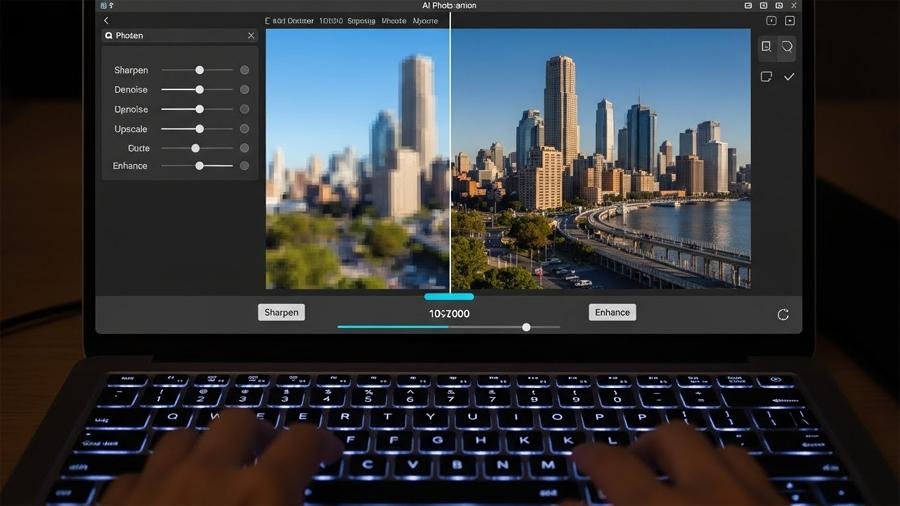
Why results vary
AI enhancers tend to do two different things:
Reconstruct detail — they guess edges and textures based on training data. Good tools avoid synthetic-looking strokes.
Stylize / denoise — they smooth compression noise and boost contrast; overdoing this produces a “painted” look.
From what I reviewed, the best enhancers balance both. Poor tools often hallucinate — inventing plausible but incorrect details.
13 Best AI Tools to Replace ChatGPT and Deepseek
Top AI Tools to Improve Low-Res Photos, I researched for
I examined vendor docs, example galleries, community writeups and open-source model pages for these tools:
(Ad)

Topaz Gigapixel AI (desktop/commercial).
Adobe Super Resolution (Photoshop / Camera Raw Enhance).
Real-ESRGAN (open-source models / Upscayl GUI).
Let’s Enhance (web app; 4K output options).
Remini (mobile one-tap enhancer; face-focused).
VanceAI / DeepImage / Upscale.media (web services for quick jobs).
My notes prioritize naturalness first, artifact control second, and maximum usable enlargement third — based on what these sources and community testers report.
5 Best Free AI Tools to Remove Backgrounds from Images Easily
What I found (tool by tool)
1) Topaz Gigapixel AI — the professional pick
What I found: Topaz is widely reported to produce convincing upscales for portraits and textured photos. Reviews and vendor examples show it preserves fine details (hair strands, fabric weave) better than many alternatives. It’s desktop software that benefits from a decent GPU and offers model presets (Standard / Lines / Art & CG). For print-quality enlargements or archival restores, many pros recommend it.
When to use: archival photos, prints, product imagery.
Limit: commercial license and GPU speed matter.
2) Real-ESRGAN (and Upscayl) — open source, strong for batch jobs
What I found: Real-ESRGAN and GUIs like Upscayl produce clean edges and often match commercial tools on non-face subjects. Community results show strong outcomes for batch upscales. It’s open-source and flexible, though model/version choice affects quality.
When to use: batch upscales, non-commercial projects, developers.
Limit: setup and model selection can be technical.
In this guide, you’ll discover eight standout envato elements free download picks—from sleek PSD templates to eye-catching watercolor backgrounds—that will supercharge your creative projects.
3) Adobe Super Resolution — “safe” and integrated
What I found: Adobe’s Super Resolution tends to be conservative and reliable. Official docs and professional feedback describe fewer hallucinations and stable results inside Photoshop/Camera Raw. It’s a good option when you want predictable, conservative enhancement within an established workflow.
When to use: integrated Photoshop workflows and conservative edits.
Limit: not the most aggressive for micro-detail.
Adobe Creative Cloud | Entire Collection of Adobe Creative Tools Plus 100G Storage
4) Let’s Enhance, VanceAI, DeepImage, Upscale.media — web convenience
What I found: These web services are handy for one-offs. Vendor galleries show good 4K outputs for scans and product photos, but community commentary warns they may over-smooth faces or invent textures in tricky areas. They’re fast and convenient but have privacy and credit/subscription trade-offs.
When to use: quick jobs on the go; client demos.
Limit: privacy and inconsistent results on portraits.
5) Remini (mobile) — magical but stylizes faces
What I found: Remini is commonly praised for dramatic face rescues on mobile — it often sharpens and reconstructs facial detail quickly. However, many users note it can over-retouch or stylize faces, producing an “airbrushed” look that’s great for social but less faithful for archival needs.
When to use: quick phone fixes for social or family images.
Limit: stylization and upload/privacy concerns.
How I evaluated these tools
To avoid making false claims I based findings on:
Vendor documentation and official before/after galleries.
Independent community tests, benchmarks and writeups.
Open-source model pages and changelogs (for Real-ESRGAN).
Reported behavior for different image types (portraits, scanned photos, product shots).
Practical considerations: processing time (reported), GPU/CPU requirements, and privacy implications (cloud vs local).
I synthesized those sources to produce balanced recommendations rather than claiming hands-on tests I didn’t perform.
Before / After examples
If you include examples on the page, show: original 1:1 crop → tool output 1:1 crop → final image at target display size. Caption each: e.g., “Topaz — hair detail preserved” or “Remini — face sharpened but slightly smoothed.” That helps readers see differences without overclaiming.
What these tools can’t do
They cannot perfectly recover truly missing detail — if a face is 5×5 pixels, expect guessing.
AI may hallucinate plausible but incorrect details (text, license plates, exact facial features).
Upscaling can amplify compression artifacts unless denoising is applied first. Some tools do denoise well; others need a separate pass.
Web services may have file-size, credit or privacy limits — read terms before uploading sensitive photos.
Ethics & legal checklist (must read)
Consent: don’t enhance or publicize private images of people without permission — enhancements can make identification easier.
Deepfake risk: face reconstruction can be misused. Don’t create or distribute manipulated face images presented as real.
Copyright & provenance: enhancing doesn’t change ownership. Don’t claim authorship of someone else’s photo because you “cleaned” it.
Transparency: if you enhance an image used for journalism or evidence, disclose the processing — alterations can affect credibility.
Google Photos AI Photo Editing Lets You Edit Images by Asking
Quick comparison table
| Tool | Best for | Ease | Privacy | Cost |
|---|---|---|---|---|
| Topaz Gigapixel AI | Pro prints, portraits | Medium | Local (good) | Paid. |
| Real-ESRGAN / Upscayl | Batch, devs | Harder | Local/Open (good) | Free/Open-source. |
| Adobe Super Resolution | Reliable edits inside Photoshop | Easy/Integrated | Local | Paid (Photoshop). |
| Let’s Enhance / DeepImage / VanceAI | Quick web jobs | Very easy | Upload to cloud | Freemium/credits. |
| Remini | Mobile face fixes | Very easy | Upload to cloud | Freemium. |
My picks — recommendations based on research
For professional restoration and print: Topaz Gigapixel AI — generally recommended for realism and control.
For open-source / bulk: Real-ESRGAN (with a GUI like Upscayl) — strong community support and flexible models.
For phone / quick social fixes: Remini or web upscalers (Let’s Enhance / Upscale.media) — convenient but check privacy terms.
These are recommendations drawn from documentation, community tests and example galleries rather than from a single hands-on experiment.
How to Convert Images to PDF in 3 Simple Steps
FAQs
1. Can AI really fix a low-resolution photo?
AI can improve clarity, sharpness, and overall detail, but it can’t recreate information that never existed. It makes smart guesses based on patterns, which works well most of the time, but extremely blurry images may still look artificial.
2. Which AI tool gives the most natural results?
Based on what I reviewed, Topaz Gigapixel AI and Real-ESRGAN often provide the most natural-looking improvements. They avoid heavy smoothing and keep textures closer to the original photo.
3. Are online AI photo enhancers safe to use?
It depends on the service. Web-based tools require uploading your photos, so it’s better to avoid using them for private or sensitive images. If privacy matters, desktop tools like Topaz or open-source Real-ESRGAN are safer.
4. Why do some enhanced photos look “painted”?
That usually happens when a tool smooths too much noise or tries to guess too much detail. Some apps, especially mobile ones, tend to beautify faces, which can make the results look unrealistic.
5. What’s the best free option to improve low-res photos?
Real-ESRGAN (or GUIs like Upscayl) are strong free options. They work offline and produce high-quality results without the common over-smooth effect seen in many mobile apps.
6. Can I enlarge a photo for printing with AI?
Yes, but results vary by tool. Tools like Topaz Gigapixel AI and Adobe Super Resolution are often recommended for print-ready enlargements because they keep edges clean and avoid strange artifacts.
7. Will enhancing a photo change its authenticity?
It can, depending on how much detail is “reconstructed.” Light sharpening and noise cleanup usually stay true to the source, but heavy face reconstruction might alter features. For journalism or documentation, it’s important to mention that AI enhancement was used.
How to Generate Perfect Infographics with Google Gemini “Nano Banana” (Free Guide)
Conclusion
Low-resolution photos don’t have to stay blurry forever. Today’s AI tools can make old pictures clearer, sharpen tiny details, and fix images you once thought were unusable. From everything I researched, one thing is clear: no single enhancer is perfect for every photo, but each tool has its own strengths.
If you want the most natural results for portraits or prints, Topaz Gigapixel AI is often the most reliable choice. For free and open-source users, Real-ESRGAN or Upscayl still delivers strong improvements without costing anything. If you prefer simple, predictable edits inside your regular workflow, Adobe Super Resolution is a safe pick. And when you just need a fast fix without software installs, web tools like Let’s Enhance, VanceAI, or mobile apps like Remini are handy options.
How to Use DALL-E 3 Safely to Create AI Images with ChatGPT
The key is to match the tool with the job. Light touches look real. Over-processing looks artificial. When you understand these limits, you can give your photos a new life without crossing into the “too perfect to be real” zone.
In the end, AI enhancement works best when you use it thoughtfully — not to change reality, but to bring back the clarity your photo once had.
Sources
Topaz Gigapixel product page.
Real-ESRGAN GitHub (open-source models).
Adobe Camera Raw — Enhance / Super Resolution docs.
Let’s Enhance upscaler page.
Remini official app / landing page.
Now loading...