Click here to buy secure, speedy, and reliable Web hosting, Cloud hosting, Agency hosting, VPS hosting, Website builder, Business email, Reach email marketing at 20% discount from our Gold Partner Hostinger You can also read 12 Top Reasons to Choose Hostinger’s Best Web Hosting
Want to move WordPress website to new host without any trouble at 3 AM? Backup files + database, copy to new server (plugin or manual), update wp-config with new DB details, run a URL search-replace, test via hosts file, lower TTL before DNS swap to reduce downtime, then update DNS and SSL. I’ll show exact commands, plugin choices, and the common errors so you can finish the move with confidence.
Why you should follow a checklist
Moving hosting isn’t rocket science, but small mistakes cause big headaches: broken images, “Error establishing a database connection,” mixed-content SSL warnings, or search engines seeing duplicate sites during DNS propagation. Follow this checklist and you’ll avoid the common traps.
Before you start
Pick the new host and confirm server access (cPanel, SSH, or SFTP).
Check PHP & MySQL versions on the new host — match or be compatible.
Lower DNS TTL at your current DNS provider to 300 seconds (5 minutes) 24–48 hours before the move — this minimizes propagation wait time.
Note current settings: php.ini limits, memory_limit, upload_max_filesize, cron jobs, email settings.
Create an account or environment on the new host and ensure you can create a MySQL database and FTP/SSH user.
Two reliable methods — choose one that fits you
Option A — Use a migration plugin
Good for non-technical users and small-to-medium sites.
Popular plugins:
All-in-One WP Migration — simple UI, export/import single file.
Duplicator — creates installer + archive zip; flexible for messy servers.
UpdraftPlus (Migrator add-on) — backup-first approach, great for scheduled restores.
WPvivid — backup + migrate with cloud support.
Steps (plugin approach):
(Ad)

Install plugin on old site → Export full site (files + DB).
Upload plugin to new WordPress installation (fresh WP install on new host) → Import the archive.
Follow plugin installer prompts (it will unpack files, import DB, and update URLs).
Log in to new site, go to Settings → Permalinks and click Save (rebuild rewrite rules).
Test thoroughly (see Test section).
Point DNS to the new host (see DNS step).
Pros: Fast, minimal manual steps.
Cons: Large sites may exceed upload limits; may require a paid plugin if >512MB archive or complex hosting.
Elementor vs Divi – Which WordPress Page Builder Should You Pick
Option B — Manual migration (full control, best for large or custom sites)
Good for developers, large sites, or when plugin limits bite.
Step 1 — Backup files (old host)
Via SSH:
cd /home/username/public_html
tar -czf site-files-$(date +%F).tar.gz .
Or download wp-content via SFTP (themes/plugins/uploads).
Step 2 — Export database (old host)
Via mysqldump (SSH) or phpMyAdmin:
mysqldump -u old_db_user -p old_db_name > old_db_dump.sql
Step 3 — Upload files to new host
SFTP/FTP or SCP:
scp site-files-YYYY-MM-DD.tar.gz user@newhost:/home/newuser/
ssh user@newhost
cd /home/newuser
tar -xzf site-files-YYYY-MM-DD.tar.gz
Step 4 — Create DB on new host
In cPanel or via MySQL:
DB name:
new_db_nameDB user:
new_db_user(assign password and GRANT privileges)
Step 5 — Import DB on new host
Via mysql or phpMyAdmin:
mysql -u new_db_user -p new_db_name < old_db_dump.sql
Step 6 — Update wp-config.php
Edit wp-config.php with new DB name, user, password, and DB host (usually localhost):
define(‘DB_NAME’, ‘new_db_name’);
define(‘DB_USER’, ‘new_db_user’);
define(‘DB_PASSWORD’, ‘your_password’);
define(‘DB_HOST’, ‘localhost’);
Step 7 — Fix site URLs (if domain is same, often not needed)
If you changed domain or testing via temporary URL, update siteurl and home in wp_options:
UPDATE wp_options SET option_value=’https://example.com’ WHERE option_name IN (‘siteurl’,’home’);
Use WP-CLI search-replace for serialized data (strongly recommended):
wp search-replace ‘https://old-domain.com’ ‘https://new-domain.com’ –skip-columns=guid
Step 8 — Set file permissions & owner
Typical:
chown -R newuser:www-data /home/newuser/public_html
find /home/newuser/public_html -type d -exec chmod 755 {} \;
find /home/newuser/public_html -type f -exec chmod 644 {} \;
Step 9 — Reissue SSL certificate
If using Let’s Encrypt on the new host, request a new cert. If site is live on the domain, certs can be issued after DNS switch. For testing via hosts file, use a temporary self-signed cert for dev.
As you can see, Hostinger offers a lot of benefits for website owners. With affordable pricing, top-notch performance, and advanced security features, they are a fantastic choice for hosting your website.
Step 10 — Test before DNS flip
Use your local hosts file to point the domain to the new server IP and test. On Windows, modify C:\Windows\System32\drivers\etc\hosts; on Mac/Linux use /etc/hosts:
203.0.113.45 example.com www.example.com
Then browse to https://example.com to verify.
Use your local hosts file to point the domain to the new server IP and test. On Windows, modify C:\Windows\System32\drivers\etc\hosts; on Mac/Linux use /etc/hosts:
Then browse to https://example.com to verify.
DNS & go-live (minimize downtime)
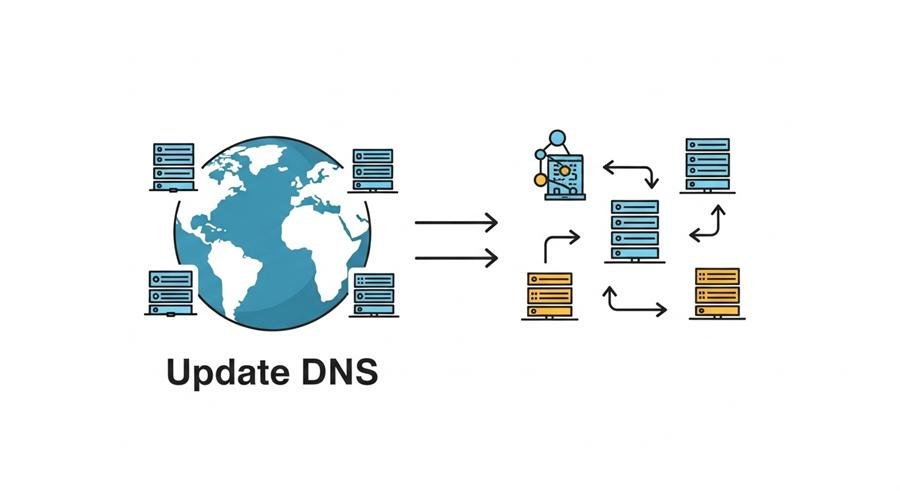
With TTL lowered earlier, change the domain’s A record to the new server IP.
Wait a few minutes to a few hours for propagation (lower TTL speeds this).
Once DNS propagated, remove hosts-file overrides and test publicly.
Re-enable normal TTL (e.g., 3600 or 86400).
If you used email at the same domain, double-check MX records weren’t changed — never break email settings unless intentionally moving mail.
Post-move checklist (immediately after DNS switch)
Log into WP admin — check dashboards, posts, images.
Save permalinks (Settings → Permalinks → Save).
Check SSL (https working, no mixed content). Use Why No Padlock or browser console.
Check forms, logins, payment flows, and contact pages.
Test speed and caching: set up caching plugin or server caching.
Configure backups on new host (UpdraftPlus, Jetpack Backup, or host-provided).
Update CDN or re-link Cloudflare (purge cache).
Monitor error logs (
wp-content/debug.log, server logs) for 24–48 hours.
Common errors & fixes
Error establishing a database connection — confirm DB name/user/password/DB_HOST and that the DB user has privileges.
White screen / 500 Internal Server Error — enable
WP_DEBUGand check PHP error logs. Possibly memory_limit or missing PHP modules.Broken images or URLs still pointing to old host — run WP-CLI
search-replaceto fix serialized data.Mixed content warnings (HTTP assets on HTTPS site) — update all internal links or run a plugin (Really Simple SSL) and fix hard-coded URLs.
Mail not sending — configure SMTP (WP Mail SMTP) or check sendmail/postfix settings on new host.
3 Simple Tips to Create Free WordPress Website for Beginners
Helpful commands & snippets (copy/paste)
Export DB:
mysqldump -u DB_USER -p DB_NAME > site_dump.sql
Import DB:
mysql -u DB_USER -p DB_NAME < site_dump.sql
WP-CLI search-replace:
wp search-replace ‘http://old-domain.com’ ‘https://example.com’ –all-tables
Set permissions:
find . -type d -exec chmod 755 {} \;
find . -type f -exec chmod 644 {} \;
Recommended migration tools & when to use them
All-in-One WP Migration: best for simple sites and beginners.
Duplicator: great for developers; handles custom installs.
UpdraftPlus: backup-first approach; use migrator add-on for restores.
WP-CLI: essential for power users — reliable for search-replace and DB tasks.
cPanel Backup & Restore: if both hosts use cPanel, full account backups can move everything (email included).
Rollback plan (if something breaks)
Keep old server online without deleting it for at least 48–72 hours after DNS change.
If critical issue occurs, point DNS back to old server IP and revert TTL.
Use the backup archive or DB dump to restore quickly.
Final checklist
Reduced DNS TTL to 300 (24–48 hrs prior)
Full site files backup (tar/zip)
Full DB dump saved locally (
.sql)New DB + user created on new host
wp-config.php updated with new DB credentials
WP-CLI or plugin search-replace done for URLs
SSL certificate ready or process in place
Hosts file test completed and verified
DNS A record updated to new IP
Permalinks saved; site audited (images, forms, login, speed)
Backups automated on new host
FAQs
Q: How long does moving WordPress to a new host take?
A: Small sites (under 500MB) with plugins can be moved in 30–90 minutes. Larger sites or those needing manual DB fixes can take several hours.
Q: Will my SEO be affected when I move hosts?
A: No, if the domain stays the same and you keep site URLs and sitemap intact. Temporary downtime can affect crawling — minimize it by lowering TTL and testing.
Q: Can I change domain while moving hosts?
A: Yes — but that adds search-replace steps and a careful migration plan. Use WP-CLI search-replace to update URLs and test thoroughly.
Q: Do I need to migrate email?
A: If your email is hosted via the old host (MX records), you must migrate mailboxes or point MX to your mail provider. Avoid breaking email during DNS changes.
Now loading...