Click here to buy secure, speedy, and reliable Web hosting, Cloud hosting, Agency hosting, VPS hosting, Website builder, Business email, Reach email marketing at 20% discount from our Gold Partner Hostinger You can also read 12 Top Reasons to Choose Hostinger’s Best Web Hosting
For the last two years, AI image tools shared one frustrating flaw: they couldn’t spell. You are here because you want to learn how to use Gemini AI for Image Generation.
Turn ideas into visuals with simple text prompts.
You’d ask for a simple stop sign and get something that read “SOTP.”
Logos came back with broken brand names. Infographics looked polished — until you zoomed in.
That changed quietly in late 2025 when Google rolled out the Gemini 3 image update, widely known as Nano Banana. Suddenly, AI images could handle readable text, clean labels, and structured layouts. Infographics finally made sense. UI mockups looked usable. Logos spelled words correctly.
Firefly vs Nano Banana – Best Free AI Image Generators Compared
The problem? Google didn’t make this easy to find.
(Ad)

If you’re confused by Gemini’s interface or getting low-quality images, this guide shows exactly how to unlock Gemini’s full image generation power — step by step.
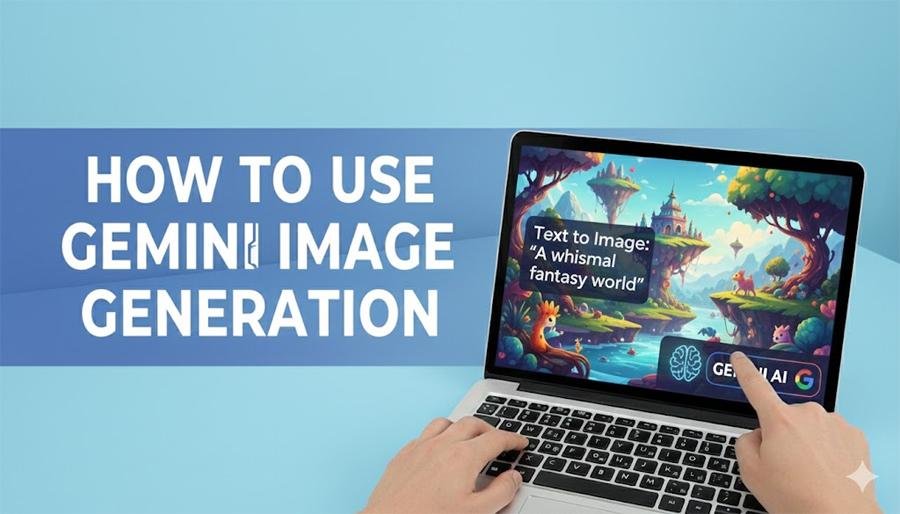
Step 1: Enable the Right Model (Fast vs. Thinking)
If you open Gemini and type “create an image,” you’re probably using the default model. That version is quick — but bad with text.
To get clean typography and structured visuals, you need Thinking mode, often referred to as Nano Banana Pro.
How to enable it
Open gemini.google.com or the Gemini app
Click Create images from the tools menu
Look at the model selector at the top of the chat
Switch from Fast to Thinking
Why this matters:
Thinking mode plans the image before generating it. That means layout first, text second — not random letters painted afterward.
If your images include labels, steps, charts, or buttons, this step is mandatory.
How Google’s Nano Banana in Gemini Delivers Pixel-Perfect Image Editing
Step 2: Use the Infographic Prompt Formula
Nano Banana shines when you give it structure. A vague prompt like “make a chart” won’t cut it.
Instead, use this proven prompt format:
Create an infographic based on the topic: [Your topic]
Target audience: [Who it’s for]
Aspect ratio: [9:16, 16:9, 1:1]
Visual style: [Vector, minimalist, clay, corporate]
Include the following data points: [Your exact text]
Example
Create an infographic about “How to Brew V60 Coffee.”
Target audience: home coffee lovers
Aspect ratio: 9:16
Visual style: minimalist line art with warm tones
Include steps:
Grind beans medium-fine
Pour hot water in circles
Brew for 3 minutes
The result is a vertical infographic where every word is readable — no broken spelling, no random symbols.
How to Generate Perfect Infographics with Google Gemini “Nano Banana” (Free Guide)
Step 3: Generate UI Mockups Using Structured Prompts
Gemini 3 understands structured instructions better than conversational text. For designers, this is a big advantage.
Use tagged sections to force clarity:
Why this works:
Thinking mode treats each requirement like a checklist. Buttons, headings, and labels are rendered correctly — not guessed.
Common Gemini Image Errors (and Fixes)
Even with Nano Banana, you may hit limits. Here’s how to handle the most common ones.
“Image generation of people is coming soon”
Why it happens:
Google restricts photorealistic people to avoid misuse.
What works instead:
Use illustration, clay, or pixel art
Say “a silhouette of a professional” instead of a specific person
Avoid photorealistic style keywords
“I can’t generate images right now”
Why it happens:
Daily limits or server load.
Fixes:
Switch from Thinking back to Fast
Try again later
Reduce resolution or complexity
Free users usually get generous limits, but they fluctuate.
Bringing Nano Banana to GIMP with Google Gemini Image AI Plugin
Gemini vs. Midjourney: Which Should You Use?
| Feature | Gemini (Nano Banana) | Midjourney |
|---|---|---|
| Text accuracy | Excellent | Inconsistent |
| Infographics | Strong | Weak |
| Artistic creativity | Moderate | Strong |
| Ease of use | Simple | Complex |
| Cost | Free with limits | Paid only |
SmashingApps take:
If you want artistic flair, Midjourney still leads.
If you need usable visuals with correct text, Gemini is the better tool.
Final Thoughts
Gemini’s Nano Banana update didn’t just improve image quality — it fixed the biggest flaw AI image tools had.
7 Ways to Make Money With Google Nano Banana AI Image Editor
Once you switch to Thinking mode and start using structured prompts, Gemini becomes reliable for:
Infographics
UI mockups
Presentation visuals
Early logo concepts
If your images need to communicate information, not just look good, Gemini is finally ready.
Now loading...