Click here to buy secure, speedy, and reliable Web hosting, Cloud hosting, Agency hosting, VPS hosting, Website builder, Business email, Reach email marketing at 20% discount from our Gold Partner Hostinger You can also read 12 Top Reasons to Choose Hostinger’s Best Web Hosting
ClickUp calls its free plan “Free Forever.” That’s a bold name. And honestly, for once, it’s not misleading — the free tier is genuinely one of the most feature-rich free plans in the project management software space.
But “generous” and “unlimited” are not the same thing, and ClickUp leans heavily on the word “unlimited” in a way that needs unpacking. There are limits on the free plan that will catch you off guard if nobody tells you about them in advance. There’s one specific limitation in particular — the kind that doesn’t reset when you might expect it to — that causes real frustration for users who discover it after they’ve already built their workflows.
If you compare GoHighLevel vs HubSpot, it comes up with a lot of comparable features – especially when agencies or SMBs want powerful marketing automation and a CRM that actually pays for itself.
This guide gives you the complete, honest picture: what the ClickUp free plan genuinely includes, what it doesn’t, the five limits that matter most in practice, and a straight answer to “is it enough for my situation?”
What Is ClickUp, and Who Is the Free Plan For?
ClickUp launched in 2017 with an ambitious pitch: one app to replace all your productivity tools. Task management, docs, chat, goals, whiteboards, calendars, time tracking, automation — all under one roof. The free plan is called Free Forever — it doesn’t expire after 14 days, doesn’t convert to a paid trial automatically, and doesn’t require a credit card.
The free plan is primarily built for:
(Ad)

- Individuals managing personal projects and task lists
- Freelancers who need a central workspace without team complexity
- Very small teams (2–5 people) testing ClickUp before committing
- Startups building early workflows on zero budget
What the ClickUp Free Plan Actually Includes in 2026
✅ Unlimited Tasks — Genuinely Unlimited
No task cap, no daily limit, no “X tasks per workspace” ceiling. You can create as many tasks, subtasks, checklists, and to-do items as your projects require. Many competitors put task limits on free tiers — ClickUp does not.
✅ Unlimited Members — Also Genuinely Unlimited
You can invite as many team members as you want on the free plan. No per-seat restriction, no “upgrade for more than 5 users” wall. Important caveat: while members are unlimited, you cannot control their permissions on the free plan. Every member gets full workspace access.
✅ 5 Spaces
Spaces are the highest organizational unit in ClickUp — think departments, project categories, or client groupings. Each can contain unlimited Folders, Lists, and Tasks. For most individuals and small teams, 5 Spaces is workable.
✅ Collaborative Docs
A built-in documentation tool — think a simpler version of Notion’s document layer, integrated directly with your tasks. Create wikis, meeting notes, SOPs, and project briefs. No explicit document count limit on the free plan.
✅ Whiteboards (Up to 3)
Build visual workflows, mind maps, and brainstorming boards. Three whiteboards is enough to explore the feature, but a tight ceiling if visual project planning is central to how your team works.
✅ 100 Automations Per Month
Set up “if this, then that” rules — e.g., “when a task moves to Done, assign it to the QA reviewer.” 100 automation actions per month is plenty for personal use or a tiny team. For a team of 5–8 people running multiple automation rules, 100 actions can evaporate fast.
✅ Basic Time Tracking
Start and stop timers on tasks, log time manually. Not included on free: advanced reporting, billable hours tracking, time estimates with budget monitoring.
✅ Built-in Team Chat, 100 Dashboards, 24/7 Support, 2FA
Chat for real-time messaging, 100 basic dashboards, 24/7 customer support via chat and email (notable for a free tier), and two-factor authentication.
GoHighLevel vs HubSpot – Which Is Better for Your Business in 2026?
The 5 Free Plan Limits That Actually Matter
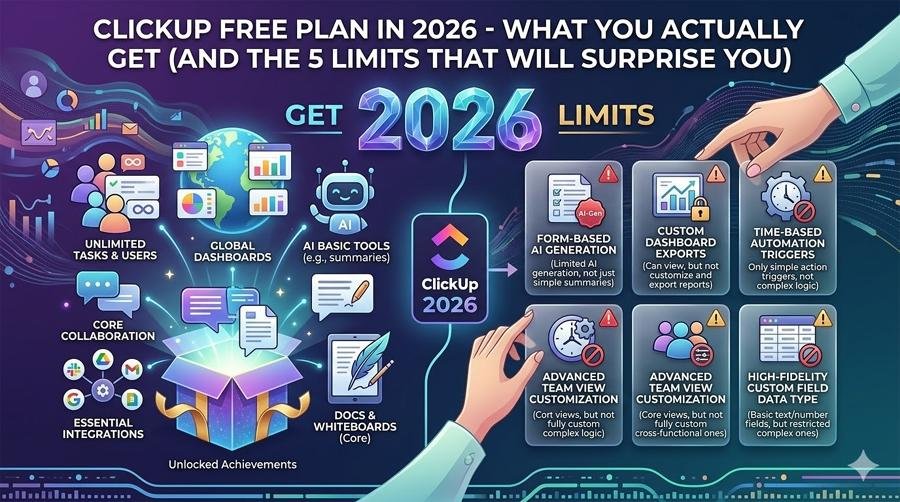
⚠️ Limit 1: 100MB of Storage — and It Goes Faster Than You’d Think
In 2026, a single high-resolution image is often 3–8MB. A decent PDF presentation is 15–25MB. One screen-recorded walkthrough video is easily 80–150MB on its own.
For teams that primarily do task management with minimal file attachment, 100MB might last a while. For anyone who regularly attaches documents, images, or screenshots — which describes the majority of business teams — 100MB fills up uncomfortably fast.
The workaround: Store files in Google Drive or Dropbox and link to them in ClickUp tasks rather than attaching directly. It works, but adds friction. The Unlimited paid plan removes the storage cap entirely.
1Password vs Bitwarden : Honest Comparison of 2026 – Plus the Price Hike Nobody Warned You About
⚠️ Limit 2: Feature Usage Limits Don’t Reset — This Is the Big One
On the free plan, certain features have a lifetime usage cap — not monthly, not daily. They don’t reset. Ever. Once you hit the limit, the feature is locked until you upgrade.
The most commonly hit:
- Custom Fields: 100 uses total. Custom Fields let you add structured data to tasks — priority level, client name, budget, status stage. You get 100 uses across your entire workspace, forever. Once used, you cannot create or modify custom fields without upgrading.
- Gantt Chart: Limited uses. Each time you interact with certain actions in Gantt view — adjusting dates, creating dependencies — it counts as a use. When you hit the limit, you lose access to this view.
- Mind Map: Limited uses. Certain actions within Mind Map view count against a lifetime cap.
What happens when you hit a feature limit?
ClickUp shows you a prompt to upgrade. Your existing data is preserved and remains visible — but you can no longer add or edit using that feature until you’re on a paid plan. This is the single most important thing to understand before committing to ClickUp free.
⚠️ Limit 3: No Permission Control — Everyone Sees Everything
On the free plan, all workspace members have full access to all Spaces, Folders, Lists, and Tasks. You cannot set a member to view-only, restrict them to specific projects, or give guest access with limited visibility.
For a two-person startup working on one project together, this isn’t an issue. For a small team where different members work on client projects that shouldn’t be visible to each other — or where a contractor should see only their own work — this is a genuine operational problem. The Unlimited plan adds guest permissions with individual access controls.
⚠️ Limit 4: ClickUp AI Is Trial-Only on Free
ClickUp Brain — their AI assistant for tasks, docs, and workflows — is not included in the free plan. You get a trial when you sign up, then it expires. To continue:
- Brain AI add-on: $9/user/month (on top of your plan cost)
- Everything AI add-on: $28/user/month
That pricing is per paid member. A 5-person team on Unlimited ($7/user/mo) plus Brain AI ($9/user/mo) pays $16/user/month — considerably more than the headline “free” or “$7” price suggests. Factor this in if AI features are important to your workflow.
Hostinger vs Cloudways (An Honest Comparison 2026)
⚠️ Limit 5: Only 5 Spaces and No Private Views
The 5-Space ceiling is meaningful as your team grows. But the no private views limitation also deserves attention: views in ClickUp are shared by default on the free plan. You cannot create a private view that only you can see. If you create a custom List view with specific filters that represent how you think about the work, every other workspace member sees and can modify it.
For solo users, irrelevant. For teams where each person wants a personalized workspace filtered to their own tasks — without affecting what everyone else sees — this is a real daily friction point. Private views are unlocked on paid plans.
What the Free Plan Can’t Do vs. Paid Tiers
| Feature | Free Forever | Unlimited ($7/user/mo) | Business ($12/user/mo) |
|---|---|---|---|
| Storage | 100MB | Unlimited | Unlimited |
| Spaces | 5 | Unlimited | Unlimited |
| Automations/month | 100 | 1,000 | 10,000 |
| Custom Fields | 100 uses total (no reset) | Unlimited | Unlimited |
| Gantt Chart uses | Limited (no reset) | Unlimited | Unlimited |
| Guest permissions | ❌ | ✅ Basic | ✅ Advanced |
| Private Views | ❌ | ✅ | ✅ |
| Time tracking reports | Basic | Advanced | Full reporting |
| Sprint reporting | ❌ | ❌ | ✅ |
| Workload management | ❌ | ❌ | ✅ |
| ClickUp AI | Trial only | Add-on (+$9/user/mo) | Add-on (+$9/user/mo) |
Is the ClickUp Free Plan Enough? Honest Answers by Use Case
Solo freelancer managing personal projects and client work → Free plan is entirely sufficient, with one caveat: be mindful of Custom Field usage. If you love structured data fields for every project, you’ll hit the 100-use limit faster than expected.
2–4 person startup on a tight budget → The free plan works for getting started, but you’ll feel the permission control limitation quickly. Plan for the Unlimited plan within a few months.
Evaluating ClickUp before committing to a paid plan → The free plan is excellent for evaluation. You get enough access to genuinely understand whether ClickUp fits your workflow before spending money.
Client collaboration with controlled access → Upgrade to Unlimited immediately. The permission gap makes client-facing workspaces essentially unusable if clients need view-only access.
Team of 5+ with complex workflows → The free plan will hold you back. The combination of 100MB storage, limited automations, non-resetting feature limits, and no permissions creates a ceiling you’ll hit fast. Budget for Unlimited from the start.
ClickUp Free vs. Competitors’ Free Plans
ClickUp Free vs. Notion Free: Notion’s free plan is generous on docs and databases but limits you to 10MB file uploads and has no native project management views beyond basic tables. ClickUp’s free plan is stronger for task and project management. Notion wins on document depth.
ClickUp Free vs. Trello Free: Trello gives you unlimited cards and 10 boards, but limits you to 10 collaborators, one Power-Up per board, and 10MB file attachments. ClickUp’s free plan is considerably more capable.
ClickUp Free vs. Asana Free: Asana’s free plan limits you to 15 users and basic task management with no timeline, no dashboards, and no goals. ClickUp free includes more view types, automations, and docs.
ClickUp Free vs. Monday.com Free: Monday.com’s free plan is limited to only 2 seats and 1,000 items. ClickUp’s unlimited members and unlimited tasks make it dramatically more capable at the free tier.
The honest summary
ClickUp’s free plan is the most feature-complete free project management offering in its competitive set. The limits are real, but the baseline you get is stronger than what most alternatives give you for nothing.
SEMrush Free Plan What You Get
How to Get the Most Out of the ClickUp Free Plan
- Be strategic with Custom Fields. Before creating one, ask whether you genuinely need it. The 100-use cap doesn’t reset. Map out what data you need before building.
- Use existing views before creating new ones. ClickUp comes with pre-built view configurations. Use them before creating custom ones that eat into your Gantt and Mind Map usage budgets.
- Keep files out of ClickUp. Use Google Drive or Dropbox for file storage and link to them within ClickUp tasks. Reserve the 100MB for truly task-critical attachments.
- Structure your 5 Spaces carefully. Plan your Space structure as if you’ll never be able to add a sixth.
- Set workspace norms for views. Since views are shared, have a conversation with your team about which views are “official” shared views and how to use them without constantly changing each other’s configurations.
Frequently Asked Questions
The Bottom Line
ClickUp’s Free Forever plan is legitimately one of the best free project management offerings available in 2026. Unlimited tasks, unlimited members, docs, whiteboards, automations, dashboards, chat, and time tracking — all free, with no expiry date.
But it’s not without real edges. The 100MB storage fills up. The 5-Space ceiling comes sooner than expected. The permissions gap becomes a genuine problem with clients. And the feature usage limits — particularly Custom Fields — that don’t reset are the hidden wall that catches people most off guard.
✅ The honest bottom line
If you’re an individual, solo freelancer, or a team of 2–3 building simple workflows — the free plan is genuinely sufficient for a long time. If you’re a growing team using ClickUp as a serious business tool, budget for Unlimited at $7/user/month from the start. It removes nearly every meaningful friction point.
Now loading...