Click here to buy secure, speedy, and reliable Web hosting, Cloud hosting, Agency hosting, VPS hosting, Website builder, Business email, Reach email marketing at 20% discount from our Gold Partner Hostinger You can also read 12 Top Reasons to Choose Hostinger’s Best Web Hosting
Scanning documents on your phone is no longer a compromise — modern apps give surprisingly accurate OCR, batch scanning, and useful export options. This guide helps you choose the best mobile scanning OCR apps based on accuracy, batch/processing speed, and export formats (searchable PDF, Word, plain text, images). I’ll also show a simple workflow and settings that improve results every time.
Adobe Acrobat keeps you connected to your team with simple workflows across desktop, mobile, and web no matter where you’re working.
If you want the best accuracy and Word/PDF exports, try ABBYY FineReader or Adobe Scan. For free, reliable scanning with great batch tools and Office integration, Microsoft Lens is a top pick. If you batch-scan lots of pages and need fast naming, Scanbot / Scanner Pro (paid) gives excellent control. For casual use, Google Drive or Google Lens often do the job.
What matters: accuracy, batch scanning, export formats
Accuracy — how well the OCR converts images to correct text (depends on engine, language support, and image quality).
Batch scanning — can you shoot many pages quickly and process them together (auto-crop, deskew, auto-enhance, multipage PDF)?
Export formats — common needs: searchable PDF, PDF/A, DOCX (editable Word), TXT, CSV, JPG/PNG. Some apps also export to cloud drives or directly to apps like Office/Google Docs.
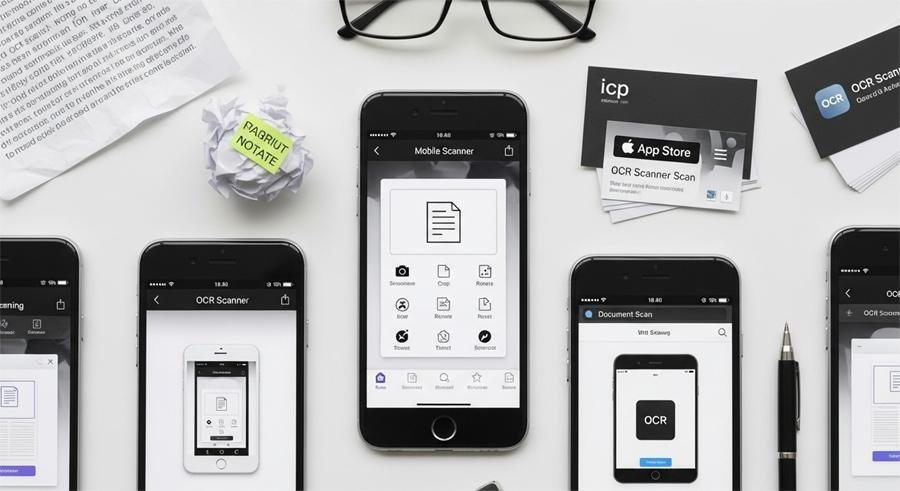
Best mobile scanner + OCR apps (short list & why)
1. ABBYY FineReader (Mobile) — best accuracy & advanced export
Platforms: iOS, Android
Why I like it: ABBYY’s OCR is consistently accurate, supports many languages, and exports to Word and searchable PDF cleanly. It also handles layout preservation better than most mobile apps. Great when you need near-perfect text output.
Limitations: Paid tiers for best features.
2. Adobe Scan — reliable OCR + searchable PDFs
Platforms: iOS, Android
Why: Free, solid OCR, automatic cleanup and direct export to Adobe PDF and Adobe Acrobat for edits. Works well for receipts, forms and multipage documents. Good cloud workflow with Adobe cloud.
Limitations: Some advanced exports require Adobe subscription.
How to Save Twitter Video on Your PC and Mobile
3. Microsoft Lens (Office Lens) — best for Office users (free)
Platforms: iOS, Android
Why: Tight integration with OneDrive and Word. Scans to Word with editable text, PowerPoint or searchable PDF. Great batch scanning and automatic cropping. Free and trustworthy for business use.
Limitations: OCR quality is good but slightly behind ABBYY on difficult layouts.

4. Scanner Pro / Readdle (iOS) or Scanbot/Scanner Pro (Android/iOS) — batch + automation focus
Platforms: iOS, Android (Scanbot)
Why: Excellent UI for large scan jobs, automatic file naming, robust export options and smart folders. OCR accuracy is strong and scanning speed is fast — ideal when you regularly digitize multi-page stacks.
Limitations: Paid app / subscription for pro features.
Enter the SmashingApps’ free tools gallery to convert Image to PDF, with a free online tool that works in any browser, supports JPG, PNG, WEBP and more, and lets you merge, reorder, and download your images as a single PDF in seconds—no signup, no watermark, secure processing .
5. Google Drive / Google Lens — easiest free option for casual use
Platforms: Android (Drive), iOS (Drive app scanning + Lens)
Why: Free, good for quick capture and OCR to text via Google Docs. Google Lens is great for single-page text capture and translations.
Limitations: Batch handling and export control are limited vs dedicated apps.
How to Convert Word to PDF in Phone: The Ultimate Guide for Android & iOS (2026)
6. CamScanner — powerful but check privacy & ads
Platforms: iOS, Android
Why: Feature-packed: batch, exports, cloud sync, OCR. Historically popular for heavy scanning.
Limitations: Past privacy concerns and ads; prefer paid subscription and read privacy terms.
7 Best Mobile VPN for iPhone: Secure & Fast VPN Apps
A recommended workflow that improves OCR results (do this every time)
Use good lighting & a flat surface. Natural light or a bright lamp eliminates shadows and improves recognition.
Hold steady, use auto-capture (most apps detect page edges and snap). If pages are curled, flatten them under a book.
Choose the right scan mode: Document (text), Receipt (low-contrast), or Whiteboard (high-contrast).
Enable deskew and auto-crop. Let the app straighten and crop pages automatically.
Run the OCR language matching. Pick the correct language(s) — multi-language docs need multiple language selection.
Batch, then export: Scan all pages into a single multipage file, then export as searchable PDF or DOCX. Use DOCX when you need editable text; use searchable PDF for archiving.
Quick clean: Use the app’s enhancement tools (contrast, remove background, despeckle) to clean pages before OCR if the text is faint.
KODAK Step Slim Instant Mobile Photo Printer – Wirelessly Print 2×3” Photos on Zink Paper
Export formats explained
Searchable PDF: Best for archiving and sharing searchable documents while preserving layout.
PDF/A: Use for long-term legal or archival storage.
DOCX (Word): Choose this when you need editable text and reflow. OCR may change layout; expect light formatting fixes.
TXT: Fast plain-text export for copy/paste or import into text tools.
JPG/PNG: Use for images to embed in slides or visual references. Not searchable unless OCR layer added.
Tips for specific document types
Receipts: Use dedicated receipt mode (Adobe Scan, Scanner Pro) or specialized apps that crop tiny receipts and export to CSV for bookkeeping.
Forms: If forms have printed text + handwritten fields, OCR will capture printed text well; handwriting may need special handwriting OCR (limited accuracy).
Books / multi-page docs: Use batch + auto-rotate and export as multipage PDF. Consider two-pass scanning: capture images, then run OCR in bulk.
Privacy & offline OCR
If your documents are sensitive, favor apps that offer offline OCR (ABBYY, some premium versions of Scanner Pro) or let you disable cloud upload. Always check the app’s privacy policy before uploading confidential scans.
7 Best Free PDF Editors for Quick Fixes
FAQs
Q: Which mobile OCR app is the most accurate?
A: ABBYY FineReader generally scores highest for OCR accuracy and layout preservation, especially for multi-column documents and complex layouts. Adobe Scan and Microsoft Lens are close and excellent for everyday needs.
Q: Can I scan multiple pages into a single searchable PDF?
A: Yes — most apps support batch scanning and will combine pages into a single multipage searchable PDF.
Q: Which format should I export if I need to edit the text?
A: Export to DOCX (Word) for editable text. Expect minor formatting cleanup after OCR.
Q: Is OCR safe for sensitive documents?
A: Only if you use apps that perform OCR locally (offline) or have a strong privacy policy. Avoid uploading confidential files to unknown cloud services.
Q: Do these apps recognize handwriting?
A: Handwriting OCR exists but is less accurate than printed-text OCR. Results vary widely; printed text is reliably recognized.
Now loading...