Click here to buy secure, speedy, and reliable Web hosting, Cloud hosting, Agency hosting, VPS hosting, Website builder, Business email, Reach email marketing at 20% discount from our Gold Partner Hostinger You can also read 12 Top Reasons to Choose Hostinger’s Best Web Hosting
Design software that refuses to cooperate at first run wastes time and breaks creative momentum. You download Xara Designer Pro Desktop, follow a few clicks, and suddenly you’re stuck on activation errors, missing templates, or slow canvas performance — and your deadline is breathing down your neck. This guide walks you through How to Set Xara Designer Pro Desktop from download to a tuned, reliable workspace. I’ll show the essentials (requirements and activation), common hangups and quick fixes, plus setup choices that make daily work faster and less frustrating.
Why this guide (who it’s for)
This tutorial is written for designers, marketers, and small teams who need a working Xara setup quickly — whether it’s your first install or you’re moving projects between machines. It focuses on practical steps, realistic troubleshooting, and small configuration changes that save hours later.
Quick checklist before you start
Windows 10 or 11 (64-bit) recommended. An internet connection is required for the initial installation and activation.
Have your Xara account credentials or product key ready (if you bought a license).
Back up any existing Xara files or custom templates before replacing or upgrading an install.
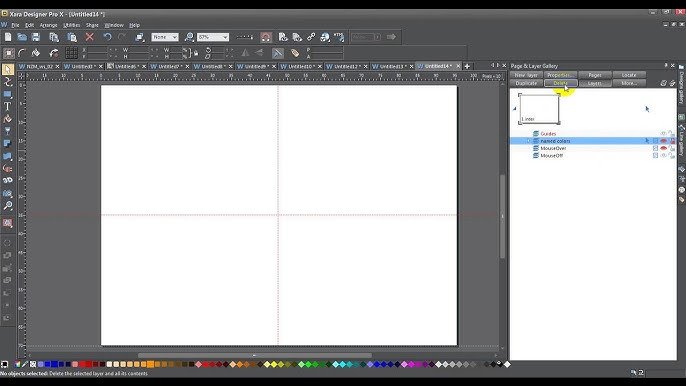
Step-by-step: Getting Xara Designer Pro Desktop installed
1. Download the correct package
Go to the official Xara product page and pick Designer Pro+ or the Desktop edition you purchased. Download the Windows installer from the official site to avoid altered builds.
Save the installer to a known folder.
Tip: If you’re on a metered connection, download on a wired, stable network — the installer may validate license files online during setup.
2. Run the installer with admin rights
Right-click the installer and choose Run as administrator. That prevents permission problems with fonts, templates, and program files.
Accept the license terms and choose an install path you can find later (the default
C:\Program Files\Xara\...works for most users).
3. Initial activation & sign in
After install, Xara will prompt you to sign in or enter a product key. Sign in with the account linked to your purchase or enter the key exactly as shown.
If activation fails: check firewall/antivirus for blocked connections, confirm date/time on your PC, and retry sign in. If needed, use the Xara support portal for activation help.
Why Choose Google Web Designer for Your Next Website? (9 Irresistible Reasons)
First things to configure (settings that matter)
Set performance preferences
Undo history and cache: Lower the undo depth or increase disk cache if you work with huge photos. This reduces memory pressure on low-RAM machines.
GPU acceleration: If your machine supports it, switch on GPU features in Preferences to speed up pan/zoom. If artifacts appear, toggle it off.
Page and export defaults
Set your default document size, color profile (sRGB for web, a CMYK preset for print), and DPI in Document Options so each new file uses the right settings.
Templates & Local Designs
Download and install the templates you use most into Local Designs. Right-click folders in the Local Designs gallery to download or add folders so templates are available offline.
Keyboard and workspaces
Import or set keyboard shortcuts for the tools you use most. Create a custom workspace and save it — you can export this to another machine.
Move projects and settings between machines (mini case study)
I moved a 20-page brochure project and custom brushes from a desktop to a laptop for an urgent client update. Steps that saved time:
Export the custom workspace and keyboard shortcuts (Preferences → Export).
Zip the
.xarproject, linked images folder, and templates.On the laptop, import the workspace and place the project and images in the same relative folder structure — Xara finds linked images automatically.
This approach kept the layout intact and avoided missing image links, so I could finish edits without re-linking dozens of assets.
How to Easily Create a Spinner GIF Online: A Step-by-Step Tutorial for Web Designers and Developers
Common install problems & fixes
“Activation failed” — Check system date/time, firewall rules, and that you signed into the account tied to the license. If you have offline entitlement, use the product key.
Missing fonts or wrong fonts — If a document shows fallback fonts, install the missing font into Windows and restart Xara.
Slow performance on large files — Reduce live effects, rasterize complex groups for editing, or increase Windows virtual memory. If you must, break the document into smaller files.
Cloud sync problems — If Xara Cloud actions fail, check the account status and whether the file is open elsewhere; close duplicate sessions and retry.
How this AI Graphic-Design Agent Replaces an $82k/yr Graphic Designer (N8N)
Useful workflows and the new perspective (what most guides skip)
Most setup guides stop at “installation complete.” Here’s the extra layer that saves you time daily:
(Ad)

Project starter kit — Build a starter file with your brand fonts, color swatches, frequently used page sizes, and a “components” layer containing logos and common elements. Save it as
brand-starter.xar. Start every new project from this to keep consistency and avoid repeated setup.Automated backups without extra services — Use Xara’s export and a simple scheduled script (Windows Task Scheduler + a one-line PowerShell copy) to copy the working folder to an hourly backup folder. This gives you point-in-time recovery without third-party backup.
Local designs sync — Keep a synced
LocalDesignsfolder in OneDrive or a shared drive. When a team member updates a template, everyone gets the latest version after a sync — fast, and avoids emailing template files.Export presets for delivery — Create export presets for clients (PNG web at 72dpi, print PDF with bleed and crop marks at 300dpi). Save these to speed handoffs and reduce mistakes.
These steps are small to set up but compound into major time savings and fewer errors across projects.
5 Best Free Website Usability Testing Tools Designers Should Know
Key Takeaways
Prepare first: Confirm Windows 10/11 (64-bit) and a working internet connection for activation.
Install from official sources to avoid tampered installers and ensure updates.
Configure performance and default document settings before you start designing.
Create a brand starter file and export presets to save time and keep outputs consistent.
Use simple sync/backups and export your workspace to move smoothly between machines.
Best Tools for Freelance Writers and Designers: A Complete Guide
FAQs (People Also Ask)
Q: Do I need an internet connection to install Xara Designer Pro Desktop?
A: Yes — at least for the initial installation and activation. After activation, many features work offline but cloud features need a connection. helpandsupport.xara.com
Q: How many machines can I activate Xara on?
A: License terms vary by purchase type (single-user vs multi-seat). Check your purchase details in your Xara account or the license email; contact support if in doubt.
Q: My Xara file shows missing images after moving to another PC — how to fix?
A: Keep the same relative folder structure for images or re-link via the File → Relink or Place dialog. Export and import the entire project folder to avoid broken links.
Q: Can I use Xara Cloud with Designer Pro Desktop?
A: Yes. Xara Cloud lets you open and edit some Xara files in a browser for lightweight editing and sharing; use it to review and annotate designs with clients.
Conclusion
Setting up Xara Designer Pro Desktop needn’t be a chore. With the right download, a clean activation, a few preference tweaks, and a short list of project hygiene habits (starter files, export presets, and simple backups), you’ll turn the first-run friction into a stable daily workspace. Try the steps above this week: download the official installer, sign in, import your keyboard shortcuts, and create one brand starter file — you’ll have a repeatable process ready for every project.
Official resources: For official downloads and product details, start at Xara’s product page and support portal. Xara
Now loading...