Click here to buy secure, speedy, and reliable Web hosting, Cloud hosting, Agency hosting, VPS hosting, Website builder, Business email, Reach email marketing at 20% discount from our Gold Partner Hostinger You can also read 12 Top Reasons to Choose Hostinger’s Best Web Hosting
If you want to learn how to sync Viber across devices? Step-by-step: link desktop/tablet via QR, transfer chats between phones, sync contacts, backups, troubleshooting and privacy tips. It means you are at right place.
You can sync Viber by linking additional devices to your primary phone (scan a QR code in Settings → Desktop/Tablet). For phone-to-phone chat transfers use Viber Backup or the in-app transfer flow. Contacts sync automatically if you allow contact permissions. If something breaks, re-check permissions, internet, or re-link the device.
Microsoft Modern USB-C Speaker, Certified for Microsoft Teams, 2- Way Compact Stereo Speaker, Call Controls, Noise Reducing Microphone Click here to learn more and buy now
What “sync” means on Viber (short)
When you “sync Viber” you may mean different things:
Linking a desktop/tablet so you can use the same account on multiple devices (messages, contacts, many chats).
Transferring chat history from one phone to another (backup & restore).
Syncing contacts so Viber shows which phone contacts use Viber.
Viber supports multi-device use and explicit chat transfers — but not every piece of data is synced the same way.
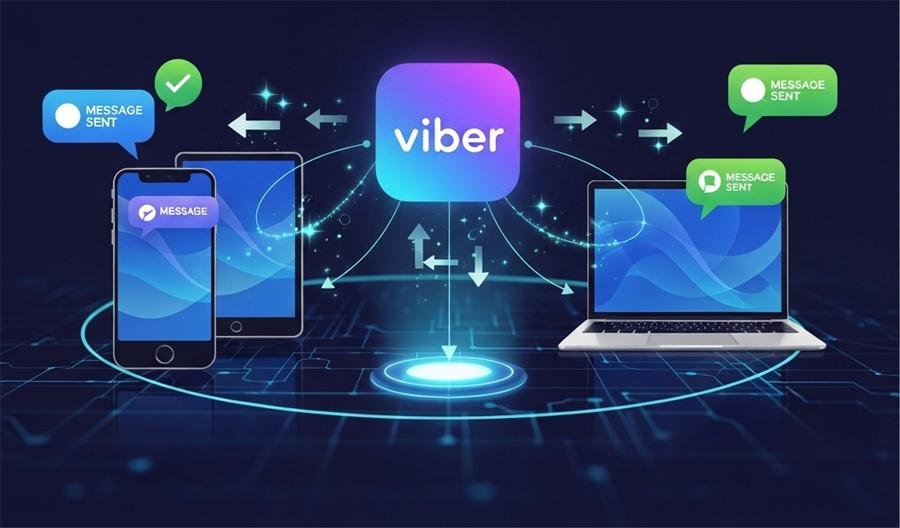
1) How to link Viber Desktop / Tablet (fast — 2 minutes)
This is the most common “sync” task — link your desktop so it mirrors your account.

Download and install Viber Desktop (Windows/macOS) or Viber for Tablet from the official site or app store.
Open the desktop/tablet app — a QR code will appear on screen.
On your phone open Viber → tap More (… or Menu) → tap the QR icon (or Desktop/Tablet).
Scan the QR code shown on your computer/tablet. Approve any prompts on your phone and tap Sync when asked.
Wait a few minutes — recent chats appear first; older messages and media may continue downloading in the background.
Why this works: Viber links the secondary device to your primary phone account via a secure QR handshake and then starts syncing chats and contacts. If the scanner doesn’t show automatically, use Scan QR Code from the More menu.
Skype Shuts Down by Microsoft and 5 Best Communication Alternatives
2) How to transfer chat history between phones (phone → phone)
If you bought a new phone and want all your Viber chats on it, use Viber Backup (Android/iOS) or the built-in transfer flow.
Android → Android (or iOS → iOS) using Viber Backup
On the old phone: Viber → More → Settings → Account → Viber Backup.
Turn on Auto backup (daily/weekly/monthly) or tap Back Up Now. Choose whether to include Photos & Videos.
On the new phone: Install Viber and register using the same phone number.
During setup go to Settings → Account → Viber Backup → Restore and choose the backup to restore. (Photos/videos may restore in background.)
Viber also improved an in-app transfer flow for whole-device moves (iOS→iOS, Android→Android) where both phones connect and the chat history transfers directly — follow the in-app prompts during setup.
Tip: Always back up before changing phones. Restores can take time for media.
3) What actually syncs (and what doesn’t)
Usually synced across linked devices:
Recent one-to-one chats and group chats (messages and many media)
Contacts list and communities (some caveats for history)
Viber Out credit, sticker purchases, and some account settings (may require restore)
New messages arrive on linked devices in real time once synced.
Things that may NOT fully sync:
Full 1-on-1 chat history on some secondary device setups (older Viber versions / tablets).
Certain local settings or device-specific data (e.g., local caches).
If you deactivate Viber on the primary phone (change number), data behavior differs — follow in-app guidance. Always check Viber’s help docs for any recent nuance.
4) Sync contacts (so you see who’s on Viber)
On your phone:
Allow Viber to access Contacts when prompted (Settings → Apps → Viber → Permissions → Contacts).
Viber will scan your phonebook and show which contacts are on Viber.
To refresh, toggle Contacts permission off/on or use the refresh option inside Viber’s Contacts section.
Privacy note: Viber only checks phone numbers to match accounts — it doesn’t publish your entire address book to other users.
5) Sync settings & purchases (stickers, Viber Out)
Restore sticker packs and Viber Out from Settings → Account → Purchases → Restore. (Android & iOS flows differ slightly.)
Viber stores your purchases under your account and lets you restore them on new devices.
6) Troubleshooting — common sync problems & fixes
If sync fails or messages aren’t showing:
Connection & app version
Ensure both devices are online and run the latest Viber version. Old app builds cause handshake failures.
QR scan won’t work?
Try scanning the QR with your phone’s regular Camera app (some versions support QR). If the scanner doesn’t open, open More → QR Scanner manually.
Partial history only on desktop/tablet
Wait — Viber syncs recent messages first, then older ones. If syncing stalls, re-link the device (unlink from phone then scan QR again).
Backup restore failed on new phone
Make sure the backup was created on the old phone and you used the same phone number on the new one. Check iCloud/Google Drive account used for the backup.
Contacts missing
Check contact permissions, then refresh contacts in the app. If names still missing, ensure the numbers are saved in international format.
Media not downloading
Large media can restore in background — check storage, allow background data and wait. If needed, trigger manual re-download from the chat.
7) Privacy & safety — what to watch for
Use official Viber apps from viber.com, App Store or Google Play only.
Don’t share QR codes publicly — anyone who scans can link to your account until you unlink.
If you lose a device, unlink it in Viber (More → Desktop/Tablet or Settings → Account → Linked Devices/Manage Devices) and change your phone number 2-step verification if needed.
For more on chat tools, check out our posts on free chat applications and messaging guides.
8) Quick checklist — copy & use
Update Viber to the latest version on all devices.
On phone: Viber → More → QR icon (for Desktop/Tablet linking).
Scan QR on desktop/tablet and tap Sync on phone.
Back up chats before switching phones (Settings → Account → Viber Backup → Back Up Now).
Restore backup on new phone during setup.
Check Contacts permission if contacts aren’t showing.
Unlink lost devices immediately (Settings → Account → Linked Devices).
FAQs
Q: How do I sync Viber from phone to computer?
A: Install Viber Desktop, open it (QR code will show), then on your phone go to More → QR icon and scan the desktop QR. Approve prompts and tap Sync.
Q: Can I transfer Viber chat history to a new phone?
A: Yes — use Viber Backup on the old phone (Settings → Account → Viber Backup → Back Up Now), then restore from the backup on the new phone during setup. Viber also supports direct in-app phone-to-phone transfers for many devices.
Q: Do my stickers and purchases sync?
A: Purchased stickers and Viber Out credits can be restored from Settings → Account → Purchases → Restore.
Q: My desktop shows only recent messages — is that normal?
A: Yes. Viber prioritizes recent chats first; older history and media may continue syncing in the background. If it stalls, try re-linking.
Now loading...