Click here to buy secure, speedy, and reliable Web hosting, Cloud hosting, Agency hosting, VPS hosting, Website builder, Business email, Reach email marketing at 20% discount from our Gold Partner Hostinger You can also read 12 Top Reasons to Choose Hostinger’s Best Web Hosting
Merging cells in Excel looks like a quick fix when you want a clean header or wider label, but it often breaks sorting, filtering, formulas, and tables — turning tidy layouts into painful data headaches. That frustration spikes when you later try to import, sort, or analyze the sheet and Excel complains about merged regions or silently drops values. This guide explains exactly how to merge cells in Excel safely, shows better alternatives (so you don’t lose data or functionality), and gives practical VBA and formula workarounds when you need to combine content without breaking your workbook.
You can click on advanced Excel tools that can take your skills to the next level.
What “Merge” actually does (and why it can be risky)
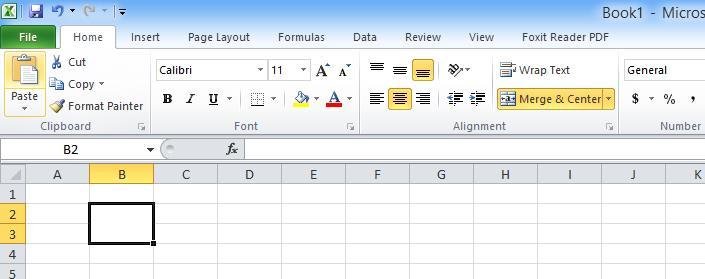
Merge & Center combines selected cells into a single cell and keeps only the top-left cell’s value; other values are discarded. That’s why Excel warns: Make sure only one of the cells in the range has data.
Merged cells break table behavior, prevent column-level sorting/filtering, and often stop other features from working properly (e.g., pivoting, Power Query, structured references).
For presentation-only layout, there’s a safer option called Center Across Selection that visually centers text across cells without merging — it preserves cell structure and avoids most problems.
Quick ways to merge cells (step-by-step)
Method 1 — Merge & Center (the standard, one-line method)
Select the range to combine (e.g., A1:C1).
Home → Merge & Center (or click the small dropdown for Merge Across, Merge Cells, or Unmerge Cells).
Excel will keep only the top-left value; other cell contents will be removed. Use this only when you are sure the other cells are empty or unimportant.
Keyboard shortcuts (Windows):
(Ad)

Merge Cells:
Alt→H→M→MMerge & Center:
Alt→H→M→CUnmerge:
Alt→H→M→U
Method 2 — Merge Across (row-by-row merge)
Select a multi-row block, Home → Merge & Center dropdown → Merge Across. This merges each row separately rather than making one giant merged area. Useful for aligning headings across multiple rows.
Method 3 — Merge table cells (table layouts)
If your cells are inside an Excel Table (structured table), the Merge & Center options are disabled. You must convert the table to a normal range or use a different layout technique (e.g., Center Across Selection) to get the visual effect without breaking the table.
Better alternatives — keep data and functionality
Center Across Selection (preferred for layout)
Format Cells → Alignment → Horizontal → Center Across Selection. This centers text across selected cells without merging them, so sorting/filtering and table structures continue to work. Many experienced Excel users recommend this over Merge & Center for printable layouts and titles.
Concatenate or TEXTJOIN (preferred for combining values)
If your goal is to combine contents (not just visual layout), use formulas:
=A1 & " " & B1 & " " & C1(works everywhere)=TEXTJOIN(" ", TRUE, A1:C1)— ignores blanks and joins cells with a delimiter (requires Excel 2016+). For more on combining text, see Microsoft’s guidance.
Power Query (for robust data merges before analysis)
When preparing datasets (e.g., merging columns to create a key), Power Query can clean and combine columns without changing the original layout, and it’s repeatable for future imports.
How to merge cells without losing data
A. Formula-first approach (no VBA)
In a helper column/row, use
TEXTJOINor&to combine the values across the range: e.g.,=TEXTJOIN(" ",TRUE,A1:C1).Copy the formula result and paste as values into the top-left cell of the range.
Now use Merge & Center on the original selection — you’ll keep the combined text. This keeps full control and is reversible until you paste-as-values.
How to Build an Excel App with Deepseek in 5 Simple Steps (Free Guide)
B. VBA macro to merge and keep all values
If you must merge many ranges and want automation, this macro concatenates all selected cells (skipping blanks), puts the combined text into the first cell, then merges:
Sub MergeKeepAllValues()
Dim rng As Range, c As Range
Dim s As String
If TypeName(Selection) <> “Range” Then Exit Sub
Set rng = Selection
s = “”
For Each c In rng
If Len(Trim(CStr(c.Value))) > 0 Then
If s <> “” Then s = s & ” ”
s = s & c.Value
End If
Next c
rng.Cells(1, 1).Value = s
rng.Merge
End Sub
How to use: Press Alt+F11, insert a new module, paste the code, run while the target cells are selected. This preserves the data but converts many values into one string — useful for headers or labels, not for structured data you plan to sort or analyze.
Mini case study — When merging hurt, and how we fixed it
A small sales team merged header cells across an entire sheet to make printable reports. Later, they attempted to sort by region and Excel flagged errors because of merged cells. The fix was threefold: (1) revert merged headers, (2) recreate headers with Center Across Selection for print layout, and (3) use a helper column with TEXTJOIN to generate a printable label when exporting to PDF. The result: printable aesthetics + fully functional sort/filter and pivot capabilities.
5 Free Excel Spreadsheet Tools for Your Day to Day Financial Needs
Tips & troubleshooting
Merge disabled? Check if the sheet is protected, shared, or if the selection is inside an Excel Table. Convert to range or unprotect to enable merge.
Sorting errors? Unmerge the column first. Merged cells in a column prevent independent column sorting.
Unmerge behavior: Excel leaves the value in the top-left cell and empties other cells — you can use
Ctrl+Dto fill down if you need to replicate values.Excel Online & Mac: Merge options exist in most Excel versions, but some dialog items (like adding Center Across Selection to the ribbon) are more awkward or missing in web-based versions; when in doubt, use formulas or helper columns.
Key Takeaways
Merging destroys other cells’ values unless you first combine them — Excel keeps the top-left value.
Prefer Center Across Selection for presentation — it gives the same visual result without breaking tables, sorting, or filters.
Use TEXTJOIN or & to combine multiple cells into one cell without VBA; copy-as-values before merging if needed.
Automate carefully: a small VBA macro can merge and preserve values, but merged results should not be used as structured data for analysis.
Avoid merging in data tables — keep table columns atomic to preserve Excel features and Power Query compatibility.
How to Split First and Last Names in Excel : 7 Easy Methods (2025 Guide for Beginners & Pros)
FAQs — How to Merge Cells in Excel
Q: Will merging cells in Excel delete data?
A: Yes — Merge & Center preserves only the top-left cell’s content and discards others. Always combine values into one cell first if you need to keep them.
Q: How can I center text across multiple cells without merging?
A: Use Format Cells → Alignment → Horizontal → Center Across Selection. It gives the visual effect without merging.
Q: How do I unmerge cells and fill the emptied cells with the original value?
A: Unmerge (Home → Merge & Center → Unmerge). The value remains in the top-left cell; select the range and use Ctrl+D (Fill Down) to copy it into the empty cells.
Q: Can I merge cells in Excel Online?
A: Yes, Merge & Center is available in many Excel Online views, but some alignment options or ribbon customizations (e.g., adding Center Across Selection to quick access) might be limited. If web features are missing, use formulas or the desktop app for full control.
Conclusion
Merging cells in Excel is tempting for quick formatting, but it comes at a price if you later need to sort, filter, or analyze data. I recommend using Center Across Selection for layout, TEXTJOIN (or &) for combining values, and VBA only when you must automate label creation. These approaches keep your workbook functional and future-proof. Try the formula method first — it’s reversible, transparent, and safe.
Sources (official):
Microsoft Support — Merge and unmerge cells in Excel. Microsoft Support
Microsoft Support — Combine text from two or more cells into one cell (TEXTJOIN, CONCAT, &). Microsoft Support
For more Excel tips and practical templates, check SmashingApps’ Excel resources and guides.
Now loading...