Click here to buy secure, speedy, and reliable Web hosting, Cloud hosting, Agency hosting, VPS hosting, Website builder, Business email, Reach email marketing at 20% discount from our Gold Partner Hostinger You can also read 12 Top Reasons to Choose Hostinger’s Best Web Hosting
If you are here to learn how to delete your Instagram account instantly then let’s be honest: Meta doesn’t want you to leave. But if you tried to delete your Instagram account recently, you probably noticed the change — the “Delete” button is gone from the simple settings flow. It’s buried in the Meta Accounts Center, behind several taps designed to slow you down.
This guide cuts through that maze. Below you’ll find the fastest methods to delete your account, including a direct link that skips the menus entirely. Use this to delete your Instagram account instantly — or back up your data first if you want to keep a copy.
⚠️ Important Before You Delete
Once you delete your Instagram account, recovery is only possible for 30 days. After that, your account, photos, messages, and followers are permanently removed — and your username may be taken by someone else. If you might want to return, consider downloading your data or deactivating instead.
Method 1 — The “Magic Link” (Fastest Way)
Best for: Desktop and mobile browsers
You don’t need to hunt through menus. Instagram still supports a legacy deletion page. Visiting that URL opens the permanent delete prompt right away.
Log in to Instagram in your browser (Chrome, Safari, Edge).
Open this direct link:
https://www.instagram.com/accounts/remove/request/permanent/
Choose a reason from the dropdown (for example, “Too distracting”).
Re-enter your password.
Click the red “Delete [Your Username]” button.
What happens next?
Your profile disappears immediately from public view. Instagram holds your data for a 30-day grace period — during that time you can cancel deletion by logging back in. After 30 days, Meta begins permanent removal.
(Ad)

Tip: Bookmark this page if you think you’ll need it later.
How to See Who Shared Your Instagram Post
Method 2 — The App Method (iPhone & Android)
Best for: Users already logged into the Instagram app
As of December 2025, the delete option is inside Accounts Center, not under Security. Follow these steps:
Open Instagram and go to your Profile.
Tap the Menu (≡) in the top right.
Tap Settings & privacy.
Tap Accounts Center (the large box at the top).
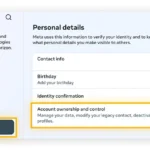
Scroll to Personal details.
Tap Account ownership and control.
Choose Deactivation or deletion.
Select the Instagram account you want to remove.
Important: Choose “Delete account” — the app defaults to “Deactivate.”
Tap Continue and confirm the deletion.
Essential Step — Save Your Data Before You Delete
Deleting removes access. If you want to keep your photos, Reels, or messages:
Go to Your Activity > Download your information.
Choose “Download to device”.
Select All time and High Quality.
Instagram will email a ZIP file — download it before deleting your account.
How to Delete Your Reddit Account Permanently (And What Happens After)
Deactivation vs. Deletion — Quick Comparison
| Feature | Deactivation (The Break) | Deletion (The End) |
|---|---|---|
| Visibility | Profile hidden | Profile removed |
| Data | Kept on Meta servers | Removed after 30 days |
| Recovery | Restore by logging in | Impossible after 30 days |
| Username | Reserved for you | Released for others |
FAQ
Does “instantly” mean my data is gone right away?
Publicly, yes — your profile disappears immediately. Technically, Meta retains data for 30 days as a safety window. Logging in during that period cancels the deletion.
Can I delete my account if I lost my password?
No. For security reasons you must be able to access the account. Reset your password via email or phone, then delete.
Does deleting the app delete the account?
No. Removing the app from your phone does not delete your account. You must follow the steps above.
Now loading...