Click here to buy secure, speedy, and reliable Web hosting, Cloud hosting, Agency hosting, VPS hosting, Website builder, Business email, Reach email marketing at 20% discount from our Gold Partner Hostinger You can also read 12 Top Reasons to Choose Hostinger’s Best Web Hosting
You need your emails to show the right contact info and brand, but Outlook keeps adding the wrong signature — or none at all — and that causes awkward follow-ups or inconsistent branding. That frustration is common: different Outlook clients (desktop, Outlook on the web, and Mac) store signatures in different places, and defaults can be per account or per message type. Good news — you can get a clean, consistent signature across devices in a few minutes. This guide shows exactly how to change signature in Outlook for each client, how to set defaults, how to fix common problems, and smart tips to keep your signature professional.
3 VPNs That Pass All Tests (2025)
- NordVPN: Zero leaks in tests, RAM-only servers, and Threat Protection to block malware.
- Surfshark: Unlimited devices, Camouflage Mode for bypassing VPN blocks, and CleanWeb ad-blocker.
- ExpressVPN: Trusted Server tech (data wiped on reboot) and consistent streaming access.
Quick overview: where Outlook keeps signatures
Outlook for Windows (desktop): Signature editor is in the Message → Signature → Signatures dialog.
Outlook on the web / Outlook.com: Signatures live under Settings → Account → Signatures (or
Settings → View all Outlook settings → Mail → Compose and reply).Outlook for Mac (new/legacy): Signatures are under Outlook → Settings → Signatures; each account can have its own default. (Microsoft’s support pages list both the new and legacy flows.)
How to change signature in Outlook
A — Outlook for Windows (desktop)
Open Outlook and click New Email.
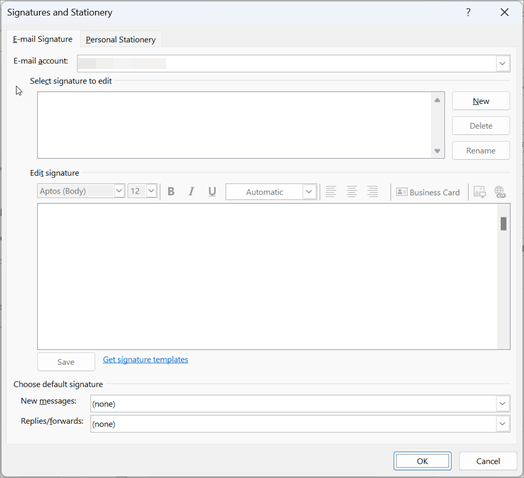
On the Message ribbon, select Signature → Signatures….
In E-mail account, pick the account you want to edit.
Under Select signature to edit, choose a signature or click New to create one.
Edit the signature in the Edit signature box (text, links, phone, job title). Use the format toolbar for fonts and images.
Under Choose default signature, set which signature to use for New messages and Replies/forwards.
Click Save and OK. Your change applies to new messages (existing drafts won’t update).
Pro tip: If your signature looks wrong when pasting a logo, paste as an image file (Insert → Pictures) rather than copy/paste from websites to avoid hidden styles.
New Astaroth Phishing Attack Targets Gmail and Outlook Users—Here’s How to Protect Yourself
B — Outlook on the web (Outlook.com / Office 365 web)
Sign in at outlook.office.com or outlook.com.
Click the Settings (gear) icon → View all Outlook settings → Mail → Compose and reply (or Account → Signatures).
Type or edit your signature in the editing box. Use the toolbar to add links, images, or vCards.
Check Automatically include my signature on new messages I compose or on messages I forward or reply to as needed.
Click Save. New web messages will use the selected defaults.
Why web vs desktop matters: Signatures you set on the web apply to web sessions and Outlook mobile if the app reads server settings; desktop Outlook often stores signatures locally unless you’re using the “new Outlook” experience connected to an Exchange/Office 365 profile.
C — Outlook for Mac
Open Outlook → Settings → Signatures.
Click + to add or select an existing signature to edit.
Type and format your signature in the editor. Rename it to keep versions clear (e.g., “Work — Marketing”).
Under Choose default signature, pick the signature you want for each account and for new or reply messages.
Close the dialog — settings save automatically. (If you use legacy Outlook for Mac there’s a slightly different “Edit” flow; the Settings menu is still where signatures live.)
Advanced tips and real-world use cases
Use multiple signatures for different contexts
Sales: name, title, 1 CTA link (book demo).
Support: shorter, include support hours and link to help center.
Personal: minimal contact info for non-work messages.
Create them and switch when composing (Message → Signature). This avoids overloading every email with lengthy content.
Keep images light and accessible
Use PNG or SVG for logos (PNG widely supported). Avoid large files — under 50 KB is ideal. If recipients see attachments instead of inline images, host the image on a CDN and link it.
Consistent branding across a team
For company-wide consistency, use a template and share HTML or an exported signature file with teammates. For Microsoft 365 admins, company signatures can be centrally applied via Transport Rules or the Exchange admin center (that’s an admin task outside this step-by-step guide).
Stellar Converter for OLM: How to Convert Mac Outlook (OLM) to PST
Mini case study
A small marketing team kept getting emails with different fonts and unbranded signoffs. After standardizing a simple HTML signature template and sharing it with employees (and setting web defaults), reply times and brand recognition improved — recipients immediately recognized the sender and the message looked professional. The fix took 20 minutes and reduced follow-up clarification emails.
Troubleshooting: common signature problems and fixes
Signature missing in replies: Check Replies/forwards default — Outlook treats replies differently from new messages.
HTML signature shows code: Make sure you paste HTML into the signature editor in HTML mode or save as .htm and import.
Logo appears as attachment: Insert image via the signature editor’s insert picture option rather than attaching. If still happening, host the image and use an
<img>tag referencing the URL.Different signatures on mobile: Outlook mobile has separate signature settings (app settings → Signature). Sync won’t replace mobile app signature automatically.
Key Takeaways
How to change signature in Outlook varies by client: desktop, web, and Mac have separate editors.
Set defaults separately for new messages and replies/forwards to avoid inconsistent signatures.
Use multiple signatures for different roles (sales, support, personal) and switch when composing.
Keep images small and insert them via the editor to avoid attachments.
For company-wide branding, consider an admin-level signature policy or share a verified HTML template.
FAQs (People Also Ask)
Q: Will changing the signature in Outlook on the web change it in desktop Outlook?
A: Not automatically. Web signatures apply to the web client; desktop Outlook stores signatures locally. If you use Exchange/Office 365 with synced profile, some settings may sync, but it’s safest to update both clients.

Q: How do I make a signature appear only on new emails and not on replies?
A: In the signature settings (desktop or web), there are separate dropdowns for New messages and Replies/forwards. Choose your desired option or set “None” for replies.
Q: Can I use HTML for a more complex signature?
A: Yes. Desktop Outlook accepts HTML signatures (save as .htm and import or paste HTML into the signature editor). Be careful with external CSS; use inline styles for best compatibility.
Q: My image shows as an attachment for recipients — how to fix?
A: Insert the image in the signature editor (Insert Picture) rather than attaching. If recipients still see an attachment, host the image online and reference it with an <img src="https://..."> in an HTML signature.
Conclusion
Changing your signature in Outlook is a small admin task that pays off: clearer contact details, consistent brand voice, and fewer awkward follow-ups. Whether you use Outlook desktop, Outlook on the web, or Outlook for Mac, the steps above get you there quickly — and the extra tips help you avoid the usual traps (image attachments, missing reply signatures, and inconsistent formatting). Try updating your default for new and reply messages now; if you manage a team, prepare a simple HTML template and share it — you’ll see better consistency across email threads.
Sources
Microsoft Support — Create an email signature in Outlook (desktop). Microsoft Support
Microsoft Support — Create and add an email signature in Outlook.com / Outlook on the web. Microsoft Support
Now loading...