Click here to buy secure, speedy, and reliable Web hosting, Cloud hosting, Agency hosting, VPS hosting, Website builder, Business email, Reach email marketing at 20% discount from our Gold Partner Hostinger You can also read 12 Top Reasons to Choose Hostinger’s Best Web Hosting
If you want to learn how to flip screen on Chromebook? You can learn the keyboard shortcut, how to rotate from Settings, auto-rotate on tablets, rotate external displays, Crostini (Linux) commands, and troubleshooting tips in plain steps.
Press Ctrl + Shift + Refresh to rotate most Chromebooks 90°. On convertible/tablet models enable Auto-rotate in Quick Settings (or lock it there). For external monitors go to Settings → Device → Displays and set Orientation. If a Linux app needs rotation, use xrandr inside the container. If rotation options are missing, update Chrome OS and check tablet mode or accelerometer settings.
Chromebooks are simple by design — and rotating the screen is usually faster than you think. Below I’ll walk you through every common scenario (keyboard shortcut, Settings, tablet/flip devices, external monitors, Linux/Crostini), plus fixes for touch/mapping problems and screenshots you can use for documentation.
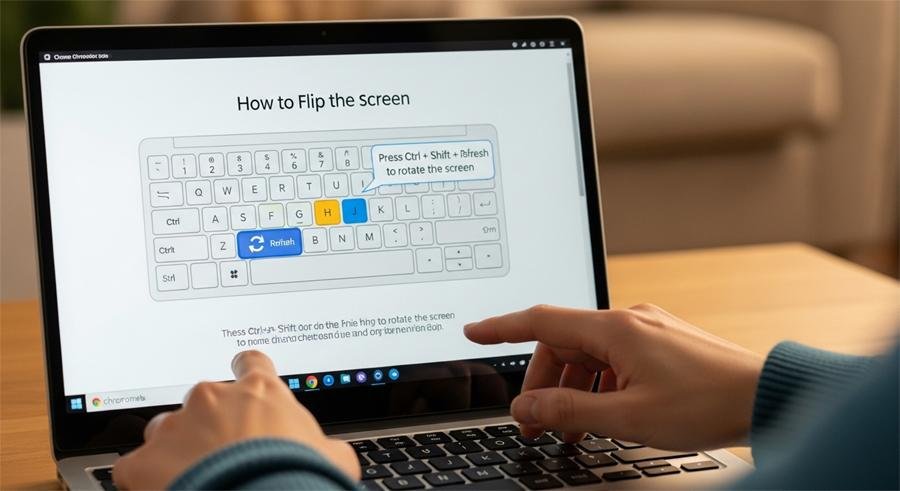
1) Quick keyboard shortcut (works on most Chromebooks)
If you just want to rotate the screen 90° clockwise, press:
Ctrl + Shift + Refresh (the circular arrow key above 3 or 4)
(Ad)

Each press cycles rotation: 0° → 90° → 180° → 270° → back to 0°.
On many external keyboards use the F3/Refresh key location for the circular arrow.
This is the fastest method for instant rotation.
2) Rotate from Settings (best for external displays & precise control)
Use Settings when you need a specific orientation or are dealing with multiple displays.
Click the time in the bottom-right to open Quick Settings, then click the gear ⚙️ to open Settings.
Go to Device → Displays.
Select the display you want to change (if you have more than one).
Find Orientation and choose Landscape, Portrait, Landscape (flipped) or Portrait (flipped).
Click Apply and confirm.
This is the recommended method for external monitors or when the keyboard shortcut isn’t available.
3) Auto-rotate and Tablet Mode (2-in-1 Chromebooks)
Convertible Chromebooks and Chromebooks in tablet mode can auto-rotate using the accelerometer.
Open Quick Settings and look for Auto-rotate (icon looks like a rotation arrow). Toggle it on/off.
If you want the screen locked at the current orientation, disable Auto-rotate.
Some devices show an Orientation Lock in Quick Settings when you flip to tablet mode.
Tip: If auto-rotate is missing, make sure your device supports tablet mode and that Chrome OS is up to date.
Samsung 14-inch Galaxy Chromebook Go Laptop PC Computer
4) Rotate an external monitor (mirrors vs extended desktop)
When using an external monitor:
Open Settings → Device → Displays.
Click the external display tile, then set Orientation.
If you’re mirroring displays, changing one changes the other. For more control, use Extend and set each display separately.
If the external monitor appears upside-down after a rotate, choose the corresponding “flipped” orientation or physically rotate the monitor and set the orientation to match.
5) Rotate inside the Linux container (Crostini) — for Linux apps
Linux apps run in a container that may not follow Chrome OS rotation. Use xrandr inside the Linux terminal:
Open Terminal (the Linux container).
Run
xrandrto list displays and their names (e.g.,eDP-1,VGA-1).Rotate a display (example: rotate left):
xrandr –output eDP-1 –rotate left- set:xrandr –output eDP-1 –rotate normal
If xrandr shows “failed to set mode,” the container may lack proper display permissions — restarting the Linux container or updating Crostini can help.
How to Copy and Paste on Chromebook
6) If touch input is wrong after rotation (touch mapping issues)
Sometimes touch or pen input doesn’t follow the new orientation.
Reboot the Chromebook — often the simplest fix.
Toggle Auto-rotate off/on.
If using a stylus or touchscreen driver inside Linux, use
xinputto remap touch coordinates for the rotated orientation (advanced). Example workflow (advanced users only):Run
xinput listto find device id.Use
xinput --map-to-output <id> <display>or set transformation matrix.
If touch stays misaligned on Chrome OS after rotation, file a support ticket — it’s often driver/firmware related.
7) Rotation not working? Checklist & fixes
Update Chrome OS: Settings → About Chrome OS → Check for updates. Many rotation bugs are fixed in updates.
Reboot the device.
Check tablet mode: Convert device fully to tablet mode, and see if Auto-rotate appears.
Test the shortcut: Try Ctrl + Shift + Refresh — if nothing happens, the accelerometer or refresh key may be failing.
External monitor quirks: Try a different cable or port (DisplayPort vs HDMI) and reselect orientation.
Powerwash / factory reset only as last resort — backup data first.
Check for enterprise policies: Managed devices might block rotation through admin policies.
8) Advanced: Force rotation from Chrome flags or developer console (not recommended)
Some older guides suggest Chrome flags or developer options. These are unstable and can break system behavior. Use them only if you know what you’re doing and have tested in a non-production environment.
ASUS ExpertBook CX54 Chromebook 14″ Laptop
FAQs
Q: What is the keyboard shortcut to flip a Chromebook screen?
A: Press Ctrl + Shift + Refresh (the circular arrow key) to rotate the display 90° increments.
Q: How do I flip the screen on a Chromebook tablet?
A: Open Quick Settings and toggle Auto-rotate. You can also lock rotation there if you want the screen to stay in the current orientation.
Q: Can I rotate an external monitor connected to my Chromebook?
A: Yes — go to Settings → Device → Displays, select the external monitor, and set Orientation to Landscape, Portrait or the flipped variants.
Q: My touchscreen is upside down after rotating — how do I fix touch mapping?
A: Reboot first. If it persists, toggle Auto-rotate or, for Linux apps, use xinput to remap touch. For persistent Chrome OS touchscreen issues, update OS or contact support.
Q: Why doesn’t rotation work on my managed/work Chromebook?
A: Your administrator may enforce policies that disable rotation or tablet mode. Contact your IT admin.
Now loading...