Contact us for Sponsored Post or to Promote your Services or Products here.
Click here to buy secure, speedy, and reliable Web hosting, Cloud hosting, Agency hosting, VPS hosting, Website builder, Business email, Reach email marketing at 20% discount from our Gold Partner Hostinger. You can also read 12 Top Reasons to Choose Hostinger’s Best Web Hosting.
Trying to change your Tumblr theme only to find no obvious “Customize” control is annoyingly common. If you’re asking Where to Find Customize Tab in Tumblr, you want to tweak colors, fonts, or header images, but the controls feel hidden or have disappeared — wasting time and breaking momentum. This guide shows exactly where Tumblr’s customization controls live on desktop and mobile, explains why the Customize/Edit Theme button may be missing, and gives practical fixes so you can get back to styling your blog in minutes.
Quick answer
On the web, open Settings > choose your blog > click Edit appearance (palette icon) or go to tumblr.com/customize/; inside that panel click Edit theme / Edit HTML to access the Customizer. On mobile, open your account, select the blog, then tap Edit appearance or the palette/edit Theme control.
How to find the Customize tab — step-by-step
On Desktop (web browser)
Sign in at tumblr.com and open the Dashboard.
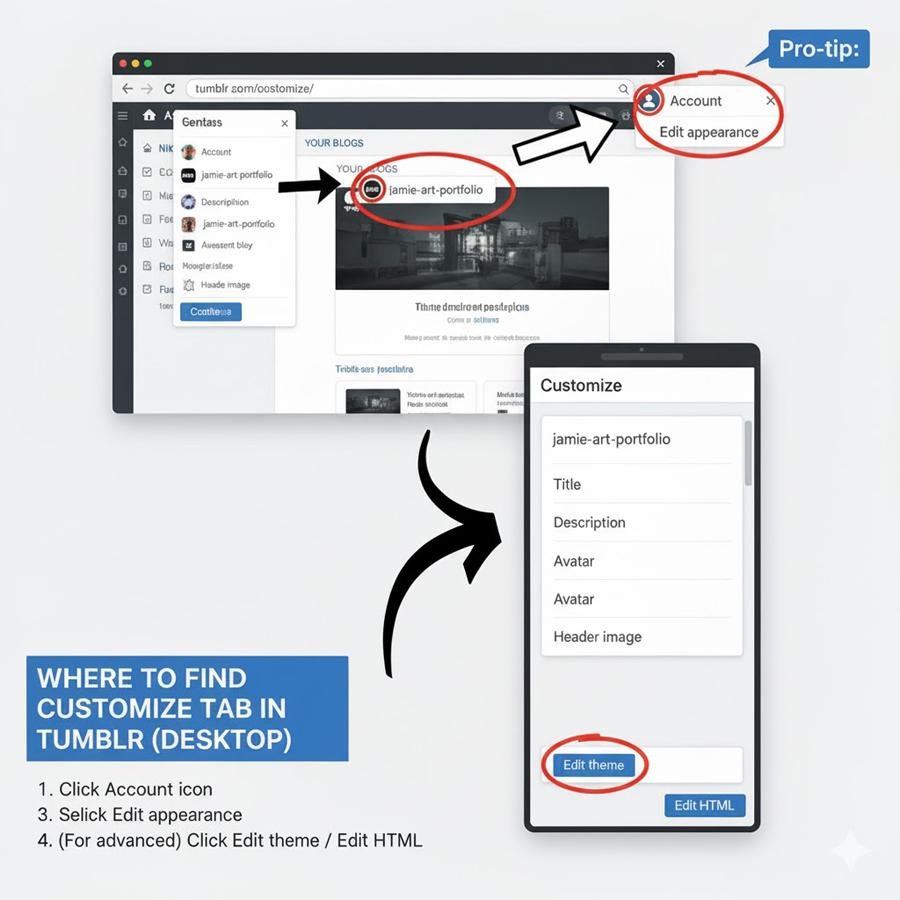
Click the Account (person) icon in the top-right, then pick the blog you want to edit from the list.
Click Edit appearance (the little palette or pencil icon on your blog page). This opens the theme/appearance panel (Tumblr sometimes calls it the Customizer or Edit Theme).
From the left sidebar of the Customizer you can change title, description, avatar, header image, and more. For deeper edits, click Edit theme then Edit HTML.
Pro tip: you can also visit
https://www.tumblr.com/customize/while logged in to jump straight to the Customizer for your default blog.
On iOS / Android (Tumblr app)
Open the Tumblr app and tap the Account icon (bottom-right or top-right depending on app version).
Tap your blog’s name (or Manage blogs), then look for Edit appearance or a palette icon.
Tap it to open appearance settings. Some theme options are mobile-limited; complex HTML edits need the web Customizer.
(If the app UI looks different, update the app — Tumblr has moved controls between app versions. If the app still lacks controls, use the web flow above.)
Why the Customize/Edit Theme button might be missing (and how to fix it)
If you don’t see Customize, one of the following is usually the cause:
1. You’re not editing the right blog
Tumblr accounts can host multiple blogs — you must select the blog you want to change. Check the blog selector in your Account menu. (Solution: choose the correct blog from the right-side list in Settings or Account.)
(Ad)

2. Custom themes disabled or limited by the blog’s settings
Some blogs may have “custom theme” toggles or settings that affect whether the Edit Theme options appear. To edit HTML you may need to enable the custom theme switch inside Appearance → Edit theme → Enable custom theme.
3. Theme author removed controls or theme hides the control
Some third-party themes override default controls or hide Tumblr’s topbar. If you’ve installed a theme that removes the Tumblr controls, temporarily switch to a default or known theme to regain access. (Solution: go to the Theme Garden or the Customizer and install a basic theme, then edit.)
4. Browser extensions or blockers
Script blockers, adblockers, or extensions that block iframes can hide Tumblr’s control iframe which contains the Customize buttons. Try disabling extensions, or open Tumblr in a private/incognito window.
5. Cache, cookies, or outdated session
Log out and log back in, clear browser cache, or try a different browser/device. Sometimes session or cached assets cause UI elements to vanish.
6. Account or visibility settings
If your blog’s visibility or discovery settings are set to restrictive modes, or if Tumblr’s policy/feature flags change, the Edit controls might behave differently. Check Settings > Visibility and known issues on Tumblr’s status pages if Tumblr has announced changes.
50 Elegant Free Tumblr Themes And Widgets For Blogging Experience
A short troubleshooting checklist (fast)
Verify you selected the correct blog from the Account menu.
Go to Settings > choose blog > Edit appearance (or visit
/customize/).Disable browser extensions and reload.
Try another browser or an incognito window.
Log out/in and clear cache.
If you still can’t access Edit HTML, temporarily switch to a default theme and retry.
If nothing works, file a Tumblr Support request.
Mini case study: Jamie’s missing Customize button (realistic example)
Jamie, a small-portfolio artist, couldn’t access the Customize panel after installing a purchased theme. Steps that fixed it:
Confirmed the account was showing the correct blog.
Temporarily set the blog to a default Tumblr theme — the Customize button reappeared.
Reinstalled the purchased theme and then used the Customizer to reapply settings; added custom CSS inside Edit HTML.
Root cause: the purchased theme overwrote the control iframe. Result: Jamie regained full control and kept a copy of the theme code locally to avoid repeating the break.
What you can do inside the Tumblr Customizer
Quick edits: change avatar, title, description, colors, fonts, and header images.
Layout options: switch between single-column, grid, or multiple columns (theme-dependent).
Add pages: create About/Links/Contact pages through the Add a page option.
Edit HTML / Custom CSS: open the HTML editor to paste or tweak theme code (advanced).
Key Takeaways
Where to find Customize: Settings → select blog → Edit appearance or go directly to
/customize/.Edit theme vs Edit appearance: Appearance is for quick edits; Edit theme / Edit HTML is for deeper changes.
Missing controls are usually fixable by selecting the right blog, disabling blockers, or switching themes.
Mobile has limits: for full HTML edits use the web Customizer.
Keep a backup: always copy theme code locally before major edits.
FAQs (People Also Ask)
Q: Where is the Customize button on Tumblr’s dashboard?
A: The Customize/Edit Appearance button appears on your blog page (top-right) once you’ve selected the blog in the Account menu; it’s also reachable via tumblr.com/customize/.
Q: Can I edit my Tumblr theme from the mobile app?
A: You can edit basic appearance settings in the app, but full HTML or advanced theme changes require the web Customizer.
Q: Why can’t I edit the HTML of my Tumblr theme?
A: Make sure Enable custom theme is turned on in Theme settings. If the theme author restricted controls or the theme removed the control iframe, temporarily switch themes to access Edit HTML.
Q: Is there a direct link to Tumblr’s Customizer?
A: Yes — while logged in, visit https://www.tumblr.com/customize/ to jump directly to the edit panel for your active blog.
3 VPNs That Pass All Tests (2025)
- NordVPN: Zero leaks in tests, RAM-only servers, and Threat Protection to block malware.
- Surfshark: Unlimited devices, Camouflage Mode for bypassing VPN blocks, and CleanWeb ad-blocker.
- ExpressVPN: Trusted Server tech (data wiped on reboot) and consistent streaming access.
Conclusion
Finding Tumblr’s Customize tab is usually just a couple of clicks — but when it’s missing, the cause is almost always a selection issue, a theme-level override, or a browser/extension conflict. Use the steps above to locate the Customizer, enable theme editing, and troubleshoot common problems. Once you’re in the Customizer you can make visual edits quickly or open Edit HTML for full control.
Try the steps now: open https://www.tumblr.com/customize/ (while logged in) and check the Edit appearance options for your blog. If you want, save a copy of your current theme HTML before changing anything.
Sources
Tumblr Help — Changing Your Blog’s Appearance. Tumblr Help Center
Tumblr Help — Custom HTML / Editing your theme. Tumblr Help Center

Greetings! I’m An Jay, and I’ve been running SmashingApps.com since 2007. Over the years, I’ve poured my passion into web design, graphic design, and SEO—helping readers discover the best tools, tips, and techniques to make their online projects shine. I believe in keeping things simple, practical, and results‑driven, and I’m excited to share everything I’ve learned with you.