Click here to buy secure, speedy, and reliable Web hosting, Cloud hosting, Agency hosting, VPS hosting, Website builder, Business email, Reach email marketing at 20% discount from our Gold Partner Hostinger You can also read 12 Top Reasons to Choose Hostinger’s Best Web Hosting
Keeping drivers current matters. Old or broken drivers cause crashes, poor performance, and hardware bugs — but blindly updating drivers can also create problems. This guide shows how to test and check if your Windows PC drivers are up to date safely and efficiently: quick GUI checks, useful command-line queries, vendor tools, how to back up drivers, and what to do when an update breaks something.
Microsoft System Builder | Windоws 11 Home | Intended use for new systems | Install on a new PC | Branded by Microsoft
Start with Windows Update and Device Manager for a baseline. Use vendor tools (Intel/AMD/NVIDIA) for graphics and chipset drivers. Backup before major changes, and use rollback/restore if a driver update causes issues.
Why checking drivers matters
Drivers are the glue between Windows and your hardware: GPU, Wi-Fi, audio, storage controllers, printers, even touchpads. When drivers are outdated you may see graphical glitches, random freezes, poor battery life, or connectivity issues. When a driver is faulty, it can cause kernel crashes (BSODs). Checking drivers regularly keeps the system stable, improves performance, and ensures compatibility with new software.
Quick checklist
Create a System Restore point.
Check Windows Update → Optional updates (drivers).
Inspect Device Manager for warning icons.
Use vendor tools for GPU, Wi-Fi, chipset.
Run a command-line driver report (
driverquery/pnputil).Backup critical drivers (export) before changing them.
If issues appear, roll back the driver or boot to Safe Mode and reinstall.
1) Easiest: use Windows Update (official & recommended)
Windows Update is the safest place to start.
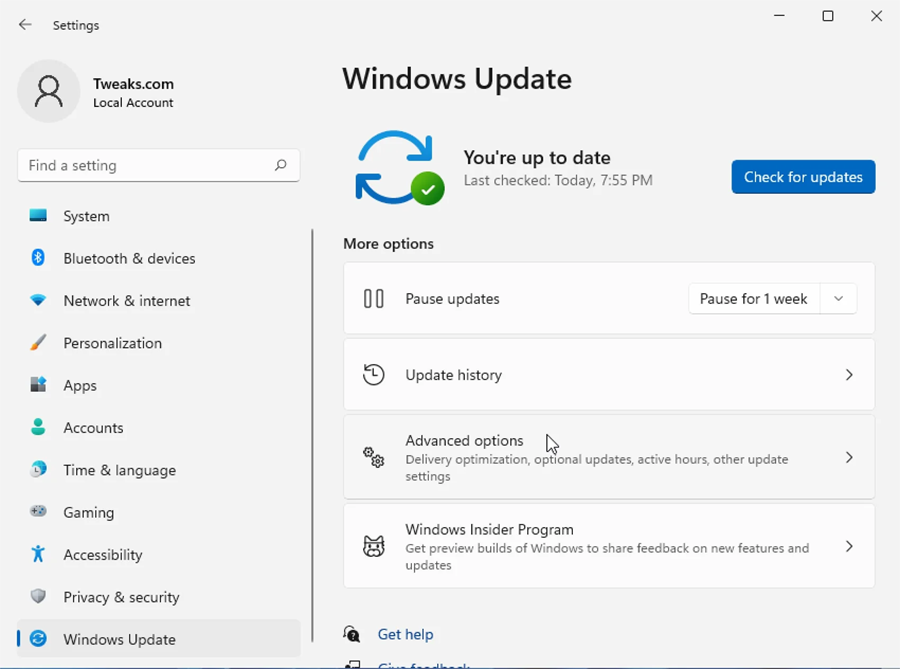
Windows 11: Settings → Windows Update → Advanced options → Optional updates → Driver updates.
Windows 10: Settings → Update & Security → Windows Update → View optional updates → Driver updates.
Microsoft distributes vetted drivers here; if a device driver is listed under Optional updates, it’s usually tested and safe for general users.
2) Check Device Manager manually (GUI check)
Device Manager shows which devices have issues and lets you view the installed driver details:
(Ad)

Press Win + X → Device Manager.
Expand a category (e.g., Display adapters).
Right-click the device → Properties → Driver tab.
Check Driver Provider, Driver Date, Driver Version, and Driver Details.
Use Update Driver → Search automatically for drivers to let Windows find a new driver.
If a device shows a yellow triangle, it indicates a problem — start your troubleshooting there.
7 Best Windows Debloaters to Improve Windows Performance
3) Use vendor tools for key components (GPU, chipset, networking)
Third-party vendor tools are tuned for their hardware and often provide the newest stable drivers:
NVIDIA GeForce Experience — GPU driver updates and Game Ready drivers.
AMD Radeon Software / Adrenalin — Radeon GPU updates + tuning.
Intel Driver & Support Assistant (DSA) — chipset, iGPU and network drivers.
Realtek / Broadcom / Qualcomm — audio and Wi-Fi driver pages (use vendor downloads for laptops).
Laptop OEM pages (Dell, HP, Lenovo, ASUS) — if you have a branded laptop, prefer OEM drivers for power management and custom features.
Tip: For laptops, prefer OEM drivers first (they include firmware and power tweaks).
How to Check CPU Temperature – A Practical Guide for Windows, macOS, Linux & BIOS
4) Command-line checks — quick reports and exports
For a concise system overview and to create a report:
List installed drivers (simpler):
This produces a verbose list with driver names, versions, and dates.
List driver packages (driver store):
Export all 3rd-party drivers (backup):
This copies installed drivers to C:\DriverBackup so you can restore them later.
Check specific device via PowerShell (example):
(Change the filter to match your device name.)
5) Test driver health — tools and signs to watch for
Reliability Monitor: Start Menu → type reliability → View reliability history. Look for driver-related errors and recent changes around crash times.
Event Viewer: Windows Logs → System → filter by Source: nvlddmkm, e1iexpress, ataport, or kernel-power for GPU, network, or storage driver issues.
Device Manager warnings (yellow triangle) indicate misbehaving devices.
BSOD minidump analysis — use WinDbg or BlueScreenView to see if a driver is blamed.
If you see repeated driver errors, that device is a candidate for rollback or clean reinstall.
6) Updating safely — best practices
Create a restore point first: Search Create a restore point → System Protection → Create.
Backup drivers (use
pnputilexport or third-party utilities).Update one driver at a time — test stability before continuing.
Prefer OEM or vendor packages over random driver update apps.
For GPU issues, use DDU (Display Driver Uninstaller) in Safe Mode to fully remove old drivers before installing new GPU drivers.
7) Rollback & clean re-install (when updates break things)
If a driver update causes problems:
Device Manager → Properties → Driver → Roll Back Driver (if available).
If rollback isn’t available or fails, boot into Safe Mode and:
Use DDU for GPU drivers.
Uninstall device in Device Manager (check Delete the driver software for this device), then reboot and install vendor driver.
8) Firmware, BIOS & chipset — don’t forget system software
Some “driver” issues are solved only with BIOS/UEFI or chipset updates (motherboard vendor). Check:
Motherboard / laptop support page for BIOS/UEFI updates and chipset drivers.
SSD firmware updates (Samsung Magician, WD Dashboard) for storage stability.
Warning: BIOS updates carry risk — follow vendor instructions exactly and do them on AC power.
Microsoft Warns 200 Million Windows Users to Back Up and Test Before Updating their PCs
9) When to avoid “automatic driver updaters”
Third-party driver-updater programs promise convenience but can introduce unsigned or incompatible drivers. If you use one, choose a reputable tool and always cross-check the driver source. For most users the combination of Windows Update + vendor/OEM downloads is the safest path.
How to Install Windows 11 on an NVMe SSD — Clean Install & Clone/Migrate Guide
10) Enterprise & IT managers — scale checks
For fleets, use managed update tools:
WSUS / SCCM (Endpoint Manager) for staged driver rollouts.
Driver catalogs and testing rings (pilot > group > org).
Maintain driver images and signed driver packages to ensure consistency.
FAQs
Q: How often should I check drivers?
A: For most users, check drivers every 3–6 months or when you notice problems. Check more often if you’re a gamer or use specialized hardware.
Q: Will Windows Update give me the latest drivers?
A: Windows Update provides tested drivers. For bleeding-edge GPU features or performance, use the GPU vendor’s driver releases; for laptops, prefer OEM driver packages.
Q: Can drivers cause blue screens?
A: Yes — faulty or incompatible drivers are a common cause of BSODs. Use Reliability Monitor and minidump analysis to identify the offending driver.
Q: How do I back up my drivers?
A: Use pnputil /export-driver * C:\DriverBackup to export current drivers, or third-party tools that capture driver packages.
Q: Is it safe to use driver updater apps?
A: Be cautious. Many are legitimate, but some install incorrect or unsigned drivers. Prefer official vendor/OEM sources.
WinPilot vs WinHance vs Windows 11 Debloater – Which One Should You Use?
Final Tips
Don’t rush: update drivers only when needed or when a vendor recommends a fix.
Document: keep a short log (date, device, driver version) when you update critical drivers on a work machine.
Back up: always create a restore point or driver backup before changing critical drivers.
Now loading...