Click here to buy secure, speedy, and reliable Web hosting, Cloud hosting, Agency hosting, VPS hosting, Website builder, Business email, Reach email marketing at 20% discount from our Gold Partner Hostinger You can also read 12 Top Reasons to Choose Hostinger’s Best Web Hosting
Cleaning up Windows can feel like magic — faster boot, less background waste, and fewer privacy leaks — but the wrong script or setting can break features. Below are best Windows Debloaters to improve windows performance that professionals and power users commonly use in 2026, plus practical guidance so you get the wins without the risk.
Microsoft System Builder | Windоws 11 Home | Intended use for new systems | Install on a new PC | Branded by Microsoft
If you want a straightforward, low-risk start: Win11Debloat (script + GUI wrappers) and O&O ShutUp10++ are the friendliest. For deeper image-level trimming (VMs, test machines) use Tiny11 builder or Nano11-style projects. If you need a full “power user” toolkit and are comfortable reading code, Chris Titus Tech and Windows-Optimize-Harden-Debloat offer strong, customizable workflows. Always test on a VM or backup first.
How I picked these
I focused on projects that are:
actively maintained or widely used recently;
open-source or transparent (so you can inspect changes);
flexible — allow safe rollback or selective operation;
proven across community testing and coverage.
When in doubt, prefer an offline (local) script and avoid one-click “optimizers” that bundle upsells.
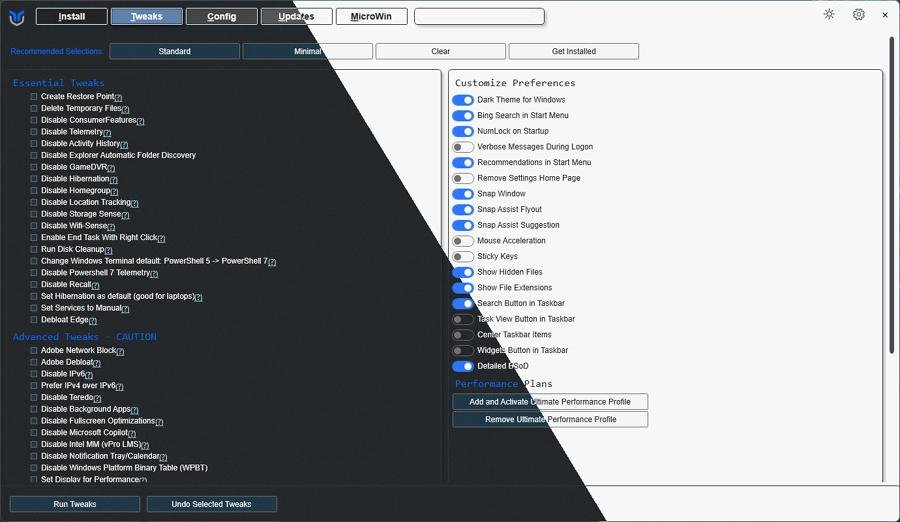
The 7 best Windows debloaters (short list)
1. Win11Debloat — Lightweight PowerShell script (best starter script)
What it is: A readable PowerShell debloat script that removes preinstalled apps, disables telemetry bits, and lets you choose actions. It has multiple GUI wrappers and active forks.
Best for: Users who want control with minimal fuss.
Why use it: Human-readable, reversible options, clear GitHub docs.
Caution: Review options before running; avoid removing components you rely on (e.g., Microsoft Store if you use it).
2. Chris Titus Tech Tool (WinUtil / scripts) — Power-user automation
What it is: A set of scripts and a toolkit from Chris Titus that automates debloating, tweaks, and performance tweaks for Windows 10/11 (well-documented and community-tested).
Best for: Power users who want curated defaults and automation (also good for repeatable builds).
Why use it: Opinionated presets, community tutorials, reliable instructions.
Caution: It’s opinionated — read what each step does before applying to production machines.
(Ad)

The “One-Command” Setup: How to Debloat Windows 11 & Reclaim RAM (2026 Guide)
3. Windows-Optimize-Harden-Debloat (simeononsecurity) — Security-first debloat
What it is: A script focused on hardening plus debloating; aligns with security baselines and enterprise best practices.
Best for: IT admins and privacy-conscious users who want security changes bundled with bloat removal.
Why use it: Covers privacy, telemetry, service hardening and deployment-friendly options.
Caution: Some hardening options can interfere with business apps — test in a controlled environment.
4. Tiny11 Automated Builder (ntdevlabs) — Trim Windows installs (image-level)
What it is: Scripts to build a trimmed-down Windows 11 image (Tiny11) — great for VMs, testbeds, and low-resource devices. It automates an unattended image creation process.
Best for: Creating minimal Windows images for VMs or lab machines.
Why use it: Produces very small, fast installs; repeatable builds are ideal for test/dev.
Caution: Not a daily-driver replacement — some features (language packs, updates, store) may be limited; not recommended for general consumer machines unless you know the tradeoffs.
5. Sycnex / Windows10Debloater — Classic, battle-tested debloater
What it is: One of the long-standing debloat scripts to remove Windows 10/11 bloatware and telemetry. It’s community-tested and widely recommended.
Best for: Users who want a tried-and-true approach for older Windows installs.
Why use it: Mature, lots of community guidance and forks; safe defaults available.
Caution: Some branches vary — prefer the main repo and read recent issues before running.
12 INSANE Things You Can Do with Google Gemini (Most People Don’t Know #7)
6. Privatezilla — GUI privacy & debloat manager
What it is: A GUI app that aggregates privacy settings (from O&O ShutUp10 rules and more) into a checklist you can toggle. It performs many useful hardening and telemetry stops while showing what each toggle does.
Best for: Users who prefer a visual, reversible interface and want fine-grained control without PowerShell.
Why use it: Good balance of safety + ease of use; audit-style UI.
Caution: Still test—some toggles impact functionality (Cortana, Search indexing, app notifications).
7. O&O ShutUp10++ — antispy & tweak classic (free, GUI)
What it is: A trusted antispy tool with granular privacy toggles for Windows 10 & 11. It doesn’t remove apps; instead it changes system policies and telemetry settings.
Best for: Users focused on privacy rather than removing apps.
Why use it: Windows-focused, easy to revert, regularly updated.
Caution: Some enterprise environments may reapply group policies; check compatibility for work PCs.
How to Make Windows 11 Look Like Windows 7
Quick safety checklist (must-read before you run anything)
Backup first. Create a System Restore point and a full image if the machine is important.
Test in a VM. Run scripts on a virtual machine to see the exact impact.
Run selectively. Uncheck aggressive removals (store, codecs) if unsure.
Read the code. Open-source scripts are inspectable — scan the main steps before execution.
Keep recovery media ready. Bootable Windows USB + knowledge of Safe Mode / System Restore saves headaches.
How To Test and Check if Your Windows PC Drivers Are Up To Date?
How to pick the right tool
Want simple privacy: O&O ShutUp10++ or Privatezilla.
Want scripted debloat with human-readable options: Win11Debloat or Chris Titus Tool.
Building VM or test images: Tiny11 builder (or Nano11 for extreme minimalism).
Need security-first baseline: Windows-Optimize-Harden-Debloat.
Always prefer tools you can understand and reverse.
Quick install hints
Clone the repo or download the release zip.
Read the README — many scripts include “dry-run” or “preview” modes.
Run with Administrator privileges.
Review and export settings before committing (some GUIs offer “create restore point” options).
5 Super Power Apps in Windows 11
FAQs
Plain text FAQs
Q: Will debloating speed up my PC?
A: Yes — removing background bloat, disabling telemetry, and stopping unused services can reduce CPU/disk usage and speed boot times. Gains vary by system; always measure (boot time, CPU idle) before/after.
Q: Can debloaters brick my Windows install?
A: Unlikely if you use safe defaults, but possible if you remove critical components. Always back up and test in a VM first.
Q: Are these tools safe for work laptops?
A: Not without IT approval. Company-managed devices may have policies or required services that debloating can break.
Q: Which tool is best for a non-technical user?
A: O&O ShutUp10++ or Privatezilla — both provide GUIs and safer toggles.
Q: Do debloaters remove Windows updates or drivers?
A: No — reputable debloaters avoid removing drivers or Windows Update components unless explicitly chosen by the user.
WinPilot vs WinHance vs Windows 11 Debloater – Which One Should You Use?
Sources & further reading
Win11Debloat (GitHub & site).
Chris Titus Tech tool & guides.
Windows-Optimize-Harden-Debloat (simeononsecurity).
Tiny11 / Tiny11Builder (NTDEVLabs).
Sycnex / Windows10Debloater (GitHub).
Privatezilla (GitHub).
O&O ShutUp10++ product page.
Now loading...