Click here to buy secure, speedy, and reliable Web hosting, Cloud hosting, Agency hosting, VPS hosting, Website builder, Business email, Reach email marketing at 20% discount from our Gold Partner Hostinger You can also read 12 Top Reasons to Choose Hostinger’s Best Web Hosting
This UX design terms glossary covers every term you will encounter in briefs, critiques, research reports, and client conversations — defined the way working designers actually use them, not the way textbooks define them. Whether you are new to UX design, a developer working alongside designers, or a client trying to decode a design document, every entry here gives you a plain-English definition, a real example, and a note on why the concept matters in practice.
Envato itself gives away freebies monthly. No hacks. No shady tools. Just straightforward methods
How to use this UX design terms glossary: Jump to a category section below, or use the A–Z quick index to find a specific term.
Quick A–Z Index — UX Design Terms Glossary
A: A/B Testing · Above the Fold · Accessibility · Affinity Mapping · Affordance · Agile · Annotation
B: Baseline · Breadcrumb · Breakpoint
C: Card Sorting · Call to Action (CTA) · Cognitive Load · Content Audit · Contextual Inquiry · Conversion Rate
(Ad)

D: Dark Pattern · Deliverable · Design Sprint · Design System · Design Thinking · Diary Study
E: Empathy Map · End User · Error State · Eye Tracking
F: Fitts’s Law · Flow · Focus Group · Friction
G: Gestalt Principles · Grid System
H: Hamburger Menu · Heatmap · Heuristic Evaluation · High-Fidelity Prototype · Human-Centered Design
I: Information Architecture · Interaction Design · Iterative Design
K: KPI
L: Lean UX · Low-Fidelity Prototype
M: Mental Model · Microcopy · Microinteraction · Modal · MVP
N: Navigation · Nielsen’s Heuristics
O: Onboarding
P: Pain Point · Persona · Progressive Disclosure · Prototype
S: Scarcity Pattern · Sitemap · Skeleton Screen · Sprint · Storyboard
T: Task Flow · Touchpoint · Tree Testing
U: UI Design · Usability · Usability Testing · User Flow · User Journey Map · User Research · User Story · UX Design · UX Writing
W: Wayfinding · Wireframe
Category 1 — Core UX Concepts
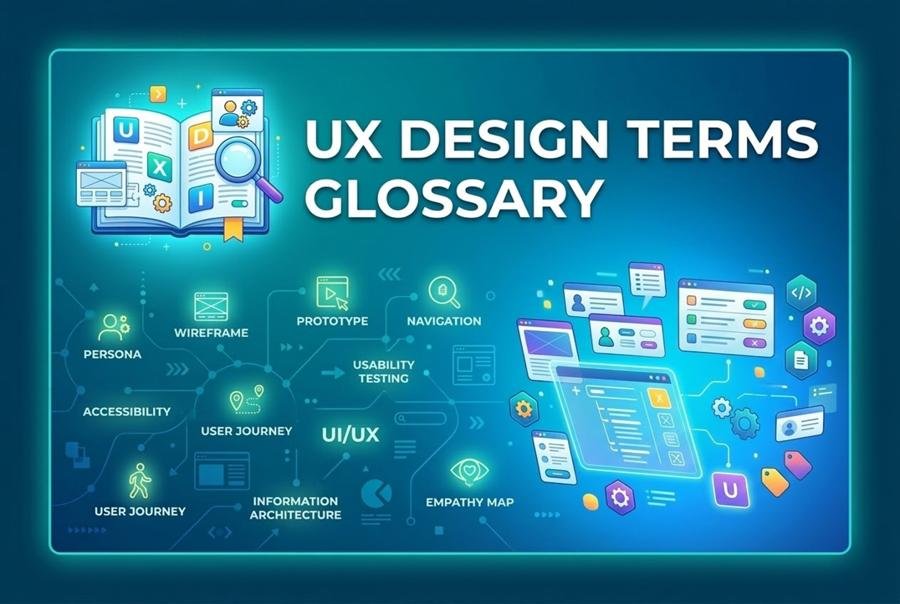
The foundational vocabulary every UX designer uses daily. These are the concepts that underpin every decision in the design process. If you are working through this UX design terms glossary from the beginning, start here — every other category builds on these fundamentals.
UX Design
What it is: UX design (User Experience design) is the practice of designing products so that they are useful, easy to use, and enjoyable to interact with. It covers the entire experience a person has with a product — not just how it looks, but how it works, how easy it is to navigate, how it makes the user feel, and whether it helps them accomplish their goal.
Real example: When you open a banking app and can pay a bill in three taps without confusion, that is good UX design. When you spend ten minutes hunting for the right button and still give up, that is poor UX design.
Why it matters: UX design determines whether users stay with your product or abandon it. Poor UX is the leading cause of app abandonment and high bounce rates.
Related terms: UI Design, Usability, Human-Centered Design, Interaction Design
UI Design
What it is: UI design (User Interface design) is the practice of designing the visual elements a user interacts with — buttons, menus, icons, colour schemes, typography, and layout. UI design is primarily concerned with how an interface looks and how individual elements behave when interacted with.
Real example: The specific shade of blue on a button, the size of a toggle switch, the animation when a menu opens — these are all UI design decisions.
The UX vs UI distinction: UX design determines the structure and logic of an experience. UI design determines how that structure looks and feels. UX comes first, then UI is built on top of it. A beautifully designed interface (great UI) that is confusing to navigate is still a bad product (poor UX).
Related terms: UX Design, Visual Hierarchy, Design System, Interaction Design
5 Free iPhone 17 Pro Mockups for Figma (2025 Collection)
Usability
What it is: Usability is the measure of how easy and efficient a product is to use. A highly usable product allows users to accomplish their goals quickly, with minimal errors, and without needing a manual or tutorial.
The five dimensions of usability (Jakob Nielsen): Learnability (how easy is it to learn?), efficiency (once learned, how fast can tasks be completed?), memorability (after not using it for a while, can users remember how?), error rate (how many mistakes do users make?), satisfaction (how much do users enjoy using it?).
Why it matters: Usability is measurable. If users are making errors, abandoning tasks, or asking for help with basic functions, you have a usability problem — regardless of how good the product looks.
Related terms: Usability Testing, Heuristic Evaluation, Cognitive Load, Nielsen’s Heuristics
Human-Centered Design
What it is: Human-centered design (HCD) is a design philosophy and process that places the needs, behaviours, and goals of real users at the centre of every design decision. Rather than designing what seems logical to the designer, HCD starts with research into actual user behaviour and builds solutions around what users actually need.
Real example: Designing a hospital check-in system by first shadowing patients through the check-in process, identifying where they get confused or stuck, and solving for those specific friction points — rather than starting with what the hospital administrator thinks the system should look like.
Related terms: Design Thinking, Empathy Map, User Research, Persona
Affordance
What it is: An affordance is a visual or physical property of an object or element that signals how it should be used. Good affordances make interactions intuitive — the user knows what to do without being told.
Real example: A button with a shadow and rounded edges looks “pressable.” A flat, borderless text element does not look clickable. The shadow is the affordance communicating “this is interactive.”
Common affordance failures: Flat design trends have created many affordance problems — links and buttons that look identical to static text, resulting in users missing interactive elements entirely.
Related terms: Interaction Design, Visual Hierarchy, Microcopy, UI Design
Mental Model
What it is: A mental model is a user’s internal understanding of how a system works. Users approach every new product with a set of assumptions based on their previous experiences with similar products. When a product matches a user’s mental model, it feels intuitive. When it contradicts it, users feel confused and frustrated.
Real example: Most users expect the shopping cart icon in an e-commerce site to be in the top right corner. Moving it to the bottom left is technically valid — but it violates the mental model, creating unnecessary friction.
Why it matters: Mental models explain why familiar patterns work better than clever novel ones. Breaking a pattern is only worth it if the benefit to the user outweighs the learning cost.
Related terms: Cognitive Load, Affordance, Nielsen’s Heuristics, Interaction Design
Cognitive Load
What it is: Cognitive load is the amount of mental effort required to use a product. Every element on a screen — every decision a user must make, every piece of information they must read, every action they must take — adds to their cognitive load. Good UX minimises cognitive load so users can focus on their actual goal.
Three types: Intrinsic (the inherent complexity of the task itself), extraneous (unnecessary complexity added by poor design), germane (effort that builds useful knowledge). UX designers aim to reduce extraneous cognitive load.
Real example: A checkout form that asks for 12 fields when only 4 are necessary creates extraneous cognitive load. Every unnecessary field increases abandonment probability.
Related terms: Progressive Disclosure, Mental Model, Friction, Usability
27 Best Free Tools for Designers and Developers in 2026 (For Freelancers Too)
Friction
What it is: Friction in UX refers to any element of a design that makes it harder for users to complete a task. Friction is not always bad — some friction is intentional (a confirmation step before deleting an account prevents accidents). Most friction, however, is unintentional and represents a design failure.
Real example: A password reset flow that requires users to leave the app, check email, click a link, return to the app, and re-enter a new password contains six steps of friction. A flow that sends a one-tap confirmation link reduces that to two.
Related terms: Cognitive Load, Usability, Pain Point, Conversion Rate
Pain Point
What it is: A pain point is a specific problem, frustration, or obstacle that users encounter when trying to accomplish a goal. Identifying pain points is one of the primary objectives of user research — every pain point is a design opportunity.
Types of pain points: Process pain points (steps that are too complicated), financial pain points (pricing confusion or unexpected costs), support pain points (inability to get help when needed), and productivity pain points (the product slows users down rather than helping them).
Related terms: User Research, Empathy Map, User Journey Map, Friction
Conversion Rate
What it is: Conversion rate is the percentage of users who complete a desired action — signing up, purchasing, subscribing, downloading. Improving conversion rate is often the business objective behind UX improvements.
Formula: (Number of conversions ÷ total number of visitors) × 100. A page with 1,000 visitors and 50 sign-ups has a 5% conversion rate.
UX connection: Conversion rate is one of the most direct measurements of UX quality for commercial products. Every friction point, confusing label, or unclear call to action directly reduces conversion rate.
Related terms: Call to Action (CTA), A/B Testing, Friction, KPI
Dark Pattern
What it is: A dark pattern is a UI design technique deliberately intended to trick or manipulate users into taking actions they did not intend or want to take — subscribing to services, sharing data, making purchases, or preventing cancellation.
Common examples: Pre-ticked consent checkboxes, “roach motel” cancellation flows (easy to subscribe, impossibly hard to cancel), confirmshaming (“No thanks, I don’t want to save money”), disguised ads that look like navigation elements.
Why it matters: Dark patterns are increasingly illegal in multiple jurisdictions (EU Digital Services Act, US state consumer protection laws) and destroy user trust when identified. Understanding them helps both avoiding their use and recognising them in competitive products.
Related terms: Onboarding, Microcopy, Accessibility, Friction
Category 2 — UX Research Methods
UX research is the process of learning about users through direct observation, interviews, and testing. These are the most commonly used methods.
User Research
What it is: User research is the systematic study of target users — their behaviours, needs, goals, motivations, and pain points — in order to make design decisions based on evidence rather than assumptions. UX design without user research is guesswork.
Two types: Generative research (exploratory, used to discover what problems to solve — interviews, diary studies, ethnographic observation) and evaluative research (used to assess how well a design solves those problems — usability testing, A/B testing, surveys).
Related terms: Usability Testing, Contextual Inquiry, Diary Study, Persona
Usability Testing
What it is: Usability testing is a research method in which real users are observed attempting to complete specific tasks with a product, while researchers note where they succeed, struggle, hesitate, or fail. It is the most direct method of identifying usability problems.
Moderated vs unmoderated: Moderated testing involves a researcher present (in-person or remote) who can ask follow-up questions. Unmoderated testing uses software to record users working through tasks independently, providing scale but less depth.
The five-user rule: Jakob Nielsen’s research suggests that five users will uncover approximately 85% of a product’s usability problems. You do not need a large sample to find meaningful issues.
Related terms: A/B Testing, Heuristic Evaluation, User Research, Prototype
11 Free Websites to Transform Your Workflow and Save You Hours
A/B Testing
What it is: A/B testing (also called split testing) is a method of comparing two versions of a design element — a headline, button colour, layout, copy — by showing version A to one group of users and version B to another, then measuring which performs better against a defined goal.
What it does well: Validates design decisions with real user behaviour data. Removes subjectivity from disagreements about design choices.
What it does not do well: A/B testing tells you which version performed better, not why. It cannot diagnose the underlying UX problem — only confirm which solution works better in context. Qualitative research methods are needed to understand the reasoning behind the result.
Related terms: Conversion Rate, KPI, Usability Testing, Heuristic Evaluation
Heuristic Evaluation
What it is: A heuristic evaluation is a UX inspection method in which evaluators (typically UX experts rather than users) examine a product against a set of established usability principles — “heuristics” — to identify usability problems.
The most widely used framework: Jakob Nielsen’s 10 Usability Heuristics, which include principles like “visibility of system status,” “error prevention,” and “recognition rather than recall.” See Nielsen’s Heuristics for the full list.
When to use it: Heuristic evaluations are faster and cheaper than usability testing and can be conducted without recruiting participants. They are useful for finding obvious issues quickly — but they cannot replace testing with actual users.
Related terms: Nielsen’s Heuristics, Usability Testing, User Research, Cognitive Load
Contextual Inquiry
What it is: Contextual inquiry is a qualitative user research method in which a researcher observes and interviews users in their natural environment — at their workplace, in their home, or in the actual setting where they use the product. The goal is to understand behaviour in context, not in an artificial lab setting.
Why it matters: What users say they do and what they actually do are often very different. Contextual inquiry reveals real workarounds, frustrations, and habits that users would never articulate in a traditional interview.
Related terms: User Research, Ethnographic Research, Diary Study, Affinity Mapping
Affinity Mapping
What it is: Affinity mapping (also called affinity diagramming) is a method for organising and synthesising large volumes of qualitative research data — notes, quotes, observations — by grouping related items together to reveal themes and patterns.
How it works: After user research sessions, researchers write individual observations onto sticky notes (physical or digital), then collaboratively cluster related notes together. Clusters are named to represent the underlying theme. The result reveals what matters most across many users.
Tools: Miro, FigJam, Mural, and physical sticky notes on a wall are all common.
Related terms: User Research, Contextual Inquiry, Persona, Design Thinking
Ever Wondered What Your UX Workflow Is Missing? Meet Google Stitch, Your New Design Sidekick
Card Sorting
What it is: Card sorting is a UX research method in which participants are given a set of cards, each labelled with a piece of content or a feature, and asked to organise them into groups that make sense to them. The results inform information architecture and navigation design.
Open card sorting (participants create their own category names) reveals how users mentally organise information. Closed card sorting (categories are pre-defined, participants sort cards into them) tests whether your existing navigation structure matches user expectations.
When to use it: Before designing or restructuring a website’s navigation, or when deciding how to organise features in a complex application.
Related terms: Information Architecture, Tree Testing, Navigation, User Research
Eye Tracking
What it is: Eye tracking is a research method that uses specialised hardware to measure exactly where users look on a screen, how long they look there, and in what order they scan content. Results are typically displayed as heatmaps showing areas of high and low visual attention.
What it reveals: Whether users notice key elements (buttons, CTAs, navigation), the reading patterns used on different page layouts (F-pattern, Z-pattern), and whether visual hierarchy matches the intended reading order.
Related terms: Heatmap, Visual Hierarchy, User Research, Usability Testing
Diary Study
What it is: A diary study is a longitudinal user research method in which participants self-report their experiences, behaviours, and thoughts over an extended period — days, weeks, or months — typically via a journal, app, or structured form.
When it is most useful: For understanding experiences that happen intermittently or over time — how people use a financial app over a month, how a new employee learns a complex workflow over their first three weeks. Usability testing captures a moment in time; diary studies capture a journey.
Related terms: User Research, Contextual Inquiry, Empathy Map
Focus Group
What it is: A focus group is a moderated group discussion with several users (typically 5–10) exploring their attitudes, opinions, and experiences with a product, concept, or category.
Important caveat: Focus groups are frequently misused as a substitute for usability testing. They are not the same thing. Focus groups reveal what people say and think; usability testing reveals what people actually do. Group dynamics also create social pressure that can skew results. Focus groups are most useful for early-stage concept exploration, not for evaluating design decisions.
Related terms: User Research, Usability Testing, Contextual Inquiry
Tree Testing
What it is: Tree testing is a UX research technique for evaluating the findability of content within a navigation structure. Participants are given a text-only version of a site’s hierarchy (the “tree”) and asked to find where specific content would be located, without seeing the actual design or visual interface.
Why remove the visual design? Isolating the navigation structure from visual design removes the influence of aesthetics, making it possible to test the information architecture itself.
Related terms: Card Sorting, Information Architecture, Navigation, Sitemap
Category 3 — Design Deliverables and Artefacts
The tangible outputs a UX designer produces throughout the design process.
Wireframe
What it is: A wireframe is a simplified, low-detail visual layout of a screen or page that shows structure, content placement, and navigation without specifying visual design (colours, fonts, images). Think of it as the blueprint before the building.
Fidelity levels: Low-fidelity wireframes (hand-sketched or very basic boxes) are used in early ideation. Medium-fidelity wireframes (clean, more structured but still grayscale) are used to communicate layout to stakeholders and developers before visual design begins.
What wireframes are not: Wireframes are not prototypes (they are static). They are not final designs. They are a communication tool for aligning on structure before investing in visual design.
Related terms: Low-Fidelity Prototype, High-Fidelity Prototype, Annotation, Design System
Prototype
What it is: A prototype is an interactive simulation of a product used for testing and communication. Unlike wireframes, prototypes can be clicked through — users can interact with them, navigate between screens, and experience the intended flow.
Low-fidelity vs high-fidelity: Low-fidelity prototypes prioritise speed over accuracy — they test the logic of a flow before investing in visual design. High-fidelity prototypes closely resemble the final product and are used for stakeholder presentations and late-stage usability testing.
Tools: Figma, Adobe XD, InVision, Axure, and Framer are the most widely used prototyping tools.
Related terms: High-Fidelity Prototype, Low-Fidelity Prototype, Wireframe, Usability Testing
Low-Fidelity Prototype
What it is: A low-fidelity (lo-fi) prototype is a rough, quick representation of a product that focuses on testing the structure and logic of a flow rather than the visual design. Paper prototypes, clickable wireframes, and basic Figma flows with placeholder content all count as low-fidelity.
When to use it: In the early stages of a project, when ideas are still being explored. The low investment means designs can be discarded and restarted without significant waste.
Related terms: Prototype, Wireframe, High-Fidelity Prototype, Iterative Design
High-Fidelity Prototype
What it is: A high-fidelity (hi-fi) prototype is a detailed, polished interactive simulation that closely resembles the final product — real content, accurate visual design, realistic interactions and animations.
When to use it: For stakeholder sign-off, investor presentations, late-stage usability testing, and developer handoff. High-fidelity prototypes take significantly longer to create than low-fidelity ones and should only be built once the structure and logic of the design has been validated.
Related terms: Prototype, Design System, Usability Testing, Deliverable
Persona
What it is: A persona is a fictional but research-based representation of a target user segment — a character with a name, backstory, goals, frustrations, behaviours, and context that represents a group of real users. Personas are used to keep design decisions anchored to actual user needs rather than designer assumptions.
What makes a good persona: Built from real user research (interviews, surveys, observation) rather than assumptions. Focused on goals and behaviours, not demographics. Used actively in design discussions — “Would Sarah be able to find this?” — not filed away after the initial research phase.
Common failure: Creating personas based on assumptions rather than research. Assumption-based personas create false confidence and lead to designs that serve the team’s imagination rather than real users.
Related terms: User Research, Empathy Map, User Journey Map, Design Thinking
Empathy Map
What it is: An empathy map is a collaborative visualisation tool that captures what a user group says, thinks, does, and feels in relation to a product or experience. It is typically divided into four quadrants (Say, Think, Do, Feel) and built collaboratively from user research findings.
What it is used for: Synthesising insights from user interviews, creating alignment on who users are across a team, and identifying the gap between what users say and what they actually think and do.
Related terms: Persona, User Research, Affinity Mapping, Design Thinking
User Journey Map
What it is: A user journey map is a visual representation of the steps a user takes to accomplish a goal — from first awareness of a product through to completing a task and beyond. It maps the user’s actions, emotions, pain points, and touchpoints across the entire experience.
Why it matters: Journey maps reveal the parts of an experience that happen outside the product — marketing, customer support, onboarding emails, billing — which are just as important to the user’s overall experience as the product interface itself.
Customer journey map vs user journey map: Customer journey maps are broader, covering the entire relationship with a brand. User journey maps focus specifically on a task or product interaction.
Related terms: Persona, Touchpoint, Pain Point, Storyboard
Storyboard
What it is: A storyboard is a sequence of illustrations or sketches depicting how a user interacts with a product across a scenario. Borrowed from film and animation, storyboards in UX help communicate context and emotion — showing not just what a user does but why, where, and how they feel throughout the experience.
Related terms: User Journey Map, Persona, Prototype, Design Sprint
Sitemap
What it is: A sitemap is a visual diagram showing the hierarchical structure of a website or app — all the pages or screens and how they relate to each other. It is used to plan and communicate information architecture before wireframing begins.
Two meanings to know: In UX design, a sitemap is a planning document. In SEO, an XML sitemap is a file submitted to search engines listing all pages on a site. Both are called sitemaps; context makes the distinction clear.
Related terms: Information Architecture, Navigation, Tree Testing, Card Sorting
Annotation
What it is: Annotations are notes added to wireframes or design files that explain how elements behave, clarify design decisions, or provide instructions for developers. They bridge the gap between the visual design and the functional specification.
What good annotations cover: Interaction states (hover, active, disabled, error), conditional logic (“show this only when user is logged in”), edge cases, and developer notes about behaviour that is not visually obvious from the design alone.
Related terms: Wireframe, Design System, Deliverable, Prototype
Deliverable
What it is: A deliverable is any tangible output produced by a UX designer during the design process — wireframes, prototypes, user journey maps, personas, research reports, usability test findings, and annotated design files are all deliverables.
Why it matters: Clarity about deliverables is essential in freelance and client work. A UX project scope should always specify exactly which deliverables are included at what stage — scope creep most commonly occurs when deliverable expectations are undefined.
Related terms: Wireframe, Prototype, Design System, Sprint
Category 4 — Design Process and Methodologies
The frameworks and approaches that structure the UX design process.
Design Thinking
What it is: Design thinking is a human-centered problem-solving framework with five stages: Empathise (understand users through research), Define (articulate the problem), Ideate (generate potential solutions), Prototype (build rough versions of solutions), Test (evaluate them with users). The process is iterative, not linear — insights from testing often loop back to redefine the problem.
What it is not: Design thinking is not a rigid process to follow step by step. It is a mindset for approaching problems that prioritises human needs over technical constraints or business assumptions.
Related terms: Human-Centered Design, Empathy Map, Prototype, Iterative Design
Design Sprint
What it is: A design sprint is a five-day structured process for rapidly solving a product design problem — from problem definition to prototype to user-tested solution — in a single week. Invented by Jake Knapp at Google Ventures, it compresses months of design work into five days.
The five days: Monday (map the problem and pick a target), Tuesday (sketch competing solutions), Wednesday (choose the best solution), Thursday (build a realistic prototype), Friday (test with five users).
When it is most valuable: At the start of a major product decision, when there is significant uncertainty, or when a team needs to align quickly on a direction before committing development resources.
Related terms: Prototype, Design Thinking, Agile, Sprint
Agile
What it is: Agile is an iterative software development methodology that breaks work into short cycles called sprints (typically two weeks), with the goal of delivering working software incrementally rather than all at once at the end of a long development cycle.
Agile and UX: Integrating UX design into an Agile process is one of the most commonly discussed challenges in the field. The tension: UX research and design work often needs to happen ahead of development, but Agile’s sprint structure assumes parallel workstreams. “UX in Agile” typically means running design one sprint ahead of development.
Related terms: Sprint, Lean UX, Design Sprint, Iterative Design
Lean UX
What it is: Lean UX is a UX methodology adapted from Lean startup principles that prioritises rapid learning and validated outcomes over comprehensive design documentation. The core loop is: hypothesise → build minimum experiment → measure → learn → repeat.
The key difference from traditional UX: Traditional UX produces detailed deliverables (personas, journey maps, annotated wireframes) before development begins. Lean UX treats those deliverables as assumptions to be validated quickly with minimum viable experiments rather than polished artefacts to be approved.
Related terms: Agile, MVP, Iterative Design, A/B Testing
Iterative Design
What it is: Iterative design is the process of repeatedly testing, learning, and improving a design through cycles of prototyping and testing. Each iteration incorporates findings from the previous round to produce a progressively better product.
Why it works: No design is perfect on the first attempt. Iteration acknowledges this and builds a structured process for improving designs based on evidence rather than opinion.
Related terms: Prototype, Usability Testing, Design Thinking, Agile
MVP
What it is: MVP (Minimum Viable Product) is the version of a product with just enough features to deliver value to early users and collect the feedback needed to guide future development. The goal is not a minimal product — it is the minimum investment required to test a core hypothesis with real users.
Common misuse: MVP is frequently used to justify shipping a poor-quality, incomplete product prematurely. A true MVP is deliberately limited in scope — but fully functional and usable within that scope. A broken, confusing product is not an MVP; it is just an unfinished product.
Related terms: Lean UX, Iterative Design, Prototype, Design Sprint
Jobs to Be Done (JTBD)
What it is: Jobs to Be Done is a framework for understanding user motivation by asking not “who is the user?” but “what job is the user hiring this product to do?” The theory holds that users “hire” products to help them make progress in specific situations — and understanding those situations reveals better design opportunities than demographic persona analysis alone.
Famous example: People buying a milkshake in the morning are not hiring it because they love milkshakes. They are hiring it to make a long commute less boring. This insight leads to completely different product decisions than studying the demographics of milkshake buyers.
Related terms: User Research, Persona, Design Thinking, Pain Point
3 VPNs That Pass All Tests (2025)
- NordVPN: Zero leaks in tests, RAM-only servers, and Threat Protection to block malware.
- Surfshark: Unlimited devices, Camouflage Mode for bypassing VPN blocks, and CleanWeb ad-blocker.
- ExpressVPN: Trusted Server tech (data wiped on reboot) and consistent streaming access.
Category 5 — Information Architecture and Navigation
How content and structure are organised so users can find what they need.
Information Architecture
What it is: Information architecture (IA) is the structural design of shared information environments — how content is organised, labelled, and navigated within a website, app, or software. Good IA makes content findable and understandable. Poor IA makes users feel lost.
The three core components: Organisation systems (how content is categorised), labelling systems (what terms are used for categories and navigation), and navigation systems (how users move between categories and find content).
Related terms: Sitemap, Navigation, Card Sorting, Tree Testing
Navigation
What it is: Navigation refers to the system of menus, links, labels, and structures that allow users to move through a website or app and find the content or functionality they are looking for. Navigation design is one of the most critical aspects of information architecture.
Common navigation patterns: Global navigation (appears on every page — the main menu), local navigation (specific to a section of a site), breadcrumb navigation (shows the current page’s location in the site hierarchy), footer navigation (secondary links at the bottom of a page).
Related terms: Information Architecture, Breadcrumb, Hamburger Menu, Wayfinding
Breadcrumb
What it is: A breadcrumb is a secondary navigation element that shows users their current location within a website’s hierarchy and provides a trail of links back to parent pages. The name comes from the Hansel and Gretel fairy tale.
Example: Home › Products › Laptops › MacBook Pro 14” — each element is a link back to that level of the hierarchy.
When to use breadcrumbs: Breadcrumbs are most valuable on sites with multiple levels of hierarchy where users frequently land on deep pages directly from search and need to understand context.
Related terms: Navigation, Information Architecture, Wayfinding, Sitemap
Wayfinding
What it is: Wayfinding in UX refers to the cognitive process users go through to understand where they are in a product, where they can go, and how to get there. Effective wayfinding design ensures users are never lost — they always know their location, their options, and how to get back.
Wayfinding signals: Page titles, breadcrumbs, active state highlighting in navigation, progress indicators in multi-step flows, and consistent visual language all contribute to wayfinding.
Related terms: Navigation, Breadcrumb, Information Architecture, Progressive Disclosure
Hamburger Menu
What it is: The hamburger menu is a navigation pattern consisting of three horizontal lines (☰) that, when tapped or clicked, reveals a hidden navigation menu. It is predominantly used on mobile interfaces where screen real estate is limited.
The usability debate: The hamburger menu hides navigation, which reduces discoverability — users must know to tap the icon to see the options. Research consistently shows lower engagement with hidden navigation compared to visible navigation. Many UX designers argue the hamburger menu is overused and should only be used when navigation genuinely cannot fit on screen.
Related terms: Navigation, Information Architecture, Progressive Disclosure, Mobile UX
How to Set Xara Designer Pro Desktop
Category 6 — Interaction Design and Visual Patterns
How interfaces respond to user actions and how visual design communicates hierarchy and meaning.
Interaction Design
What it is: Interaction design (IxD) is the practice of designing how users interact with a product — specifically the behaviour of interactive elements (buttons, forms, animations, transitions) and the feedback the system provides in response to user actions. It focuses on the moment-to-moment exchange between user and interface.
The five dimensions of interaction design: Words (labels and language), visual representations (icons, graphics, typography), physical objects (input devices), time (animations and transitions), and behaviour (cause and effect — what happens when a user takes an action).
Related terms: Microinteraction, Affordance, UI Design, Prototype
Microinteraction
What it is: A microinteraction is a small, contained interaction designed to accomplish a single task — toggling a setting, liking a post, pulling to refresh, a loading animation. Microinteractions are the fine detail of interface design: when done well, they are invisible. When done poorly, they create friction.
Four components (Dan Saffer’s model): Trigger (what starts the interaction), rules (what happens), feedback (how the user knows it worked), loops and modes (does it repeat? does it change over time?).
Real examples: The animated heart when you like a tweet, the satisfying checkmark when a form submits successfully, the “pull to refresh” spinning indicator on a mobile news feed.
Related terms: Interaction Design, Affordance, Animation, UI Design
Visual Hierarchy
What it is: Visual hierarchy is the arrangement of design elements so that the most important information is perceived first. It uses size, colour, contrast, spacing, and position to guide the user’s eye through content in a deliberately ordered sequence.
Tools for creating visual hierarchy: Size (larger = more important), colour (contrast draws attention), weight (bold text stands out from regular text), spacing (more white space = more importance), position (top and left read first in left-to-right reading cultures).
Why it matters: A page without visual hierarchy requires users to read every element equally to determine what matters — adding significant cognitive load and slowing decision-making.
Related terms: UI Design, Cognitive Load, Grid System, Typography
Grid System
What it is: A grid system is a set of invisible horizontal and vertical guidelines that structure the layout of content on a screen. Grids create visual consistency across pages, maintain alignment, and establish rhythm in a design.
Common grid systems: 12-column grids (standard for web layouts, flexible enough to divide into 2, 3, 4, or 6 columns), 8px grids (all spacing and sizing in multiples of 8 for consistency), and Bootstrap’s grid system (the most widely implemented CSS grid framework).
Related terms: Visual Hierarchy, Responsive Design, Breakpoint, Design System
5 Best Free Website Usability Testing Tools Designers Should Know
Progressive Disclosure
What it is: Progressive disclosure is a design technique that presents only the information or options a user needs at each stage of a task, revealing additional complexity only when needed. Rather than displaying all features at once, the interface starts simple and expands as the user progresses.
Real example: A software installation wizard shows three basic options by default, with an “Advanced Settings” toggle that reveals 15 additional options for users who need them. The advanced options exist — but are hidden from users who would be overwhelmed or confused by them.
Why it matters: Progressive disclosure is one of the most effective techniques for reducing cognitive load while preserving full functionality for expert users.
Related terms: Cognitive Load, Onboarding, Information Architecture, Modal
Modal
What it is: A modal (also called a dialogue or overlay) is a UI element that appears on top of the main interface, requiring the user to interact with it before returning to the main content. Modals temporarily block access to the rest of the interface.
When to use modals: For critical actions requiring confirmation (deleting an account), for focused tasks that do not require navigation context (uploading an image), and for alerts requiring immediate attention.
When not to use modals: For information that users need to reference while doing something else, for content that is not directly triggered by a user action, and for marketing messages on page load (dark pattern). Overuse of modals is a well-documented usability problem.
Related terms: Interaction Design, Cognitive Load, Dark Pattern, UI Design
Skeleton Screen
What it is: A skeleton screen is a placeholder UI that appears while content is loading — it shows the shape and structure of the content that will appear (grey boxes where text and images will be) rather than a traditional loading spinner.
Why it is better than a spinner: Skeleton screens show users that progress is being made and give them a preview of the content structure, reducing perceived wait time and the anxiety of an empty screen.
Real examples: LinkedIn’s home feed, Facebook’s news feed, and Slack channel loading all use skeleton screens.
Related terms: Microinteraction, Error State, Onboarding, UI Design
Error State
What it is: An error state is the visual and textual feedback a product displays when something goes wrong — a form validation fails, a page cannot load, a file upload is rejected. Good error states tell users exactly what went wrong and exactly what to do to fix it.
The three qualities of a good error message: Clear (explains what happened in plain language, not technical jargon), specific (identifies exactly which field or action caused the problem), and constructive (tells the user what to do next, not just what went wrong).
Worst error message examples: “An error occurred,” “Invalid input,” “Something went wrong.” These provide no actionable information.
Related terms: Microcopy, Onboarding, Usability, Interaction Design
Call to Action (CTA)
What it is: A call to action is an interactive element — typically a button or link — that prompts the user to take a specific desired action. “Sign Up Free,” “Get Started,” “Download Now,” and “Buy Now” are all calls to action.
What makes an effective CTA: Specific and benefit-oriented copy (not “Submit” but “Get My Free Report”), high visual contrast so it stands out from surrounding content, placement at the natural end of a decision sequence, and appropriate size for the significance of the action.
Primary vs secondary CTA: Most screens should have one primary CTA (high visual emphasis) and optionally a secondary CTA (lower visual emphasis). More than two CTAs of equal prominence creates choice paralysis.
Related terms: Conversion Rate, Visual Hierarchy, Microcopy, Affordance
Onboarding
What it is: Onboarding is the process — and the designed experience — through which new users learn how to use a product and reach their first moment of meaningful value. Onboarding design determines whether a new user becomes an active, retained user or abandons the product.
Best onboarding principle: Get users to their “aha moment” — the point where they first understand the product’s value — as quickly as possible. Every additional step between sign-up and first value reduces retention.
Common onboarding patterns: Guided tours (tooltips highlighting key features), empty state design (helpful content shown when a new user has no data yet), and progressive onboarding (teaching features contextually as users encounter them rather than all at once at the start).
Related terms: Progressive Disclosure, Friction, Dark Pattern, User Journey Map
Fitts’s Law
What it is: Fitts’s Law is a predictive model from human-computer interaction research stating that the time required to move to and click on a target is a function of the target’s size and the distance to it. Larger targets and shorter distances are faster and easier to hit.
Practical implications: Important, frequently used interactive elements should be large and close to the user’s starting position. This is why the macOS dock at the bottom of the screen features large icons. It is why the primary action button on a mobile form is at the bottom of the screen — closer to the thumb. It is why tiny touch targets on mobile interfaces cause frustration.
The minimum touch target size: Apple’s Human Interface Guidelines recommend a minimum 44×44pt touch target for any interactive element on iOS. Google’s Material Design guidelines recommend 48×48dp.
Related terms: Interaction Design, Affordance, Mobile UX, Visual Hierarchy
WordPress AI Website Builder Drives Cutting-Edge Web Design Innovation
Category 7 — Accessibility and Inclusive Design
Designing for the full range of human diversity.
Accessibility
What it is: Accessibility in UX design is the practice of designing products that can be used by people with a full range of abilities and disabilities — including visual, auditory, motor, and cognitive impairments.
WCAG: The Web Content Accessibility Guidelines (WCAG) are the internationally recognised standard for digital accessibility, currently at version 2.2. They define three levels: A (minimum), AA (standard — the level most legal requirements reference), and AAA (enhanced).
Why it is not optional: In many countries, digital accessibility for public-facing products is a legal requirement. The ADA in the United States, EN 301 549 in the EU, and the UK’s Equality Act all create accessibility obligations. Beyond legal compliance, approximately 15% of the global population lives with some form of disability — inaccessible design excludes them entirely.
Related terms: Inclusive Design, Colour Contrast, ARIA Labels, Keyboard Navigation
Inclusive Design
What it is: Inclusive design is a broader design philosophy that considers the full spectrum of human diversity — ability, age, language, culture, gender, and economic circumstances — as a design input rather than an afterthought. Where accessibility focuses on removing barriers for people with disabilities, inclusive design aims to create products that work well for the widest possible range of people from the outset.
The Microsoft Inclusive Design model: Microsoft’s framework identifies three categories of exclusion: permanent (a user who is blind), temporary (a user with a broken arm), and situational (a user watching a video in a loud environment). Solving for permanent exclusion typically improves the experience for temporary and situational users too — captions designed for deaf users help everyone watching in a noisy office.
Related terms: Accessibility, Empathy Map, Human-Centered Design, Design Thinking
Nielsen’s Heuristics
What it is: Nielsen’s 10 Usability Heuristics are a set of general principles for interaction design formulated by Jakob Nielsen in 1994. They remain the most widely used framework for heuristic evaluation.
The 10 heuristics: 1. Visibility of system status — always keep users informed about what is happening 2. Match between system and the real world — speak the user’s language, not system language 3. User control and freedom — provide clear undo and redo 4. Consistency and standards — follow platform conventions 5. Error prevention — design to prevent problems before they occur 6. Recognition rather than recall — show options rather than requiring users to remember them 7. Flexibility and efficiency of use — allow experts to use shortcuts 8. Aesthetic and minimalist design — remove irrelevant information 9. Help users recognise, diagnose, and recover from errors — use plain language in error messages 10. Help and documentation — easy-to-search help content when needed
Related terms: Heuristic Evaluation, Usability, Cognitive Load, Error State
How to Easily Create a Spinner GIF Online: A Step-by-Step Tutorial for Web Designers and Developers
Category 8 — AI and Modern UX (2024–2026)
These terms have entered mainstream UX vocabulary in the past two years and are now daily vocabulary for working designers. No other UX glossary covers them yet.
Conversational UI
What it is: Conversational UI (CUI) is an interface pattern in which users interact with a product through natural language — text or voice — rather than graphical menus, buttons, and forms. Chatbots, voice assistants, and AI chat interfaces are all conversational UIs.
Design challenges unique to conversational UI: Handling misunderstanding gracefully, managing user expectations about AI capability, designing for open-ended input (unlike a form with defined fields), and making it clear to users what the system can and cannot do.
Related terms: AI Onboarding, Error State, Microcopy, Interaction Design
AI Onboarding
What it is: AI onboarding is the specific challenge of designing the first-use experience for AI-powered products. Because AI outputs are probabilistic and variable — unlike traditional software where a button always does exactly the same thing — users need to learn how to interact with AI effectively, not just where to click.
Key AI onboarding principles: Set accurate expectations about what the AI can and cannot do, show example prompts that demonstrate capability, design graceful failure states when the AI misunderstands, and make it easy for users to recover from or correct AI errors.
Related terms: Onboarding, Conversational UI, Error State, Progressive Disclosure
Prompt Interface Design
What it is: Prompt interface design is the emerging UX discipline concerned with designing the input layer for generative AI tools — the interface through which users write prompts, the context users need to write good prompts, and the feedback loops that help users improve their prompts.
Why it is a UX challenge: Most users of AI tools do not know how to write effective prompts. Interface design can bridge this gap: providing starter templates, example prompts, structured input fields, and real-time guidance reduces the skill barrier and produces better outcomes for more users.
Related terms: Conversational UI, AI Onboarding, Microcopy, Progressive Disclosure
Human-in-the-Loop Design
What it is: Human-in-the-loop (HITL) is a design pattern for AI-powered features in which humans remain in control of or review AI-generated outputs before they have consequential effects. Rather than full automation, the AI proposes or drafts and the human approves, edits, or rejects.
Real examples: An AI that drafts an email but requires human review before sending. A moderation AI that flags content for human review rather than auto-removing it. ChatGPT’s computer-use agent that requests user approval before completing each major action.
Why it matters for UX: HITL design directly affects how much trust users place in an AI feature. Too much automation removes user control. Too many approval steps add friction. The right balance depends on the stakes of the action — high-stakes actions warrant more human oversight, low-stakes actions can be more automated.
Related terms: AI Onboarding, Error State, Interaction Design, Friction
Empty State Design
What it is: An empty state is the design of a screen or component when there is no data to display — a new user’s inbox with no messages, an analytics dashboard before any data has been collected, a search results page that returns nothing.
Why it matters: Empty states are often the first thing a new user sees, making them critical onboarding moments. A well-designed empty state explains what the space is for, shows users what it will look like when populated, and provides a clear action to get started. A poorly designed empty state (a blank screen with no guidance) creates confusion and drives abandonment.
Related terms: Onboarding, Error State, Skeleton Screen, UX Writing
7 Must Check Google Tools For Web Designers & Developers
UX Writing
What it is: UX writing is the practice of crafting all the words within a product interface — button labels, navigation text, error messages, tooltips, onboarding copy, empty states, and notifications. UX writing is distinct from marketing copy: it serves a functional purpose, guiding users through tasks rather than persuading them to take an action.
What makes good UX writing: Clarity (say exactly what you mean, in the fewest words), specificity (never “something went wrong” — always “your card was declined because the billing address didn’t match”), and consistency (the same action should always be labelled the same way throughout a product).
Microcopy vs UX writing: Microcopy specifically refers to the small, functional text elements of an interface (button labels, error messages, tooltips). UX writing is the broader discipline that includes microcopy plus longer-form content like onboarding flows and help documentation.
Related terms: Microcopy, Error State, Onboarding, Dark Pattern
Microcopy
What it is: Microcopy is the small, functional text within a user interface — button labels, form field placeholder text, error messages, tooltips, confirmation messages, and empty state copy. Despite being minimal in word count, microcopy has a disproportionate impact on usability and conversion.
The power of microcopy: Changing a button label from “Submit” to “Get My Free Report” regularly produces conversion rate increases of 20–40%. Adding “We’ll never share your email” under a subscription form field reduces abandonment. Rewriting an error message from “Error 403” to “You don’t have permission to view this page — contact your administrator” reduces support tickets. Small words, large impact.
Related terms: UX Writing, Error State, Onboarding, Call to Action (CTA)
Design System
What it is: A design system is a collection of reusable components, guidelines, and standards that defines how a product’s UI should look and behave — and provides the tools to build it consistently at scale. A complete design system includes a component library (coded, reusable UI elements), a style guide (colours, typography, spacing, iconography), usage guidelines (when and how to use each component), and the governing principles behind all design decisions.
Design system vs style guide: A style guide documents visual standards (colours, fonts). A design system includes the style guide plus the coded component library plus usage documentation plus contribution processes — it is a living product, not a document.
Why it matters: Without a design system, large products develop inconsistency over time — different parts of the product look and behave differently, creating confusion for users and duplication of work for designers and developers. A design system is the investment that prevents this entropy.
Real examples: Google’s Material Design, Apple’s Human Interface Guidelines, Atlassian Design System, IBM Carbon.
Related terms: Component Library, Style Guide, UI Design, Wireframe
Baseline
What it is: In typography and layout design, the baseline is the invisible line on which text sits. In product design and analytics, a baseline is the current performance metric against which future improvements are measured — the starting point before a design change is made.
Related terms: A/B Testing, KPI, Visual Hierarchy, Grid System
KPI
What it is: A KPI (Key Performance Indicator) is a measurable value used to evaluate how well a product is achieving its goals. UX-specific KPIs include task success rate, time on task, error rate, conversion rate, and Net Promoter Score (NPS).
Why UX designers need KPIs: Without measurable goals, it is impossible to know whether a design change improved the product or not. “Better” is not measurable. “Task completion rate increased from 67% to 84% following the navigation redesign” is.
Related terms: A/B Testing, Conversion Rate, Usability Testing, Baseline
Sprint
What it is: In Agile development, a sprint is a fixed-length work cycle — typically one or two weeks — during which a defined set of tasks is completed and a potentially shippable product increment is produced.
UX in sprints: UX designers typically work one sprint ahead of development — completing research and design for sprint N+1 while development builds the designs from sprint N.
Related terms: Agile, Design Sprint, Iterative Design, MVP
Flow
What it is: In UX design, a flow (or user flow) refers to the sequence of steps a user takes to complete a task within a product. In psychology, “flow” also refers to the mental state of complete, effortless absorption in a task — a state good UX design aims to facilitate by removing friction and cognitive interruption.
Related terms: User Flow, Task Flow, Friction, Cognitive Load
User Flow
What it is: A user flow is a diagram that maps the steps a user takes to complete a specific task within a product — from entry point through each decision and action to the goal completion. User flows are used in the design phase to identify the optimal path and anticipate edge cases.
User flow vs task flow: A task flow shows the steps to complete a specific task without branching. A user flow includes decision points and alternative paths.
Related terms: Flow, Task Flow, Wireframe, Information Architecture
Task Flow
What it is: A task flow is a simplified, linear diagram showing the steps required to complete a specific task from start to finish. Unlike user flows, task flows do not branch — they represent the ideal path without alternative routes or edge cases.
Related terms: User Flow, Flow, Wireframe, Prototype
Touchpoint
What it is: A touchpoint is any point of interaction between a user and a brand or product — an ad, a website visit, a customer support call, an email, a mobile notification, or an in-person interaction. User journey maps plot touchpoints to understand the full picture of a user’s experience across channels.
Related terms: User Journey Map, Pain Point, Onboarding, Customer Experience
Responsive Design
What it is: Responsive design is an approach to web design in which a single website layout automatically adapts to fit the screen size and resolution of whatever device is viewing it — desktop, tablet, or mobile. Rather than building separate sites for different devices, a responsive design uses flexible grids, fluid images, and CSS media queries to reflow content appropriately.
Responsive vs adaptive: Responsive design fluidly adjusts to any screen size. Adaptive design serves fixed layouts optimised for specific preset screen sizes (typically three: mobile, tablet, desktop). Responsive is more flexible; adaptive gives more control over the specific design at each size.
Related terms: Breakpoint, Grid System, Mobile UX, UI Design
8 Essential Bootstrap Tools For Web Designers
Breakpoint
What it is: A breakpoint is the specific screen width at which a responsive layout changes — reorganising content, collapsing a navigation, or resizing elements to fit the new viewport. CSS media queries define breakpoints.
Common breakpoints: 320px (small mobile), 768px (tablet), 1024px (small desktop), 1280px (standard desktop), 1920px (large/wide desktop).
Related terms: Responsive Design, Grid System, Mobile UX
Heatmap
What it is: A heatmap is a data visualisation showing where users click, move their mouse, and scroll on a webpage. Areas of high activity are shown in warm colours (red, orange); areas of low activity in cool colours (blue, green). Tools like Hotjar, Microsoft Clarity, and FullStory generate heatmaps from real user session data.
Three types: Click maps (where users click), move maps (where users move their mouse — correlates loosely with reading attention), scroll maps (how far down a page users scroll before leaving).
Related terms: Eye Tracking, User Research, A/B Testing, Conversion Rate
This UX design terms glossary covers the core terms a working UX designer uses daily. It is intentionally practical — definitions you can use in a briefing, a design critique, or a client conversation, not definitions you will only ever read in a textbook.
Bookmark this UX design terms glossary. If there is a term you use regularly that is not covered here, let us know via our contact us form.
Now loading...