Click here to buy secure, speedy, and reliable Web hosting, Cloud hosting, Agency hosting, VPS hosting, Website builder, Business email, Reach email marketing at 20% discount from our Gold Partner Hostinger You can also read 12 Top Reasons to Choose Hostinger’s Best Web Hosting
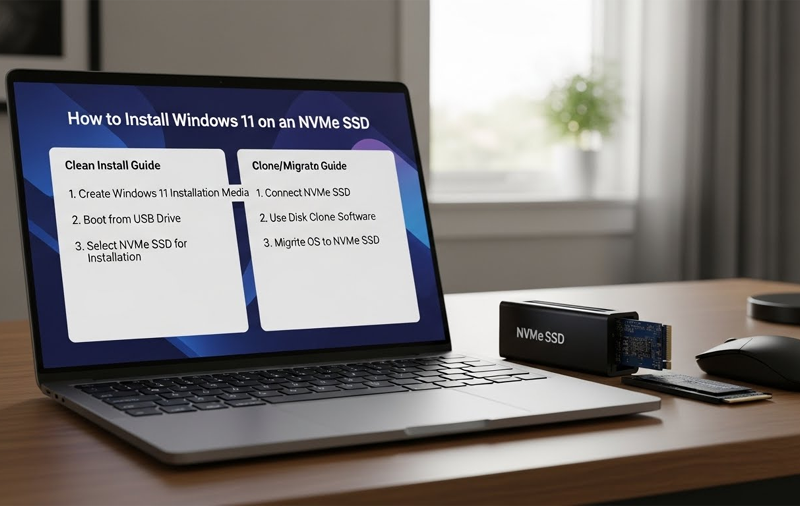
Installing Windows 11 on an NVMe SSD brings much faster boot times and snappier app launches — but the process can feel intimidating if you haven’t done it before. This guide walks you through both a clean install Windows 11 on an NVMe SSD and cloning your existing Windows to the NVMe (handy if you want to keep your apps and settings). Follow the checklist, back up your files, and pick the route that suits you.
Microsoft System Builder | Windоws 11 Home | Intended use for new systems | Install on a new PC | Branded by Microsoft
Quick overview — which route to pick?
Clean install — best for stability and long-term reliability. Wipes old drivers and messy settings.
Clone / migrate — quickest way to move your existing system, apps and settings to the NVMe. Works well when your current Windows install is healthy.
Important: back up important files before you start. Anything involving partitions or cloning can result in data loss if a step goes wrong.
Before you begin — checklist & prerequisites
NVMe SSD physically installed (M.2 slot on the motherboard or via an adapter).
Windows 11 system requirements satisfied (TPM 2.0, Secure Boot, 64-bit CPU, 4GB RAM, 64GB disk). If your board labels TPM differently, look for fTPM (AMD) or PTT (Intel).
USB flash drive (8GB+) for Windows installer if doing a clean install.
A second working PC to prepare installation media and download tools.
Backup of documents, photos and any important data.
Optional: vendor NVMe drivers and motherboard/chipset drivers downloaded in advance.
Cloning tool if cloning: Macrium Reflect Free, vendor migration tools (Samsung/Crucial/WD), or similar.
The “One-Command” Setup: How to Debloat Windows 11 & Reclaim RAM (2026 Guide)
Part A — Clean install to NVMe SSD (recommended)
1) Create a bootable Windows 11 USB
Option A: Use Microsoft Media Creation Tool to make the USB.
Option B: Download the Windows 11 ISO and use Rufus. With Rufus choose GPT partition scheme and UEFI (non-CSM) target. This ensures the USB is set up for UEFI installs.
2) Check and prepare UEFI/BIOS settings
Boot into BIOS/UEFI (common keys: F2, Del, F12). Do the following:
Set Boot Mode to UEFI (not Legacy/CSM).
Enable Secure Boot if the board supports it (Windows 11 usually expects this).
Enable TPM (fTPM/PTT) if present.
Confirm the NVMe SSD is visible in storage devices.
If present, set SATA mode to AHCI (for SATA SSDs; NVMe is independent).
Save changes and exit.
3) Install Windows 11
Insert the bootable USB and boot from it.
Choose language and then Install now.
When asked Where do you want to install Windows?, select the NVMe SSD.
If the NVMe has old partitions you don’t need, delete them so Windows can create the EFI, MSR and Windows partitions automatically.
If it’s new, just select it.
Proceed — Windows will copy files, create partitions and restart multiple times. Remove the USB only when prompted.
7 Best Windows Debloaters to Improve Windows Performance
4) Post-install steps (first boot)
Run Windows Update and install the latest drivers (chipset, graphics, NVMe vendor drivers if available).
Verify TRIM is enabled (Windows usually does this by default):
Result 0 means TRIM is enabled. To enable if needed:
Check partition alignment (the installer normally aligns correctly). In PowerShell:
Offsets should be multiples of 1MB.
Update BIOS/UEFI firmware if your board maker recommends it for NVMe compatibility.
Part B — Clone (migrate) existing Windows to NVMe SSD
Cloning copies your current Windows environment to the NVMe. It preserves apps and settings but requires care for boot mode (UEFI/GPT) and partition alignment.
1) Prepare
Backup first.
Download and install Macrium Reflect Free (recommended) or your SSD maker’s migration tool.
Attach NVMe SSD and confirm it appears in Disk Management.
2) Convert to GPT if needed
NVMe typically boots only in UEFI/GPT mode. If your system currently uses MBR/Legacy, convert before or after cloning.
(Ad)

Convert using mbr2gpt (from Windows):
Open an elevated Command Prompt and validate (replace disk number if needed):
mbr2gpt /validate /disk:0 /allowFullOS
Convert:
mbr2gpt /convert /disk:0 /allowFullOS
After conversion, set BIOS to UEFI mode.
If conversion fails or looks risky, consider a clean install after backing up — it’s often simpler.
3) Clone with Macrium Reflect (example)
Open Macrium Reflect → select the source disk (your current Windows disk).
Choose Clone this disk and select the NVMe as destination.
Ensure the destination partitions are mapped and sized correctly. Macrium handles alignment by default.
Start cloning and wait; time depends on how much data is copied.
4) Boot from NVMe
Power off, disconnect or deprioritize the old drive in BIOS, and set the NVMe as primary boot device.
Boot into Windows. If you see a black screen or recovery loop, use your Windows USB to access Repair your computer → Startup Repair or use Macrium rescue media to fix boot entries.
SSK Portable SSD 2TB External Solid State Drives
5) Fix boot issues (if needed)
From a recovery command prompt, you can rebuild boot files:
Or rebuild EFI boot files:
(Where S: is the EFI partition letter in WinPE.)
Common problems & how to handle them
No boot device after cloning: Ensure BIOS is set to UEFI and NVMe is first in boot order. Confirm the drive is GPT and contains an EFI partition.
Windows boots to recovery: Use Windows repair from USB or Macrium rescue environment to restore BCD or EFI entries.
Slow NVMe performance: Install vendor NVMe driver, check NVMe firmware, and confirm the slot is PCIe x4 (some M.2 slots share lanes and can be slower).
TRIM not enabled: Run the
fsutilcommand above to enable TRIM.
How to Easily Move BlueStacks from SSD to HDD (4 Simple Steps)
Post-install optimization checklist
Confirm TRIM enabled.
Install chipset and NVMe drivers from the motherboard/SSD vendor.
Update UEFI/BIOS firmware.
Confirm Windows boot mode is UEFI (Settings → System → About → System type shows “UEFI”).
Set power plan to Balanced (or High performance if needed) in Windows Power Options.
Create a clean system image backup (Macrium Reflect) once everything works.
Recommended tools & downloads
Windows 11 Media Creation Tool — Microsoft
Rufus — creates UEFI/GPT USB installers (ISO to USB)
Macrium Reflect Free — cloning & rescue media
CrystalDiskInfo — NVMe SMART and health checks
Vendor NVMe drivers — Samsung NVMe driver, WD driver, etc.
How to Initialize SSD: 7 Easy Steps to Get Started Fast
Image suggestions (for the post)
Hero: laptop motherboard M.2 slot and NVMe SSD image.
BIOS screenshot showing NVMe in storage list.
Windows Setup partition screen (choose disk).
Macrium Reflect clone mapping screenshot.
PowerShell output example for TRIM status.
Final notes
Installing Windows 11 on an NVMe SSD is one of the most effective upgrades you can make for perceived speed. If you want the cleanest result, do a fresh install. If convenience matters and your current Windows is healthy, cloning is a reasonable option. Either way, back up first and confirm UEFI/TPM settings before you begin.
Now loading...