Click here to buy secure, speedy, and reliable Web hosting, Cloud hosting, Agency hosting, VPS hosting, Website builder, Business email, Reach email marketing at 20% discount from our Gold Partner Hostinger You can also read 12 Top Reasons to Choose Hostinger’s Best Web Hosting
Every guide telling you how to speed up Windows 11 eventually suggests downloading something — a registry cleaner, a debloater script, a third-party optimiser. You don’t need any of them. Windows 11 already has more built-in performance controls than any previous version of Windows. Most are turned off by default or set to prioritise visual polish over actual speed, and changing them takes minutes.
How to speed up Windows 11 without installing anything — 20 fixes using only built-in Windows settings. Covers 24H2 specifically, startup apps, visual effects, RAM usage, and post-update slowness.
This guide covers 20 fixes that work entirely within Windows’ own tools — Task Manager, Settings, Control Panel, Services, and MSConfig. No downloads, no scripts, nothing from a third-party URL. It’s written specifically for Windows 11 24H2, the current version as of 2026. If you’ve tried other guides and their steps don’t match what you see on screen, it’s because they were written for an older release and haven’t been updated. Every navigation path here reflects where the settings actually live in 24H2.
Microsoft System Builder | Windоws 11 Home | Intended use for new systems | Install on a new PC | Branded by Microsoft
Start with the five Tier 1 fixes. They take under 10 minutes combined and produce the most noticeable improvement on the widest range of hardware. If your PC slowed down specifically after a Windows update, jump straight to Fix 6 and Fix 10 — those two address the most common causes of post-update slowness directly.
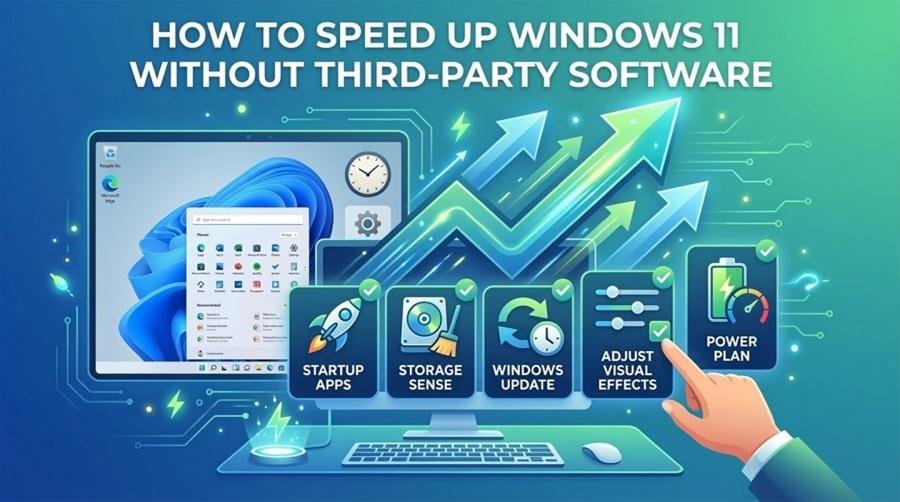
Quick Answer — Fastest 5 Fixes
1. Disable startup apps — Task Manager → Startup apps → disable High impact items
2. Switch Power Mode to Best Performance — Settings → System → Power & Battery
3. Turn off visual effects — search “Adjust the appearance and performance of Windows” → Adjust for best performance
4. Rebuild Search Index — Indexing Options → Advanced → Rebuild (fixes post-24H2 slowness)
5. Enable Hardware-Accelerated GPU Scheduling — Settings → System → Display → Graphics
All five take under 10 minutes combined. Full guide with 15 more fixes below.
Every guide telling you to speed up Windows 11 eventually suggests downloading something — a registry cleaner, a debloater script, an optimiser tool. You don’t need any of them. Windows 11 has more built-in performance controls than any previous version of Windows. Most are off by default or set to prioritise aesthetics over speed.
This guide is written specifically for Windows 11 24H2 — the current version as of 2026. Several settings moved in 24H2 compared to earlier releases. If another guide’s steps don’t match what you see, it was written for an older version.
🔍 Check Your Windows Version First
Press Win + R → type winver → press Enter. You should see Windows 11, Version 24H2. If not, update via Settings → Windows Update before applying these fixes.
Best Antivirus for Windows 11 | How to Choose the Right Protection for Your Computer
TIER 1 — Do These First (Under 2 Minutes Each, Biggest Impact)
The single most impactful fix for slow boot times and background RAM usage. Every app you’ve installed wants to launch at startup. Most don’t need to.
How:
- Right-click the taskbar → Task Manager (or press Ctrl + Shift + Esc)
- Click Startup apps in the left sidebar
- Sort by the Startup impact column
- Right-click each app marked High impact → Disable
Safe to disable: OneDrive, Spotify, Discord, Teams, Slack, game launchers (Steam, Epic, GOG), Zoom, Adobe updaters.
Do NOT disable: Windows Defender, antivirus, audio drivers, graphics drivers.
In Windows 11 24H2, Power Mode moved into the main Settings app. Older guides send you to the wrong place.
How:
- Press Win + I → System → Power & Battery
- Find Power mode under the Power section
- Change from Balanced to Best performance
Windows 11’s animations, transparency effects, and rounded corners consume real CPU and GPU resources — especially noticeable on older hardware and integrated graphics.
How:
- Press Win + S → search “Adjust the appearance and performance of Windows” → open it
- Select Adjust for best performance to disable everything
- Or choose Custom and keep only: Show thumbnails instead of icons + Smooth edges of screen fonts
- Click Apply → OK
How to Completely Remove Copilot from Windows 11 (Registry Fix 2026)
Windows 11 lets apps run in the background even when you’re not using them — updating, syncing, refreshing. Most don’t need to.
How:
- Win + I → Apps → Installed apps
- Click the three dots next to any app → Advanced options
- Under Background apps permissions → change to Never
- Repeat for social apps, news apps, weather apps, OneDrive, and store apps you don’t use daily
HAGS offloads GPU memory management from the CPU to the GPU — reducing CPU overhead and improving responsiveness. Works on NVIDIA GTX 1000+, AMD RX 5000+, and Intel Arc GPUs.
How:
- Win + I → System → Display → Graphics
- Scroll to Default graphics settings
- Toggle Hardware-accelerated GPU scheduling to On
- Restart your PC
TIER 2 — Medium Impact (5–15 Minutes Each)
After installing Windows 11 24H2, many users report broad slowness — sluggish searches, delayed app launches, general lag. The most common cause is the Search Indexer running a full rebuild in the background. This is the first thing to check if your PC slowed down right after a Windows update.
How:
- Press Win + S → search “Indexing Options” → open it
- Click Advanced → Rebuild → OK
- Let it run — progress bar shows remaining work
- Performance returns to normal once the rebuild completes
- Optional: click Modify and remove large media folders to speed up the rebuild
Windows 11 performance degrades when the system drive is over 85% full. Storage Sense handles cleanup of temporary files, old Windows update files, and Recycle Bin contents automatically.
How:
- Win + I → System → Storage
- Toggle Storage Sense to On → click Storage Sense → set to run Every week
- Scroll down to Temporary files → check: Temporary files, Windows Update Cleanup, Delivery Optimization Files, Recycle Bin
- Click Remove files
Windows Update Cleanup alone often frees 3–8GB on a machine that has been updated through multiple versions.
How To Test and Check if Your Windows PC Drivers Are Up To Date?
Task Manager’s Efficiency Mode throttles background apps — lowers their CPU priority and activates Windows’ EcoQoS feature, reducing their footprint without closing them.
How:
- Press Ctrl + Shift + Esc → Processes tab
- Find a background app consuming CPU that you don’t need at full speed (browsers, cloud sync, update services)
- Right-click it → Efficiency mode → Turn on Efficiency mode
A green leaf icon appears next to processes running in Efficiency Mode. Chrome and Edge are good candidates when you’re not actively browsing.
Separate from the visual effects in Fix 3, there are transparency controls in Personalisation settings that need to be turned off independently.
How:
- Win + I → Personalisation → Colours → toggle Transparency effects to Off
- Win + I → Accessibility → Visual effects → toggle Animation effects to Off
The “One-Command” Setup: How to Debloat Windows 11 & Reclaim RAM (2026 Guide)
Fast Startup saves a partial system state at shutdown instead of fully powering off. After Windows updates, this can cause driver conflicts and persistent slowness that doesn’t resolve until you do a proper full shutdown. If your PC has been slow since a Windows update and rebooting doesn’t fix it, this is likely why.
How:
- Press Win + S → search “Control Panel” → open → Power Options
- Click Choose what the power buttons do in the left sidebar
- Click “Change settings that are currently unavailable”
- Uncheck “Turn on fast startup (recommended)”
- Click Save changes
- Do a full Shut down (not restart) once to clear the saved state
Windows 11 runs background telemetry processes to generate tips, app suggestions, and personalised ads in the Start menu and Lock Screen. Disabling these reduces background activity.
How:
- Win + I → System → Notifications → turn off “Offer suggestions on how I can set up my device” and “Get tips and suggestions when using Windows”
- Win + I → Personalisation → Start → turn off “Show recommendations for tips, app promotions, and more”
- Win + I → Personalisation → Lock screen → set Lock screen status to None
Windows lets you tell the CPU scheduler whether to prioritise background services or the foreground program. Most home and office PCs should be on Programs — but the default is sometimes incorrectly set to Background services.
How:
- Press Win + S → search “Adjust the appearance and performance of Windows” → Advanced tab
- Under Processor scheduling → set to Programs (for desktop use, gaming, creative work)
TIER 3 — One-Time Configuration Changes
Outdated drivers are one of the most common causes of Windows 11 slowness after updates. Windows Update installs generic drivers that are often months behind manufacturer releases. Critical after 24H2.
How:
- NVIDIA GPU: nvidia.com/drivers or GeForce Experience
- AMD GPU: amd.com/support or AMD Software: Adrenalin Edition
- Intel GPU: intel.com/support/detect (Intel Driver & Support Assistant)
- Chipset/Storage: Win + X → Device Manager → Storage controllers → right-click each → Update driver → Search automatically
- Check for any yellow warning icons in Device Manager → update those drivers too
How to Install Windows 11 on an NVMe SSD — Clean Install & Clone/Migrate Guide
SysMain preloads frequently used apps into RAM for faster launches. On HDDs this helps. On SSDs — which already have fast access times — it just consumes RAM and adds unnecessary disk writes. If your system drive is an SSD, disabling SysMain is a net positive.
How:
- Press Win + R → type
services.msc→ press Enter - Scroll to SysMain → double-click it
- Change Startup type to Disabled
- Click Stop to stop it immediately → OK
Beyond startup apps, there are background services that run continuously from boot. Many belong to hardware or software you no longer use.
How:
- Press Win + R → type
msconfig→ press Enter - Click the Services tab
- Check “Hide all Microsoft services” — critical, only disable third-party services
- Review the remaining list → uncheck services for software you no longer use
- Click Apply → OK → restart
TRIM keeps SSD performance from degrading over time. Defragmentation helps HDDs. Windows 11 detects the drive type automatically — clicking Optimize is safe on either.
How:
- Press Win + S → search “Defragment and Optimize Drives” → open
- Select your C: drive → click Optimize
- Set Scheduled optimization to Weekly
On systems with 8GB or less RAM, fixing the page file size reduces the overhead of Windows constantly resizing it. Not needed on 16GB+ systems with NVMe SSDs.
How:
- Search “Adjust the appearance and performance of Windows” → Advanced tab → Virtual memory → Change
- Uncheck “Automatically manage paging file size for all drives”
- Select C: drive → Custom size
- Initial size: 1.5× your RAM in MB (8GB RAM = 12,288 MB)
- Maximum size: 3× your RAM in MB (8GB RAM = 24,576 MB)
- Click Set → OK → restart
If Windows is indexing a secondary HDD or slower SSD, the indexer consumes significant I/O and slows everything stored on that drive.
How:
- Open File Explorer → right-click any secondary drive → Properties
- Uncheck “Allow files on this drive to have contents indexed in addition to file properties”
- Click OK → apply to all files and subfolders
How to Easily Move BlueStacks from SSD to HDD (4 Simple Steps)
Enhanced mode indexes your entire PC rather than just common folders, making file searches faster. Worth enabling on NVMe SSDs. Stick to Classic mode on HDDs.
How:
- Win + I → Privacy & Security → Searching Windows
- Under Find my files → select Enhanced
- Under Exclude folders from enhanced search → add large media libraries or external drives
If everything above hasn’t fixed the problem, a clean reinstall is often the fastest path to a genuinely fast PC — especially effective on machines that shipped with manufacturer bloatware. Windows 11 makes this easy without losing personal files.
How:
- Win + I → System → Recovery
- Click Reset this PC
- Choose Keep my files (removes apps, keeps documents)
- Select Cloud download (recommended — fresh copy from Microsoft)
- Follow the prompts — process takes 30–60 minutes
- After completion: reinstall only the apps you actually use
How Much Speed Improvement Should You Expect?
| Hardware | Expected Improvement |
|---|---|
| 4–8GB RAM, HDD, older CPU | Very significant — 40–60% faster boot, much more responsive UI |
| 8GB RAM, SSD, mid-range CPU | Noticeable — 20–30% faster boot, smoother multitasking |
| 16GB+ RAM, NVMe SSD, modern CPU | Modest — 10–15% improvement in specific scenarios |
| After recent 24H2 update | Significant — search indexing rebuild often explains all post-update slowness |
Quick Reference — All 20 Fixes
| Fix | What It Does | Time | Impact |
|---|---|---|---|
| 1. Disable startup apps | Faster boot, less background RAM | 2 min | ⭐⭐⭐⭐⭐ |
| 2. Best Performance power mode | Unlocks full CPU speed | 1 min | ⭐⭐⭐⭐ |
| 3. Turn off visual effects | Faster UI on all hardware | 2 min | ⭐⭐⭐⭐ |
| 4. Disable background app permissions | Reduces idle RAM/CPU use | 3 min | ⭐⭐⭐ |
| 5. Enable HAGS | GPU/CPU efficiency improvement | 1 min | ⭐⭐⭐ |
| 6. Rebuild search index | Fixes post-update slowness | 10 min | ⭐⭐⭐⭐ |
| 7. Storage Sense cleanup | Frees disk space | 5 min | ⭐⭐⭐ |
| 8. Efficiency Mode (Task Manager) | Throttles heavy background apps | 3 min | ⭐⭐⭐ |
| 9. Disable transparency + animations | Reduces UI rendering overhead | 2 min | ⭐⭐⭐ |
| 10. Disable Fast Startup | Fixes update-related slowness | 2 min | ⭐⭐⭐⭐ |
| 11. Disable tips and suggestions | Reduces telemetry background activity | 3 min | ⭐⭐ |
| 12. Processor scheduling | Prioritises foreground apps | 1 min | ⭐⭐ |
| 13. Update GPU + chipset drivers | Fixes driver-caused slowness | 20 min | ⭐⭐⭐⭐ |
| 14. Disable SysMain on SSD | Reduces unnecessary disk writes | 3 min | ⭐⭐⭐ |
| 15. Disable unused services (MSConfig) | Reduces background service load | 10 min | ⭐⭐ |
| 16. Optimise drive (TRIM/Defrag) | SSD health / HDD performance | 5 min | ⭐⭐ |
| 17. Set virtual memory manually | Reduces paging overhead (≤8GB RAM) | 5 min | ⭐⭐ |
| 18. Disable indexing on secondary drives | Reduces I/O on large drives | 2 min | ⭐⭐ |
| 19. Enhanced search mode (NVMe only) | Faster search results | 2 min | ⭐⭐ |
| 20. Clean reinstall Windows 11 | Nuclear option — fresh start | 60 min | ⭐⭐⭐⭐⭐ |
How to Make Windows 11 Look Like Windows 7
Frequently Asked Questions
The Bottom Line
Windows 11 ships with performance-heavy defaults that prioritise appearance over speed. Every fix in this guide works entirely within what Microsoft already built — no third-party tools, no scripts, nothing to download.
Start with the five Tier 1 fixes. They take under 10 minutes combined and deliver the most noticeable improvement on the widest range of hardware. If your PC slowed down specifically after the 24H2 update, Fix 6 (rebuild search index) and Fix 10 (disable Fast Startup) are the two most likely culprits.
Each fix is independent — doing any five of them will produce a measurable improvement on almost any machine.
(Ad)

3 VPNs That Pass All Tests (2025)
- NordVPN: Zero leaks in tests, RAM-only servers, and Threat Protection to block malware.
- Surfshark: Unlimited devices, Camouflage Mode for bypassing VPN blocks, and CleanWeb ad-blocker.
- ExpressVPN: Trusted Server tech (data wiped on reboot) and consistent streaming access.
Now loading...