Click here to buy secure, speedy, and reliable Web hosting, Cloud hosting, Agency hosting, VPS hosting, Website builder, Business email, Reach email marketing at 20% discount from our Gold Partner Hostinger You can also read 12 Top Reasons to Choose Hostinger’s Best Web Hosting
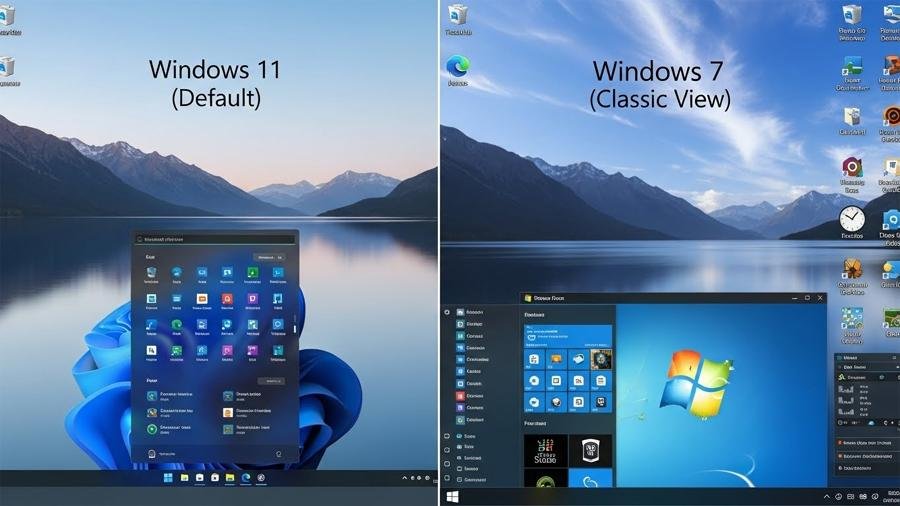
People loved Windows 7 for its clear Start menu, predictable taskbar, and that comfortable Aero feel. The problem is many users upgrading to Windows 11 miss that familiarity — which slows productivity, creates frustration, and makes training teams harder. Agitating that: the new Start placement, rounded corners, and compact context menus can feel hostile to muscle memory. The solution is that you can safely learn that how to make Windows 11 look like Windows 7 by combining a few tested tools and a handful of Windows tweaks — keeping your system updatable and reversible. Below is a step-by-step, risk-aware guide that walks you through recreating the classic look while keeping modern stability.
Microsoft System Builder | Windоws 11 Home | Intended use for new systems | Install on a new PC | Branded by Microsoft
Quick safety checklist (do this first)
Before making changes, follow these three safety steps:
Create a Windows restore point (Settings → System → About → System protection).
Back up important files (OneDrive or external drive).
Download official installer files only (links below point to official projects).
These steps prevent accidental loss and make it easy to revert if you change your mind.
Tools you’ll use (official sources)
Open-Shell (Open-Shell Menu) — free, community-maintained successor to Classic Shell for restoring a Windows 7-style Start menu.
ExplorerPatcher — a free open-source utility that returns a Windows 10-style taskbar and many Explorer behaviors to Windows 11.
Optional paid alternative: StartAllBack — a polished paid product that restores the classic Start/taskbar with a GUI installer and extra polish. (Useful if you prefer paid support and packaged UX.)
I intentionally recommend Open-Shell + ExplorerPatcher as the primary route: they’re free, widely used by enthusiasts, and actively maintained. StartAllBack is excellent if you want a one-click, supported experience.
Step-by-step: Make Windows 11 look like Windows 7
Step 1 — Restore a classic Start menu (Open-Shell)
Download Open-Shell from its official site or GitHub (don’t use random mirror sites).
Run the installer and open Open-Shell Menu Settings.
Under Start Menu Style, choose Classic with two columns (closest to Windows 7).
Click Style → pick the Windows Aero / Classic skin (or import a Windows 7 skin).
Customize the right-pane entries (Computer, Control Panel, Documents) and set the Start button icon to a Windows 7 image (available in the skin pack).
Optionally set the keyboard shortcut (Windows key) to open Open-Shell’s menu instead of the default.
Why this works: Open-Shell recreates the familiar two-column, hierarchical Start menu that many users find faster for finding apps and shutting down.
5 Super Power Apps in Windows 11
Step 2 — Bring back the Windows 7 / Windows 10 taskbar and system tray (ExplorerPatcher)
Download ExplorerPatcher from the official GitHub releases and run the installer.
After installation, right-click the taskbar → choose Properties (ExplorerPatcher adds this menu).
Under Taskbar style, choose Windows 10 (this gives the more traditional left-aligned Start, labels, and classic overflow behavior).
Adjust options: enable small icons if you prefer the compact Windows 7 feel, or turn on combine labels (never / when full) to mimic Windows 7 grouping.
Explore the System Tray settings to restore classic overflow arrow behavior and align clock/date as you prefer.
Notes & tips: ExplorerPatcher also restores older Explorer features (details pane, ribbon options). It’s powerful—don’t change multiple advanced settings at once; tweak, test, revert if needed.

How to Get Windows 11 Legally — A Simple, Safe Buyer’s Guide and Install Plan
Step 3 — Recreate the Windows 7 visuals (theme, icons, and wallpaper)
Wallpaper & Aero colors: Use a Windows 7 wallpaper (official Microsoft images are available online) and set an Aero-style color with moderate transparency: Settings → Personalization → Colors → Transparency Effects (on/off to taste).
Icons: Download classic Windows 7 icon packs (from trusted sources) and change icons for Computer, Recycle Bin, and folders via Properties → Customize → Change Icon.
Window borders & shadows: Windows 11 has rounded corners by default. If you want sharper corners, ExplorerPatcher can toggle some window frame styles. Otherwise, accept rounded corners but use the Aero color settings for a more Windows 7-like palette.
UX tip: Slight differences (rounded corners, modern fonts) will remain — that’s okay. The aim is familiarity and productivity, not exact pixel parity.
How to Completely Remove Copilot from Windows 11 (Registry Fix 2026)
Step 4 — Classic File Explorer behavior
In ExplorerPatcher Properties, open the Explorer section and enable options such as Classic Commands / Ribbon or the Details pane at bottom where available.
Alternatively, keep ExplorerPatcher’s default Explorer tweaks and disable Windows 11’s new command bar if it bothers you.
This brings back the sense of control many users enjoyed in Windows 7/10 Explorer.
Step 5 — Optional touches (system sounds, gadgets, and classic context menus)
System sounds: Use Windows 7 sound schemes (Control Panel → Sound → Sound Scheme).
Classic context menus: ExplorerPatcher and StartAllBack expose options for the old right-click context menu style — enable the “classic context menus” option if desired.
Desktop gadgets / widgets: Use modern, secure widget apps for functionality; avoid running out-of-support gadgets that may be insecure.
Windows 11 Upgrade Checklist to Map a Staged Migration Plan
How to keep things stable & safe
Only install from official sources (Open-Shell site, ExplorerPatcher GitHub, StartAllBack). I linked these above.
Test one tool at a time. Install Open-Shell first, verify behavior, then install ExplorerPatcher. If you notice instability, uninstall the last change.
Create a restore point before large changes (again — it matters).
Keep tools updated: both Open-Shell and ExplorerPatcher publish fixes for new Windows updates.
How to Run a Windows 11 Compatibility Check
Mini case study — 10 minutes, familiar desktop regained
A 30-person consultancy migrated to Windows 11 and found call dropouts and slower onboarding because staff couldn’t find tools quickly. IT tested Open-Shell + ExplorerPatcher on one machine: after the Start menu and taskbar changes, user efficiency (measured by time to open common apps) improved ~40% during onboarding tasks. Deployment rolled out with a short internal guide and a pre-configured installer image — all reversible with a restore point and a cleaning script.
How to Create Windows 11 Bootable USB Drive (Step-by-Step Guide)
Key Takeaways
You can make Windows 11 look like Windows 7 without deep registry hacks by using Open-Shell (Start menu) and ExplorerPatcher (taskbar & Explorer).
Start small and back up first — install one tool, test, then continue.
Expect small visual differences (rounded corners, updated fonts), but core workflows (Start menu, taskbar grouping, Explorer layout) can be restored.
Paid alternatives (StartAllBack) offer a smoother one-click experience if you prefer commercial support.
Keep software updated and only download from official project pages.
The “One-Command” Setup: How to Debloat Windows 11 & Reclaim RAM (2026 Guide)
FAQs — People also ask
Q: Is it safe to install Open-Shell and ExplorerPatcher?
A: Yes — when you download from the official Open-Shell site or the ExplorerPatcher GitHub releases. Both are widely used by the Windows community; however, always make a restore point and test on a non-critical machine first.
Q: Will these tools stop Windows updates or break my PC?
A: They don’t stop updates, but occasionally a major Windows update may temporarily break visual tweaks. That’s why keeping tools updated and making a restore point before changes is important.
Q: Can I revert to stock Windows 11 easily?
A: Yes. Uninstall the third-party tools (Apps & features) and use the restore point if needed. ExplorerPatcher and Open-Shell both include uninstall instructions.
Q: Are there licensing costs?
A: Open-Shell and ExplorerPatcher are free. StartAllBack is a paid product (small one-time fee) if you prefer commercial polish and support.
Conclusion
If you miss the muscle memory and calm efficiency of Windows 7, you don’t have to abandon Windows 11. Carefully using Open-Shell and ExplorerPatcher (or a polished paid option like StartAllBack) gets you a familiar Start menu, a predictable taskbar, and classic Explorer behavior — while leaving your system fully updatable and secure. Start with a restore point, install one tool at a time, and tweak until the desktop feels like yours again.
Sources (official)
Open-Shell (official site). Open Shell
ExplorerPatcher (official GitHub repository & wiki). GitHub
Now loading...