Click here to buy secure, speedy, and reliable Web hosting, Cloud hosting, Agency hosting, VPS hosting, Website builder, Business email, Reach email marketing at 20% discount from our Gold Partner Hostinger You can also read 12 Top Reasons to Choose Hostinger’s Best Web Hosting
Downloading a free app and getting stuck at the Apple ID password prompt is annoying — especially on shared or family devices. Good news: you can turn off the password prompt for free app downloads on your iPhone or iPad. Below I walk you through how to install apps without Apple ID password (iPhone & iPad) for exact settings to change, show how to test it, and explain the security trade-offs so you can make the best choice for your device.
Apple iMac All-in-one Desktop Computer with M1 chip: 8-core CPU, 8-core GPU, 24-inch Retina Display, 8GB RAM, 256GB SSD Storage, Matching Accessories. Works with iPhone/iPad
Works for free apps only. Paid purchases and in-app purchases still require authentication unless you change payment or family settings.
Quick summary — what you’ll do
Change App Store / Password settings that control download authentication.
Use Screen Time → Content & Privacy Restrictions to set “Require Password” to Don’t Require.
In your Apple ID settings, turn off the password requirement for free downloads.
Test by downloading a free app.
Scroll down for the full step-by-step, screenshots suggestions and troubleshooting if you still see the password prompt.
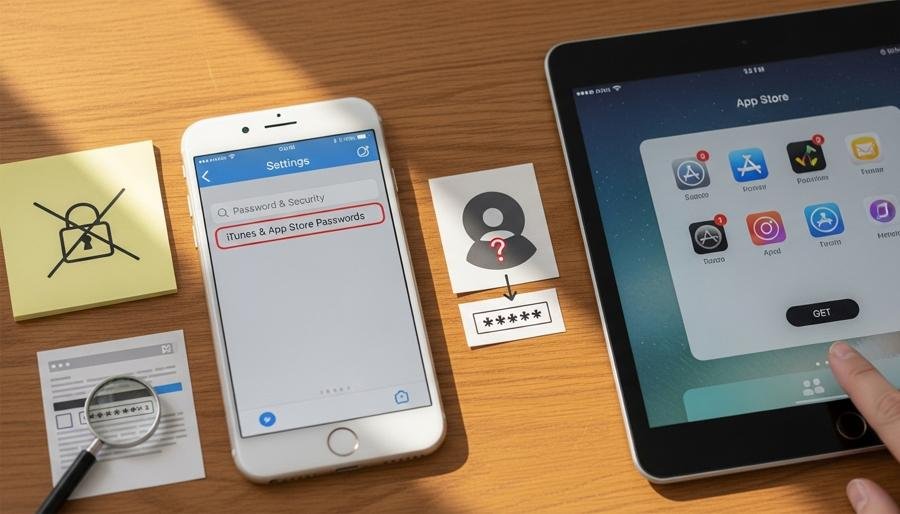
Step-by-step: Allow free app installs without Apple ID password
Note: iOS labels and menu order can vary slightly across iOS versions. If a label looks different on your device, look for the same concepts: App Store / Passwords / Screen Time / Media & Purchases.
1 — Open Settings → App Store
Open Settings on your iPhone or iPad.
Scroll and tap App Store.
(Optional) You may see a few App Store toggles — leave them as you prefer (they control updates, autoplay, ratings, etc.). We’ll focus on password settings next.
2 — Settings → Passwords (AutoFill)
Go back to Settings and tap Passwords (or Passwords & Accounts on older iOS).
If AutoFill Passwords is enabled, you can leave it on or off — it helps with signing into apps/websites automatically. (The transcript recommends turning off AutoFill only if you want that behavior; it doesn’t affect free-download password prompts directly.)
This step is optional — the main password rule is controlled in Screen Time and Apple ID settings below.
3 VPNs That Pass All Tests (2025)
- NordVPN: Zero leaks in tests, RAM-only servers, and Threat Protection to block malware.
- Surfshark: Unlimited devices, Camouflage Mode for bypassing VPN blocks, and CleanWeb ad-blocker.
- ExpressVPN: Trusted Server tech (data wiped on reboot) and consistent streaming access.
3 — Settings → Screen Time → Content & Privacy Restrictions
In Settings, tap Screen Time.
Tap Content & Privacy Restrictions and turn that switch On (if it isn’t already).
Tap iTunes & App Store Purchases.
Tap Require Password (or the similar setting) and select Don’t Require.
This tells iOS you don’t want the system to always prompt for a password for purchases/downloads controlled by those rules.
4 — Settings → [Your Name / Apple ID] → Media & Purchases → Password Settings
Go back to the main Settings screen and tap your Apple ID banner (your name at the top).
Tap Media & Purchases (or Media & Purchases > View Account).
Tap Password Settings.
Under Free Downloads, toggle Require Password Off (so it’s disabled).
Tap Done.
This explicitly disables password prompts for free downloads tied to your Apple ID.
(Ad)

How to Delete YouTube Channel: Permanent & Temporary Methods
5 — Test it in the App Store
Open the App Store and find a free app.
Tap Get / Install.
The app should start downloading immediately without asking for your Apple ID password.
If it still prompts you, follow the Troubleshooting tips below.
How to Install WhatsApp on Your iPad and Unlock Pro Hacks
Important security notes & best practice
Only for free apps. Apple still requires authentication for paid apps and IAP (in-app purchases) unless you change broader purchase authentication settings.
Shared devices & kids: If you share the device (kids or public device), disabling password prompts makes accidental downloads easier. Use Screen Time or a child account to limit app installs instead.
Face ID / Touch ID: You can keep Face/Touch ID active and use them for purchases if you prefer quicker authentication instead of typing a password.
Family Sharing: Family Purchase Approval (Ask to Buy) and parental controls override some of these settings — check family account rules if you manage kids’ devices.
How to Set Up Your MacBook for the First Time: 10 Steps Simple Guide
Troubleshooting — still being asked for the Apple ID password?
If you follow the steps and the App Store still asks for your password, try these fixes:
Restart your device. A reboot applies many settings changes cleanly.
Sign out & sign in: Settings → Apple ID → Sign Out, then sign back in. (Make sure you know your Apple ID and password first.)
Check Screen Time passcode: If you don’t own the Screen Time passcode, some restrictions may remain in effect.
Family Sharing / Ask to Buy: If the Apple ID is a child account and Ask to Buy is enabled, the parent must approve purchases.
Update iOS: Install the latest iOS update (Settings → General → Software Update). UI labels and behavior can change with updates.
Reset settings: As a last resort, Settings → General → Transfer or Reset iPhone → Reset → Reset All Settings (this won’t erase apps/data but restores system settings to defaults). Use with caution.
How to Install Windows 11 on an NVMe SSD — Clean Install & Clone/Migrate Guide
When you should not turn off the password
On a device used by multiple people where accidental paid purchases would be a problem.
For accounts that store payment cards and you don’t want accidental charges.
If you want every app install audited (useful for business or managed devices).
Instead, prefer using Face ID / Touch ID for a secure but fast checkout, or keep password prompts on and only allow trusted people to use the device.
How to Restart MacBook: Complete Guide to Shut Down, Restart & Force Reboot (MacBook Pro)
FAQs
Q: Will this let me buy paid apps without a password?
A: No. These steps only remove the Apple ID password prompt for free downloads. Paid purchases and in-app purchases still require your password (or Face/Touch ID) unless you change other purchase settings.
Q: Can I do this for a child’s Apple ID?
A: If the Apple ID is part of Family Sharing with Ask to Buy enabled, parents still control approvals. You cannot bypass parental approvals that way.
Q: Is it safe to turn off the password for downloads?
A: It’s safe for personal devices under your control. Avoid disabling password prompts on shared or public devices — use Screen Time restrictions or child accounts instead.
Q: My device still asks for a password — what now?
A: Restart the device, ensure the Screen Time & Media & Purchases settings are correctly set, check Family Sharing rules, update iOS, or sign out and back into your Apple ID.
Now loading...