Click here to buy secure, speedy, and reliable Web hosting, Cloud hosting, Agency hosting, VPS hosting, Website builder, Business email, Reach email marketing at 20% discount from our Gold Partner Hostinger You can also read 12 Top Reasons to Choose Hostinger’s Best Web Hosting
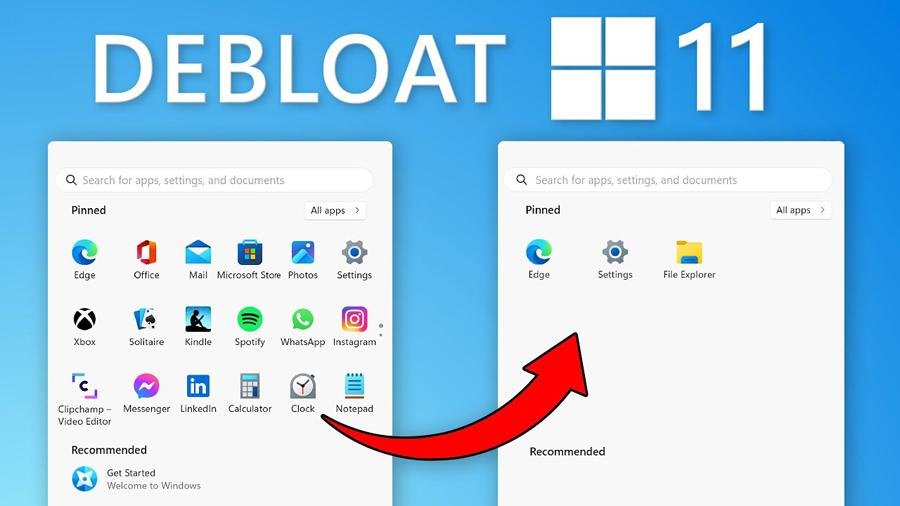
If you’re wondering how to debloat Windows 11 in 2026, you’re not alone. Many users notice slow startup times, high RAM usage, and unwanted apps right after installing Windows 11. The good news is that you don’t need paid software or risky tweaks. With one trusted open-source PowerShell command, you can remove bloatware, reduce background processes, and make Windows 11 feel fast again. Click here to follow us on Youtube.
Microsoft System Builder | Windоws 11 Home | Intended use for new systems | Install on a new PC | Branded by Microsoft
Let’s assume, You just bought a new laptop, or maybe you performed a fresh install of Windows 11 25H2. You expect it to be fast.
Instead, the Start Menu shows ads for Candy Crush and TikTok. Task Manager reports 140 background processes using 4GB of RAM before you open a browser.
In 2026, Windows 11 is powerful, but it ships with telemetry, ads, and preinstalled apps most power users don’t want.
You don’t need to uninstall dozens of apps by hand.
(Ad)

You just need one command.
This guide shows how to use the Chris Titus Tech (CTT) Windows Utility, a trusted open-source PowerShell tool, to clean Windows 11 in minutes.
⚠️ Warning: System Changes Ahead (Read First)
Important: This utility modifies system settings, background services, and registry values.
While it’s widely used and reversible, improper use may affect Windows features, updates, or enterprise policies.Before proceeding:
• Create a system restore point
• Use default profiles unless you know what each toggle does
• Avoid running this on work-managed or domain-joined PCs without approvalHow to Make Windows 11 Look Like Windows 7
Step 0: Create a Restore Point (Required)
Press the Windows key
Type Create a restore point
Click Create
Name it: Before Debloat
Click OK
If something doesn’t feel right later, you can roll back safely.
5 Super Power Apps in Windows 11
Step 1: Launch the One-Command Utility
You’ll pull the tool directly from its official source — no downloads needed.
Right-click the Start button
Choose Terminal (Admin) or PowerShell (Admin)
Paste this command exactly:
Press Enter
After a few seconds, the CTT Windows Utility interface appears.
How to Install Windows 11 on an NVMe SSD — Clean Install & Clone/Migrate Guide
Step 2: Use the Tweaks Tab (Core Cleanup)
Click the Tweaks tab
Choose a preset:
Desktop → desktop PCs
Laptop → keeps battery-related services
Recommended toggles:
Remove AI & Copilot
Disable telemetry
Remove Bing from Start Menu
Click Run Tweaks
You’ll see background services stop, apps removed, and settings applied live.
WinPilot vs WinHance vs Windows 11 Debloater – Which One Should You Use?
Step 3: Install Essential Apps in Bulk
Skip hunting for installers.
Open the Install tab
Select what you need:
Browsers: Chrome, Firefox, Brave
Creative: GIMP, Blender, Inkscape
Dev: VS Code, Notepad++, Python
Utilities: 7-Zip, PowerToys
Click Install Selected
Apps install silently while you do something else.
7 Best Windows Debloaters to Improve Windows Performance
Step 4: Control Windows Updates
Go to the Updates tab
Select Security Updates Only
This keeps security patches while avoiding rushed feature changes.
What Changes After Restart?
Most users notice results right away:
Lower idle RAM usage (often 1.5–2GB less)
Faster Start Menu search
No sponsored apps or menu ads
Fewer background processes
This is how Windows 11 should feel after setup.
How to Get Windows 11 Legally — A Simple, Safe Buyer’s Guide and Install Plan
Frequently Asked Questions about How to Debloat Windows 11
Is this safe for Windows 11 23H2 / 24H2 / 25H2?
Yes. The utility supports current Windows 11 builds. Always use presets unless you know what each toggle does.
Can I undo these changes?
Yes. You can restore using the Windows restore point you created earlier.
Will this break Windows Update?
No, if you keep Security Updates Only selected. Avoid disabling update services manually.
Is this better than paid cleanup software?
For technical users, yes. It’s transparent, script-based, and doesn’t run ads or background services.
Should beginners use this?
Yes — but stick to the default Desktop or Laptop profile.
Now loading...