Click here to buy secure, speedy, and reliable Web hosting, Cloud hosting, Agency hosting, VPS hosting, Website builder, Business email, Reach email marketing at 20% discount from our Gold Partner Hostinger You can also read 12 Top Reasons to Choose Hostinger’s Best Web Hosting
You need to confirm exactly which Python version is running on your machine. A mismatch between the version you think is installed and the version actually active breaks package installs, virtual environments, and CI pipelines — silently, in ways that waste hours. Knowing how to check Python version is a one-command fix that prevents all of that.
This guide covers the exact commands for Windows, macOS, and Linux, explains why python and python3 give different results, shows how to check pip version too, and walks through how to update Python safely when needed.
TinyMCE4 has no code editor plugin at default. This plugin is a code editor plugin called “tinymce4 code editor”, you can use it in your tinymce editor to toggle code quickly and edit code.
Quick Answers
- Check Python version (any platform):
python --versionorpython -V - Check Python 3 specifically (macOS/Linux):
python3 --version - Check Python version on Windows launcher:
py --version - Check from inside Python:
python -c "import sys; print(sys.version)" - Check pip version:
pip --versionorpip3 --version - Current latest stable Python: 3.14.3 (released February 3, 2026)
How to Check If Python Is Installed (and Where)
Before checking the version, confirm Python is actually on your system and on your PATH.
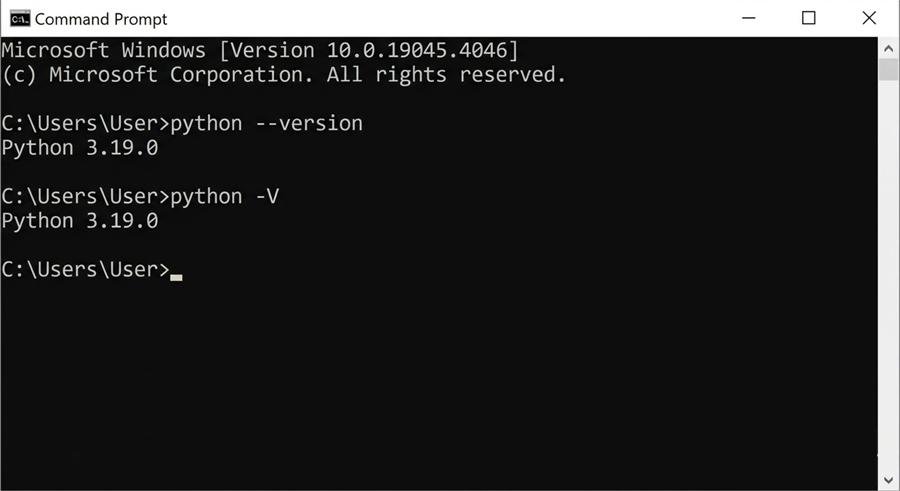
Windows: 1. Open Command Prompt (Win + R → type cmd) or PowerShell. 2. Run: python --version 3. If you see Python 3.x.x — it is installed and on PATH. 4. If you see 'python' is not recognized — Python is not installed or not on PATH. Also try py --version (the Windows launcher). 5. To find where Python is installed: where python
macOS / Linux: 1. Open Terminal. 2. Run: python3 --version 3. If you see Python 3.x.x — installed. 4. If you see command not found — Python 3 is not installed, or was installed via a version manager that is not active. 5. To find the binary location: which python3
(Ad)

Why macOS uses
python3and notpython: macOS no longer ships Python 2 as a system tool. Running barepythonon a fresh macOS machine may returncommand not foundor launch an install prompt. Always usepython3on macOS unless you have explicitly aliased it.
How to Check Python Version on Windows (CMD and PowerShell)
Command Prompt:
python --versionOutput example: Python 3.14.3
python -VSame result — -V is the short form of --version.
PowerShell:
python --versionSame command, same output. PowerShell and CMD use the same PATH entries for Python.
Windows Python Launcher (py):
If you installed Python using the official python.org installer, the Python Launcher for Windows (py.exe) is also available:
py --versionThe launcher is particularly useful when you have multiple Python versions installed. You can target a specific version:
py -3.13 --version
py -3.14 --version
Check where Python is installed:
where pythonThis lists every Python binary on your PATH in order. If you see multiple entries, the first one is the active version — this is the most common cause of version confusion on Windows.
Check Python version in PowerShell (script-friendly):
python -c "import sys; print(sys.version)"Output example: 3.14.3 (tags/v3.14.3:something, Feb 3 2026, ...) [MSC v.1942 64 bit (AMD64)]
This prints the full version string including build details — useful in CI scripts where you need to log the exact build.
How to Check Node Js Version — Simple, Cross-platform Guide
How to Check Python Version on macOS
Standard check:
python3 --versionOutput: Python 3.14.3
Check the full version string:
python3 -c "import sys; print(sys.version)"Find where Python is installed:
which python3Common output paths: – /usr/bin/python3 — system Python (managed by macOS, do not modify) – /usr/local/bin/python3 — Homebrew install – /opt/homebrew/bin/python3 — Homebrew on Apple Silicon (M1/M2/M3/M4) – ~/.pyenv/shims/python3 — pyenv-managed install
If you use Homebrew:
brew list --versions pythonLists every Python version Homebrew has installed.
If you use pyenv:
pyenv versionsLists all installed versions. The active one is marked with *.
pyenv versionPrints only the currently active version.
Apple Silicon note: If you installed Python via Homebrew on an M-series Mac, the binary is at
/opt/homebrew/bin/python3. Ifpython3 --versionreturns an older system version, check that/opt/homebrew/binis before/usr/binin your PATH:echo $PATH
How to Check Python Version on Linux
Debian / Ubuntu / Mint:
python3 --versionRed Hat / Fedora / CentOS:
python3 --versionCheck all Python binaries on PATH:
which -a python3If you have multiple Python versions installed:
ls /usr/bin/python*Output example: /usr/bin/python3 /usr/bin/python3.12 /usr/bin/python3.13
Using update-alternatives (Debian/Ubuntu) to see the active version:
update-alternatives --list python3If you use pyenv on Linux:
pyenv versions
pyenv version
Same as macOS — pyenv versions lists all, pyenv version shows the active one.
Ever Wondered How to Develop a Mobile App? Discover the Step-by-Step Blueprint to Success
Why python and python3 Give Different Results
This is the most common source of confusion — and it trips up beginners and experienced developers alike.
What happens:
On many Linux distributions and older macOS setups, python points to Python 2.7 (or nothing at all), while python3 points to Python 3.x. Running python --version may return Python 2.7.18 while python3 --version returns Python 3.14.3 — two completely different runtimes on the same machine.
On Windows: The python command typically points to the most recently installed Python 3.x version via the Windows Launcher. This is less confusing than macOS/Linux, but if you have both Python 3.12 and 3.14 installed, python --version will show whichever the launcher defaults to.
The safest habit: Always use python3 and pip3 explicitly on macOS and Linux. It removes all ambiguity about which runtime is active. On Windows, use py -3.14 if you need a specific version.
Check both to spot the difference:
python --version    # might show 2.7.x or an older 3.x
python3 --version   # shows your active Python 3 install
How to Check Python Version Inside a Script
Sometimes you need to verify the Python version programmatically — in a script, a CI pipeline, or a requirements check at startup.
Print version string:
import sys
print(sys.version)
# Output: 3.14.3 (tags/v3.14.3:...) [GCC 13.2.0]
Print just the version number:
import sys
print(sys.version_info)
# Output: sys.version_info(major=3, minor=14, micro=3, ...)
Check version meets a minimum requirement:
import sys
if sys.version_info < (3, 12):
    raise RuntimeError("This script requires Python 3.12 or higher.")
One-liner from the terminal:
python3 -c "import sys; print(sys.version_info.major, sys.version_info.minor)"
# Output: 3 14
This is particularly useful in shell scripts and CI config files where you need to branch logic based on the Python version.
How to Easily Set Up VS Code with Cline and Continue.dev (Local AI Models via Ollama)
How to Check pip Version
pip is Python’s package manager. Its version is independent of Python’s version, and it matters for package compatibility.
Check pip version:
pip --versionOutput example: pip 24.3.1 from /usr/lib/python3/dist-packages/pip (python 3.14)
Note the output also tells you which Python installation this pip belongs to — critical when you have multiple Python versions.
On macOS/Linux, use pip3:
pip3 --versionCheck pip associated with a specific Python:
python3 -m pip --versionUsing python3 -m pip instead of bare pip3 guarantees you are running the pip that belongs to that specific Python binary — this is the recommended pattern in scripts and Makefiles.
Update pip to latest:
python3 -m pip install --upgrade pipHow to Check Python Version in VS Code
- Open VS Code.
- Open the integrated terminal:
Ctrl+`(backtick). - Run
python3 --version(macOS/Linux) orpython --version(Windows). - To see which Python interpreter VS Code is using for IntelliSense and the debugger: press
Ctrl+Shift+P→ typePython: Select Interpreter→ the current interpreter shows at the top with its version. - The selected interpreter version also appears in the bottom status bar of VS Code — click it to switch.
If VS Code’s terminal shows a different version than your system terminal, it means VS Code is using a virtual environment or a different interpreter. Check
Python: Select Interpreterand match it to your project’s requirement.
How to Update Python to the Latest Version
Windows:
Option 1 — Official installer (simplest): 1. Go to python.org/downloads 2. Download the latest installer (3.14.3 as of March 2026) 3. Run it and check “Add Python to PATH” 4. Confirm: python --version
Option 2 — Windows Package Manager:
winget upgrade Python.Python.3Option 3 — Chocolatey:
choco upgrade pythonmacOS (Homebrew):
brew upgrade python@3.14Or install a new version alongside the existing one:
brew install python@3.14Linux (Debian/Ubuntu):
sudo apt update && sudo apt upgrade python3For a newer version than what apt provides:
sudo add-apt-repository ppa:deadsnakes/team
sudo apt update
sudo apt install python3.14
All platforms — pyenv (recommended for managing multiple versions):
pyenv install 3.14.3
pyenv global 3.14.3
python3 --version   # confirms 3.14.3
pyenv is the Python equivalent of nvm for Node.js — it lets you install and switch between multiple Python versions without touching the system Python or breaking PATH.
After any update, always confirm:
python3 --version
pip3 --version
How to Check Python Version in a Virtual Environment
Virtual environments have their own Python binary, separate from the system install. Always check the version after activating.
Create and activate a virtual environment:
python3 -m venv myenv
source myenv/bin/activate          # macOS/Linux
myenv\Scripts\activate             # Windows
Check the version inside the activated environment:
python --versionInside an active venv, python always refers to the venv’s Python — no python3 needed. This is one of the reasons virtual environments are recommended: they eliminate the python vs python3 ambiguity entirely.
Check where the venv’s Python binary lives:
which python    # macOS/Linux
where python    # Windows
Mini Case Study — Version Mismatch Breaking a Deployment
Problem: A Django app deployed fine locally but crashed in production with ModuleNotFoundError for a package that was clearly in requirements.txt.
Cause: Local environment had Python 3.13. The production server had Python 3.11 as the system default. A package in requirements.txt had dropped Python 3.11 support in its latest release. pip on the production server installed the latest version — which then failed to import on 3.11.
Fix: 1. Added python --version as the first step in the deployment script. 2. Added python_requires = ">=3.13" to setup.cfg. 3. Pinned the production server to Python 3.13 via pyenv. 4. Added a CI check: python -c "import sys; assert sys.version_info >= (3,13)".
Result: Version is now verified at every stage — local, CI, and production — before any package install or deployment step runs.
How Can You Use VSCode Offline: A Comprehensive Guide
People Also Ask
How do I know which Python version I have? Run python --version (Windows) or python3 --version (macOS/Linux) in your terminal.
Why does python --version show Python 2? On some Linux systems and older macOS setups, python points to Python 2.7. Use python3 --version to check your Python 3 install.
How to check Python version in CMD? Open Command Prompt and run python --version. On Windows with the Python Launcher installed, py --version also works.
How to check Python version on Mac terminal? Open Terminal and run python3 --version.
How do I check Python version without opening terminal? On Windows, search for Python in the Start menu — the installed version appears in the app name. In VS Code, the active interpreter version shows in the bottom status bar.
What is the latest Python version in 2026? Python 3.14.3, released February 3, 2026.
Anthropic Released Cowork — “Claude Code” for the Rest of Us
Key Takeaways
python --versionon Windows,python3 --versionon macOS/Linux — these are the two commands to know.- The Windows Python Launcher (
py --version) is also available if Python was installed via the official installer. pythonandpython3can return different versions — always check which one your script, tool, or virtual environment is using.- Use
python3 -m pip --versionto confirm which pip belongs to which Python when multiple versions are installed. - Use pyenv on macOS/Linux to manage multiple Python versions cleanly — it is the safest way to install and switch versions without touching the system Python.
- Always check
python --versionafter installing, updating, or activating a virtual environment to confirm the active version.
FAQs
Is Python 2 still supported? No. Python 2 reached end-of-life on January 1, 2020. If python --version returns 2.7.x, you should not be using that Python for any active project.
Can I have multiple Python versions installed at the same time? Yes. This is common and normal — pyenv, the Windows Python Launcher, and virtualenv all handle this cleanly. The key is always knowing which version is active in your current session.
Does checking Python version require admin rights? No. python --version is a read-only command that runs with normal user permissions on all platforms.
Why does my IDE show a different Python version than my terminal? Your IDE is configured to use a specific interpreter (often a virtual environment) that differs from your system default. In VS Code, check Python: Select Interpreter.
What is the difference between Python 3.13 and 3.14? Python 3.14 (released October 2025) introduced deferred evaluation of annotations (PEP 649) and a new asyncio introspection CLI. Python 3.13 remains in active bug-fix support until October 2026. Both are safe to use in production — 3.14 for new projects, 3.13 if your dependencies have not yet updated for 3.14.
Conclusion
The fastest way to check your Python version is python --version on Windows or python3 --version on macOS and Linux. If you need the version from inside a script, use sys.version_info. If you manage multiple Python versions, pyenv is the cleanest solution on macOS and Linux — the Windows Python Launcher handles the same job on Windows.
Confirming the version before installing packages, creating virtual environments, or deploying to production is a one-second step that prevents hours of debugging.
Sources: – python.org/downloads — official Python releases – devguide.python.org/versions — Python version support status – endoflife.date/python — end-of-life dates for all versions – docs.python.org — sys.version_info documentation
Now loading...