Click here to buy secure, speedy, and reliable Web hosting, Cloud hosting, Agency hosting, VPS hosting, Website builder, Business email, Reach email marketing at 20% discount from our Gold Partner Hostinger You can also read 12 Top Reasons to Choose Hostinger’s Best Web Hosting
As of November 2025, 0patch is widely considered the standard solution for Windows 10 security. Below is a guide based on their official documentation and current user reports on How to Secure Windows 10 Forever with 0patch.
The date has passed. As of October 14, 2025, Microsoft officially ended support for Windows 10.
If you are still using it, you’ve likely seen the full-screen “Your PC is not secure” warning. Microsoft’s solution is simple: they want you to buy a new PC or pay a subscription for Extended Security Updates (ESU), which starts at around $30 per year and increases annually.
For a design agency or a freelancer, that is an expense. For a student or casual user, it is unnecessary.
3 VPNs That Pass All Tests (2025)
- NordVPN: Zero leaks in tests, RAM-only servers, and Threat Protection to block malware.
- Surfshark: Unlimited devices, Camouflage Mode for bypassing VPN blocks, and CleanWeb ad-blocker.
- ExpressVPN: Trusted Server tech (data wiped on reboot) and consistent streaming access.
Your hardware isn’t broken. Your display is fine. You don’t need to throw away a perfectly good laptop because of a software expiration date.
There is a way to keep Windows 10 secure, for free, using a trusted enterprise tool called 0patch. Here is the step-by-step guide to setting it up in under 10 minutes.
(Ad)

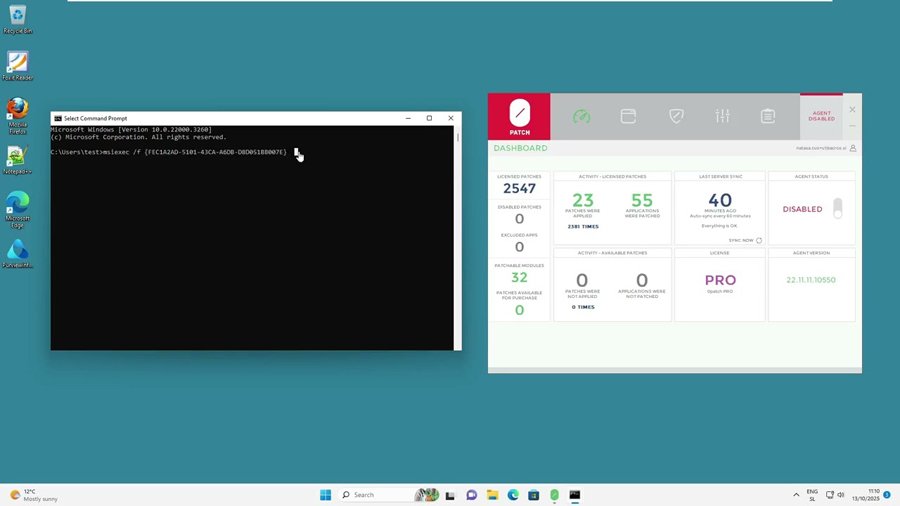
What is 0patch? (And Why It’s Safe)
Most people think a security update means downloading a large file, waiting several minutes, and restarting the computer.
0patch works differently. It uses a technology called micropatching. Instead of replacing big system files, 0patch injects tiny snippets of code directly into memory to fix vulnerabilities while the system is running.
No reboots required
Legitimate and trusted (not a hack or crack)
Backed by ACROS Security, a long-standing cybersecurity vendor
Free plan available for personal use
Microsoft Provides Free Windows 10 Extended Security Updates Europe
Step 1: Prepare Your System
Before installing 0patch, make sure your Windows 10 is fully updated.
Open Settings → Update & Security → Windows Update
Click Check for updates
Install all updates available up to October 2025
When Windows reports “You’re up to date,” you’re ready to install 0patch
Microsoft Releases KB5071546 – What Windows 10 Users Need to Know in 2026
Step 2: Create a Free 0patch Account
Creating an account lets you register the 0patch agent.
Visit the 0patch Central website
Click Sign Up
Create the account without adding a credit card
In the dashboard, check the box for Personal / Educational Use to activate Free Mode
Is Windows 11 Better Than Windows 10? Here’s What You Need to Know
Step 3: Install the 0patch Agent
This step may trigger warnings because the software interacts with protected system areas.
Log in to your 0patch dashboard
Download the agent
Run the installer (MSI file)
If you see “Windows protected your PC” or a SmartScreen alert:
Click More Info
Click Run Anyway
You can test files on multiple scanners, to make sure its cleaniness. The warning may appear because 0patch modifies memory to apply patches in real time.
Finish the installation. It takes less than a minute.
Security Alert: Why Experts Are Urging You to Block AI Browsers Immediately
Step 4: Verify You Are Secure
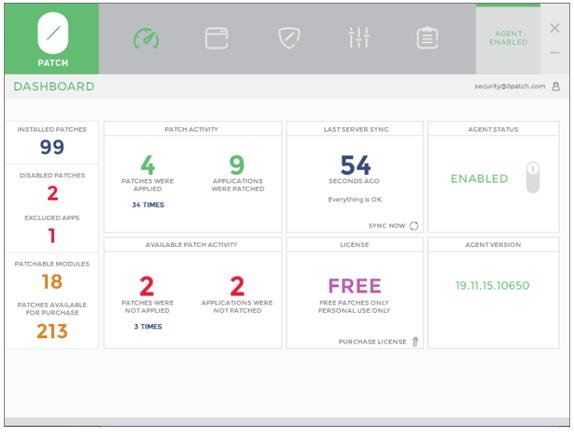
Once installed, you only need to check the agent status.
Look for the 0patch icon in the system tray
A green icon means everything is working
An orange or red icon means you should open the app and click Sync
You can view patched applications in the console. You will likely find patches applied to popular third-party tools such as Zoom, WinRAR, and Adobe Reader.
How to Get Windows 11 Legally — A Simple, Safe Buyer’s Guide and Install Plan
Beyond 0patch: Extra Steps to Harden Windows 10
0patch protects the operating system. These steps help protect your browsing and software environment.
1. Switch to a Hardened Browser
If you are using an outdated Chrome version, switch to Firefox or Zen Browser. Both continue offering modern security updates for Windows 10.
2. Remove Inactive Software
Go to Control Panel → Programs and Features and uninstall unused apps. Look for:
Old Java
QuickTime
Adobe Flash
Old torrent clients
5 Practical Options Before 2025 if Your Windows 10 PC Can’t Run Windows 11
3. Use a Standard User Account
Create a Standard (non-Admin) account for daily use. Malware cannot install itself easily without admin rights.
Microsoft ESU vs. 0patch
| Feature | Microsoft ESU | 0patch (Free) |
|---|---|---|
| Cost | $30–$61 per year | Free |
| Updates | Requires restart | No restart needed |
| Coverage | Windows OS only | Windows + third-party apps |
| Support Duration | Ends 2028 | Ongoing (5+ years commitment) |
How to Save a Windows 10 PC
Final Thoughts: Is It Safe?
For freelancers, students, designers, and everyday users, yes.
Windows 10 (22H2) combined with 0patch and a strong browser like Firefox or Zen creates a security setup that is often stronger than a default Windows 11 installation.
Don’t let an end-of-life warning pressure you into buying a new laptop. Use 0patch, protect your system, and keep your hardware running for years.
Have you tested 0patch on your device?
Now loading...