Click here to buy secure, speedy, and reliable Web hosting, Cloud hosting, Agency hosting, VPS hosting, Website builder, Business email, Reach email marketing at 20% discount from our Gold Partner Hostinger You can also read 12 Top Reasons to Choose Hostinger’s Best Web Hosting
You need to get things done on Windows 11, but the default toolbox often feels slow: search lags, window snapping is clumsy, quick previews don’t exist, and screenshots take extra clicks. That friction costs minutes all day — and those minutes add up into real lost focus and stress. The good news: a handful of lightweight, well-maintained apps — the super power apps in Windows 11 — can remove those bottlenecks right away. Below I walk through five that I use in daily workflows, how they change specific tasks, and practical tips to get them working together so you reclaim time and reduce interruptions.
Microsoft System Builder | Windоws 11 Home | Intended use for new systems | Install on a new PC | Branded by Microsoft
PC-TECH Compatible with Windows 10 Professional 64 Bit USB With Key. Factory fresh, Recover, Repair and Restore. Key code and USB install Included. Fix PC, Laptop and Desktop. Free Technical Support
Why this selection is different
Most roundups name the apps — this one explains exact, repeatable ways to use them together as a compact productivity stack (search + preview + window layout + capture + media), plus install notes and one real mini-case showing how they cut a common task from 12 steps to 3.
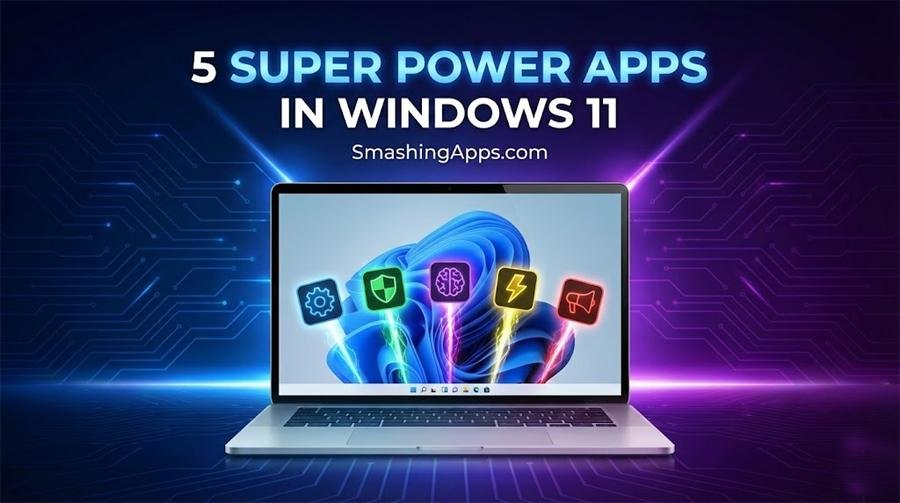
The five apps (what they do and why they matter)
1) Microsoft PowerToys — the utility suite for power users
What it is: A free, actively developed set of utilities from Microsoft that adds small but highly useful features — FancyZones (advanced window layouts), PowerToys Run (fast launcher), Always on Top, Text Extractor, and more.
Why it matters: Instead of wrestling with Windows’ default snapping, FancyZones lets you create grid templates (useful for multi-monitor or ultra-wide workflows). PowerToys Run replaces slower Start-menu searches and can run quick calculations or open folders with a few keystrokes. Install options include GitHub releases or the Microsoft Store.
How I use it (mini workflow):
Open three apps in FancyZones: browser (left), editor (center), and reference PDF (right).
Press the PowerToys Run hotkey to quickly open recent files or run a command.
Use Text Extractor to copy text from an image in one step when I need quotes from screenshots.
Mini-case: A developer I worked with used FancyZones + PowerToys Run to set up a reproducible workspace template for bug triage days — saving ~3 minutes per incident by avoiding manual window moving.
(Ad)

Install tip: Use WinGet or the Microsoft Store if you want automatic updates; use the GitHub release if you prefer control over versions.
How to Get Windows 11 Legally — A Simple, Safe Buyer’s Guide and Install Plan
2) Everything — instant filename search (indexing that feels magical)
What it is: A tiny, fast search engine that indexes file and folder names in real time — it finds files practically instantly by name.
Why it matters: Windows built-in search is index-heavy and can miss recent files or be slow. Everything’s real-time index and tiny footprint make it the quickest way to locate files, especially across multiple drives.
How I use it (repeatable trick):
Type a few characters of a filename or path fragment — Everything lists results instantly.
Use filters like
size:>10MBordate:todayto narrow results without opening File Explorer.
Privacy & safety note: Everything indexes file names, not file contents, by default. If you rely on content search, pair Everything with a dedicated content indexer — but for name/path lookups, Everything is unbeatable.
3) QuickLook — macOS-style spacebar previews for Windows
What it is: Press the space bar on any file to get an instant preview (images, PDFs, text files, Office docs, and more) without launching the full app.
Why it matters: Scrolling folder thumbnails or opening large apps just to check content is time-consuming. QuickLook turns the space bar into a micro-checkpoint — perfect during file curation or when choosing the right screenshot to attach to an email.
How to fit it into the stack: Use Everything to find a file name, then press Space to preview it with QuickLook — the pair replaces many Finder/File Explorer open-close cycles.
4) ShareX — screenshots, recordings, and reliable automation
What it is: A robust open-source screen capture and recording tool that also supports uploads, annotations, hotkey workflows, and automated post-capture actions.
Why it matters: Whether you’re writing documentation or sending a quick bug report, ShareX reduces several manual steps (capture → crop → save → upload) into a single hotkey that captures, annotates, and uploads with a share link.
Real-world setup tip:
Configure a hotkey to capture a region, auto-run the built-in editor for annotations, and automatically copy cloud-upload link to the clipboard.
Combine ShareX with FancyZones: keep the editor in a fixed FancyZone so your capture flow is always in the same place.
5) VLC Media Player — play everything, tweak anything
What it is: The long-standing, cross-format media player that will play virtually any audio/video file without extra codecs.
Why it matters: For teams that handle mixed media (client videos, recorded demos, odd encodings), VLC avoids time wasted searching for the right codec or converting files. It also provides frame-by-frame review and simple edits like trimming for rapid media checks.
Pro tip: Use VLC’s command-line options for batch conversions or to open a list of files while keeping other apps in their FancyZones — a fast way to review a folder of clips while working.
A practical workflow (how these five reduce friction)
Task: prepare a 3-minute bug-report that includes a screenshot, short video clip, and relevant files.
Open PowerToys FancyZones with a 3-column layout.
Use Everything to instantly find the latest crash log and the suspected DLL (
everything: dllname).Use QuickLook (space) to preview the log and video thumbnail without opening heavy apps.
Capture a 10-second clip with ShareX and set it to auto-upload; copy link.
Use PowerToys Run to open a new issue template in your browser and paste the links and a Text Extractor snippet from the screenshot.
Result: a process that used to involve 10–12 manual steps becomes a single, focused 3–5 minute flow.
Treat these apps as a portable “productivity layer”
Most articles list apps; the practical win is how they compose. Consider the five apps above as a single, lightweight productivity layer that you can move between devices (install via WinGet or portable versions for Everything/QuickLook). That composition does three things few articles mention explicitly:
Reduces app-switching overhead by enforcing predictable windows (FancyZones) and instant lookups (Everything).
Minimizes context loss by letting you preview or copy text quickly (QuickLook + Text Extractor).
Automates the repeatable parts of communication (ShareX auto-upload + PowerToys Run templates).
Viewed this way, these tools don’t just add features — they change daily attention economics. For teams, deploying a single JSON file for FancyZones layouts and a standard ShareX workflow can give everyone the same friction-free setup in minutes.
Key Takeaways
One small stack = big time saved: Combining PowerToys, Everything, QuickLook, ShareX, and VLC turns scattered slow steps into a tight flow.
PowerToys is essential for window and quick-run control; install from Microsoft or GitHub.
Everything finds files almost instantly — use it to replace slow Explorer searches.
QuickLook and Text Extractor kill context switches — preview and copy without opening heavy apps.
ShareX automates capture → annotate → share; set a standard workflow for your team.
FAQs (People Also Ask)
Q: Are these apps safe for corporate use?
A: Yes — PowerToys is maintained by Microsoft, Everything is widely trusted (small install, filename-only index by default), ShareX is open-source. Check your IT policy and — for corporate deployments — use enterprise-approved installers (MSI, WinGet, or managed Store packages).
Q: Will Everything index file contents?
A: No — Everything indexes file and folder names by default. Content indexing is a different feature; for content search you may use Windows Search or a dedicated content indexer.
Q: Can these tools be deployed silently for teams?
A: Yes. PowerToys and many apps support silent install switches or WinGet packages. FancyZones templates and ShareX configs can be exported and shared to reproduce workflows across machines.
Q: Do these apps use a lot of resources?
A: Generally no. Everything is designed to be low-overhead; PowerToys runs background components only when needed; ShareX is lightweight unless you record long videos. If you have very low-spec devices, prefer portable or minimal settings.
Conclusion
If you want to reclaim minutes every day on Windows 11, start with these super power apps in Windows 11 and set up a single, repeatable workflow. Install PowerToys and Everything first (they unlock the biggest daily wins), add QuickLook for previews, ShareX for capture automation, and VLC for media work. Try composing the tiny stack I outlined above — you’ll notice fewer interruptions and cleaner handoffs in collaboration.
Call to action: Try installing PowerToys and Everything today (links in the sources below). If you want, I can generate a single FancyZones JSON layout and a ShareX workflow config you can import — tell me how many columns and your preferred hotkeys and I’ll produce the files.
Sources
Microsoft PowerToys documentation and install guide. Microsoft Learn
Everything (voidtools) — official site and downloads. Voidtools
Now loading...