Contact us for Sponsored Post or to Promote your Services or Products here.
Click here to buy secure, speedy, and reliable Web hosting, Cloud hosting, Agency hosting, VPS hosting, Website builder, Business email, Reach email marketing at 20% discount from our Gold Partner Hostinger. You can also read 12 Top Reasons to Choose Hostinger’s Best Web Hosting.
You need to update your Facebook name — maybe you just got married, want to use a stage or professional name, or corrected a spelling mistake — but the Settings menu feels confusing and sometimes Facebook blocks the change. That frustration gets worse when you find restrictions like “60-day limits,” verification requests, or an error that says your name violates their rules. This guide walks you through exactly how to change your name on Facebook, shows the common reasons changes fail, and gives practical workarounds so you can update your profile cleanly and with minimum hassle.
In this guide, we’ll break down common cybersecurity problems, explain how Malwarebytes Premium can help solve them, and share free alternatives for those on a budget. Let’s get practical.
Quick overview: What the rules are
Facebook allows you to change your name from your account Settings, but it enforces name standards and limits how often you can change it (usually once every 60 days).
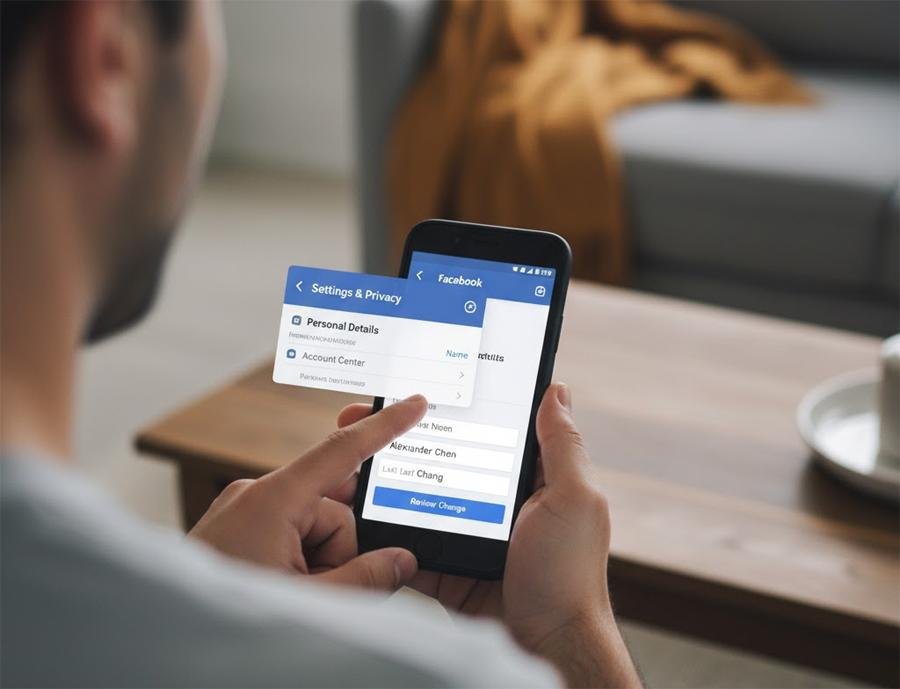
Step-by-step: How to change your name on Facebook (desktop & mobile)
On desktop (facebook.com)
Log in at facebook.com and click your profile picture (top right).
Select Settings & privacy > Settings.
Click Account Center (or Personal and account information) then Name (or Edit next to your name).
Enter your First, Middle (optional), and Last name exactly how you want it to appear.
Click Review Change to preview the display and enter your password to confirm.
Click Save Changes. You’ll be notified if Facebook requires more information.
On mobile (Facebook app)
Tap the menu (three lines) → Settings & privacy → Settings.
Go to Account Center or Personal and account info → Name.
Type the new name, tap Review Change, confirm with your password, and Save.
Tip: If you mainly use Instagram through Account Center, changes may sync across connected Meta accounts — double-check the preview step.
When Facebook may ask you for ID (and how to prepare)
Facebook sometimes requests ID to confirm name changes that look unusual or when multiple recent changes occurred. Acceptable documents include government IDs, passports, or other official documents that show the name you want to use. If Facebook requests ID:
Upload a clear, cropped photo of the document (no extra images).
Make sure the name, document type, and issuing authority are visible.
Blur unrelated numbers if you’re privacy-conscious — but keep the name readable.
Official guidance notes that uploading an ID is optional in some flows but may be required to finalize verification.
Meta AI Layoffs: Why 600 AI Roles Were Cut
Common problems and practical fixes
1. “You can change your name only once every 60 days”
Why it happens: Facebook enforces a 60-day cooldown to avoid impersonation and frequent switching.
Fixes: If the 60-day window blocks you, consider using an alternate field (e.g., Also known as, Nickname, Maiden name) while you wait. If the previous change was accidental, contact Facebook support with clear evidence and the reason for reversal — but expect resolution times to vary.
(Ad)

2. Name flagged for violating standards
Why it happens: Names with unusual punctuation, symbols, excessive capitalization, or explicit content may be blocked. Facebook’s name rules prioritize names that “people use in daily life.”
Fixes: Remove punctuation, avoid titles (e.g., “Dr.” unless it’s legitimately part of your name), and try a more common variant. If you must use a special name (stage name, chosen name), prepare documentation or an explanation via the verification flow.
3. Name change not showing across Meta accounts
If you manage multiple Meta products (Instagram, Messenger, Quest), the change may take time or require changing in Account Center. Check Account Center settings and sync options.
4. Page name vs. personal profile name
Different rules apply — pages (business/brand) have their own request flow and limits. If you’re changing a Page name, go to Page settings → Page info → Name and submit a request; admins must approve in some cases.
A mini case study: Changing your last name after marriage
Scenario: Sarah married and wants to move from “Sarah Malik” to “Sarah Khan-Malik.” She tries to change it immediately, but Facebook warns about the 60-day rule because she had previously made a small edit two weeks before.
What worked: Sarah updated her Other names field to include “Sarah Khan-Malik” (so friends find her), changed her profile display name on connected accounts where possible, and scheduled the formal change after the cooldown. She also uploaded a scanned copy of her marriage certificate when prompted to speed verification. Outcome: change approved after 60 days with no disruption to her connections.
This pattern — use alternate name fields, keep friends informed, and prepare documents — is effective for most life-event name changes.
A new perspective you won’t find in every how-to
Most guides stop at the mechanics. Here’s the part that helps you avoid follow-up headaches:
Think beyond the profile display — name changes affect search discoverability, login recovery, and connected services:
Search & discovery: If people find you by your old name (work contacts, clients, or published articles), add the new name to your Also known as or Nickname fields to maintain searchability.
Third-party logins: If you use Facebook Login for apps or websites, verify that the apps accept your name change and that any developer console entries (for business accounts) are updated.
Legal or employment records: If Facebook is used for professional reputation, consider updating linked platforms (LinkedIn, personal website) simultaneously to avoid confusion.
Privacy tradeoffs: If you use a chosen name to avoid a legal name (e.g., for safety), check Facebook’s policies and consider limited profile sharing or using a pseudonym in non-public ways rather than a full legal swap.
This systems-thinking approach reduces the odds that a simple name change becomes a multi-platform mess.
Key Takeaways
How to change your name on Facebook: Settings & Privacy → Settings → Account Center/Name → Edit → Review Change → Save.
Facebook enforces name standards and often requires verification for unusual changes.
You can generally change your name once every 60 days — use Also known as fields as a short-term workaround.
Page name changes follow a different flow and require Page admin approval.
Plan name changes across other platforms and login systems to avoid confusion.
FAQs (People Also Ask)
Q: How often can I change my name on Facebook?
A: Facebook typically allows a name change once every 60 days. If you hit the limit, use the Also known as or nickname fields until the cooldown ends.
Q: Why does Facebook ask for my ID when I change my name?
A: Facebook may request ID to confirm your identity when a name looks unusual, when multiple changes occurred recently, or when their systems detect potential impersonation risks. Upload clear, valid ID to speed approval.
Q: Can I use a stage name or pseudonym on Facebook?
A: Facebook’s policy favors names people use in daily life. Stage names and pseudonyms can be used in many cases, but you may be asked to verify with supporting documentation. Consider adding the stage name as an Also known as entry to avoid verification delays.
Q: How do I change a Page name versus a personal profile name?
A: Pages use Page settings → Page info → Name and may require a review. Only Page admins can submit these requests, and changes can take longer or be denied if they mislead followers.
Conclusion
Changing your Facebook name is usually straightforward, but rules (like the 60-day limit and name standards) and verification steps can create friction. By following the steps above, preparing documentation if needed, and thinking about how the change affects searchability and connected services, you’ll complete the update smoothly and avoid common pitfalls. Want more help? Check your Account Center settings now and add a nickname or alternate name so friends can still find you while the official change rolls through.
If this helped, subscribe to SmashingApps for more step-by-step guides and privacy tips.
Official resources
Facebook Help — How to change your name on Facebook. Facebook
Facebook Help — Names on Facebook / verification and standards. Facebook

Greetings! I’m An Jay, and I’ve been running SmashingApps.com since 2007. Over the years, I’ve poured my passion into web design, graphic design, and SEO—helping readers discover the best tools, tips, and techniques to make their online projects shine. I believe in keeping things simple, practical, and results‑driven, and I’m excited to share everything I’ve learned with you.