Contact us for Sponsored Post or to Promote your Services or Products here.
Click here to buy secure, speedy, and reliable Web hosting, Cloud hosting, Agency hosting, VPS hosting, Website builder, Business email, Reach email marketing at 20% discount from our Gold Partner Hostinger. You can also read 12 Top Reasons to Choose Hostinger’s Best Web Hosting.
Hard disks are by far the slowest component in your computer. Therefore fragmented disks often become a bottleneck of the system performance. Besides causing slowdowns, fragmentation makes the disk drive heads move too much when reading files which leads to freeze-ups and system crashes. Auslogics Disk Defrag was designed to remedy system sluggishness and crashes caused by disk fragmentation. It will help you get the maximum performance out of your expensive hardware investments. The new version can also consolidate free space and optimize system files placement. Disk Defrag is absolutely free for home users.
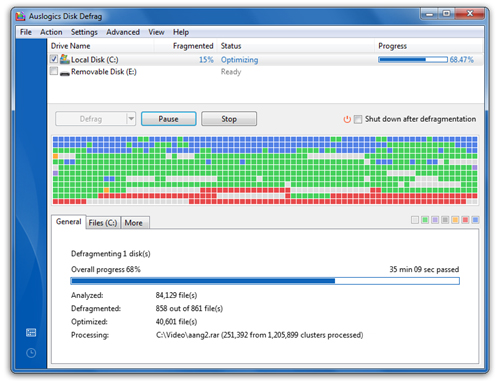
Disk Defrag is not just a defragmenter, but a fully featured disk optimizer. And with all the advanced techniques of disk optimization it has, Disk Defrag 3 remains extremely compact and even easier to use.
You can set Disk Defrag to work automatically in the background while your system is idle. Use a handy auto-defrag icon (in the bottom-left corner) to easily customize and control auto-defragmentation mode. Adjust a suitable CPU and disk usage limit so auto-defrag will not interrupt your work.
You can tune Disk Defrag to work even faster by changing its algorithms settings. Select “remove temporary files” and “skip large fragments” options to speed up defragmentation. Another function you can enable is optimization of system files placement. Use it when running “Defrag & Optimize” mode to boost your hard drive performance.
Newly added features
(Ad)

- Free space consolidation
- System files smart placement
- Keeping the MFT Reserved Zone Clear
- Enhanced user interface
- List of fragmented files
Advanced features
- Auto-defrag mode
- Single file or folder defragmentation
- Scheduled defragmentation
- Multiple Languages

Greetings! I’m An Jay, and I’ve been running SmashingApps.com since 2007. Over the years, I’ve poured my passion into web design, graphic design, and SEO—helping readers discover the best tools, tips, and techniques to make their online projects shine. I believe in keeping things simple, practical, and results‑driven, and I’m excited to share everything I’ve learned with you.